
-as of [8 MAY 2026]-
.
“SYSTEM REQUIREMENTS”
-OFFICIAL LINK-
.
“MAC SYSTEM REQUIREMENTS”
(in effect since ‘october 2020’)
(*as of ‘9 FEBRUARY 2021’*)
.
*PROCESSOR*
*INTEL 6TH GENERATION OR LATER*
(‘7TH GENERATION’ RECOMMENDED)
2.3 GHz quad-core intel core i7
https://everymac.com/systems/by_processor/
(enter the following command in ‘terminal’…)
sysctl machdep.cpu.brand_stringIntel(R) Core(TM) i7-3615QM CPU @ 2.30GHz
(the ‘3’ in ‘i7-3615QM’ means i have a ‘3rd generation intel’)
.
*supports the following ‘macOS X versions‘* –>
(v10.14 or later)
.
*’8 GB’ of ‘RAM’*
(16 GB or more recommended)
(16 GB for ‘HD MEDIA’)
(32 GB for ‘4K MEDIA” or higher)
.
*how to find out how much VRAM is in your macbook GPU* –>
*open ‘system information’*
[shift] + [command] + [n]
(click on ‘graphics/displays’ in left column)
(you will see a list of your ‘video cards’…)
*INTEL HD GRAPHICS 4000*
(built-in)
*NVIDIA GEFORCE GT 650M*
(PCIe)
(the first screen in ‘about this mac’ will show you what ‘graphics processor’ is currently in use)
(as well as its ‘VRAM’ amount)
(i’m using the built-in “intel HD graphics 4000” video card)
(with 1536MB VRAM)
(1.536 GB)
(‘adobe premiere pro’ requires 2 GB VRAM)
(and ‘recommends’ 4 GB VRAM)
.
*8 GB of available hard-disk space for ‘installation’*
*additional free space required during installation’*
(cannot install on a ‘volume’ that uses a ‘case-sensitive file system’ or on ‘removable flash storage devices’)
(additional high-speed drive for ‘media’)
.
(adobe recommends using a fast ‘internal SSD’ for ‘installation’ + ‘cache’)
.
*1280 x 800 display*
(1920 x 1080 or larger recommended)
(go to ‘about this mac’)
(click on 2nd tab “displays”)
(15.4 inches)
.
Sound card compatible with Apple Core Audio
.
*NETWORK STORAGE CONNECTON*
*1 GB ethernet*
(HD only)
10 GB ethernet
(for ‘4K shared network workflow’)
.
.
*optional* –>
(‘adobe-recommended GPU card’)
(for ‘GPU-accelerated performance’)
.
(‘internet connection’ + ‘registration’ are necessary for…)
‘required software activation’
‘validation of subscriptions’
‘access to ‘online services”
.
*NOTICE TO USERS*
*THE FOLLOWING ELEMENTS ARE REQUIRED TO ‘ACTIVATE’ + ‘USE’ THE PROGRAM* –>
‘internet connection’
‘adobe ID‘
and acceptance of license agreement required to activate and use this product.
(this product may integrate with or allow access to certain Adobe or third-party hosted online services)
(adobe services are available only to users 13 + older and require agreement to ‘additional terms of use’ and the ‘adobe privacy policy’)
(applications + services may not be available in all countries or languages and may be subject to change or discontinuation without notice)
(‘additional fees’ or ‘membership charges’ may apply)
.
.
*HARDWARE ACCELERATION*
.
helpx.adobe.com /x-productkb/multi/gpu-acceleration-and-hardware-encoding.html
GPU Accelerated Rendering and Hardware Encoding
9-12 minutes
This article provides insight into Mercury Playback Engine (GPU Accelerated) and Hardware Decoding/Encoding (Intel® Quick Sync) in Adobe Premiere Pro and Adobe Media Encoder.
Adobe Premiere Pro and Adobe Media Encoder can take advantage of available GPUs on your system to distribute the processing load between the CPU and the GPU to get better performance. Currently, most of the processing is done by CPU and GPU assists in processing certain tasks and features.
The Mercury Playback Engine (GPU Accelerated) renderer is used to render GPU accelerated effects and features.
Here is the list of GPU accelerated effects in Adobe Premiere Pro.
To identify the GPU accelerated effects, navigate to the Effects panel and look for the Accelerated Effects icon.
GPU Accelerated effects icon
GPU Accelerated effects icon
Apart from processing these effects, the Mercury Playback Engine (GPU Accelerated) is used for image processing, resizes, color space conversions, recoloring and more.
It is also used for timeline playback/scrubbing and full-screen playback using Mercury Transmit.
Here is the list of recommended graphics card for Adobe Premiere Pro.
It is recommended to have GPUs with 4GB of VRAM but this may vary depending on the type of work you are doing in Adobe Premiere Pro.
A general guideline to VRAM requirements:
1080p – 4GB VRAM
4K – 6GB VRAM
6K or higher – 8GB or higher VRAM
For VR, 6GB of VRAM would be a good starting point. In case you are working with higher resolution stereoscopic frames (like 8K x 8K) you may need more VRAM. While using NVIDIA GPUs, ensure that you have the latest driver installed and it supports CUDA 9.2.
Note:
An important aspect to keep in mind is that purchasing an older graphics card means driver support will end sooner than a newer card.
For Adobe Premiere Pro, go to File > Project Settings > General > Video Rendering and Playback,
set the Renderer to Mercury Playback Engine GPU Acceleration (OpenCL/CUDA/Metal).
Renderer in Premiere Pro
Set Renderer in Adobe Premiere Pro
For Adobe Media Encoder, go to Preferences > General
and set the Renderer to Mercury Playback Engine GPU Acceleration (OpenCL/CUDA/Metal) under the Video Rendering section.
Renderer in Adobe Media Encoder
Set Renderer in Adobe Media Encoder
In Adobe Media Encoder you can also set the Renderer at the lower-right corner of the Queue panel.
If the Mercury Playback Engine GPU Acceleration is not available as an option after updating or reinstalling Adobe Premiere Pro, then perform a clean installation of GPU drivers to solve the issue.
Clean Installation of NVIDIA drivers.
Clean Installation of AMD® drivers.
Adobe Premiere Pro uses a single GPU during playback and multiple GPUs for other tasks such as Render In to Out and for export. CrossFire can be set up to present multiple GPUs as a single logical GPU and for that case, Adobe Premiere Pro treats it as a single GPU.
In case multi-GPU (non-SLI or non-CrossFire) configuration is used, it’s recommended to disable system or driver-based automated GPU/graphics switching functionality.
The Mercury Playback Engine running on the dedicated GPU isn’t used to process everything related to the GPU.
The integrated GPU can be used for specific tasks such as encoding/decoding certain codecs and User Interface (UI) activity which can show up while monitoring the GPU usage.
GPU utilization depends on several factors.
GPU usage while editing or rendering may or may not be maxed out depending on the number of GPU accelerated effects/features used and the GPU’s computational capability.
So, a powerful GPU like NVIDIA RTX 2080 may perform faster than NVIDIA GTX 1060 but it may show a lower usage because it is more powerful and may require lesser percentage of hardware resources to process the same information as compared to NVIDIA GTX 1060 or other mid-range GPUs.
In case a few GPU accelerated effects are used, then the GPU usage may not be high and it might increase when more GPU accelerated effects are used.
This only applies to VR effects. This message shows up when the GPU does not have sufficient VRAM to process the effect.
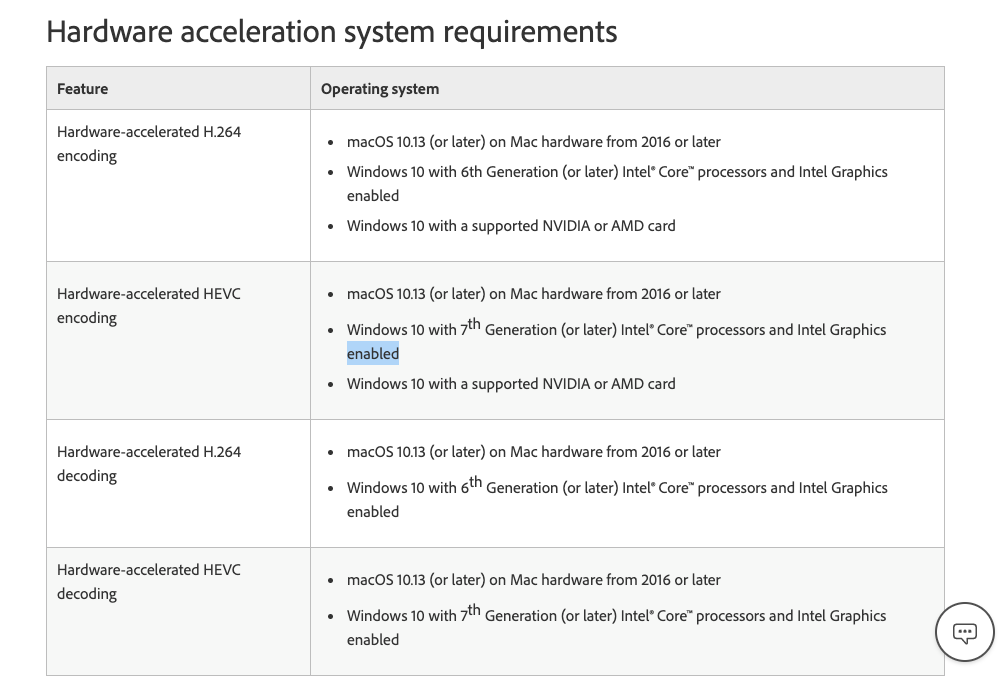
Intel® Quick Sync is a technology by Intel® which utilizes the dedicated media processing capabilities of Intel® Graphics Technology to decode/encode fast, enabling the processor to complete other task and improve performance. Currently, this only supports encoding h.264 and HEVC (h.265) codecs. This feature is only available if an Intel® CPU with Intel® Quick Sync support is used.
Here are the system requirements for Hardware-accelerated encoding.
Enabling/disabling hardware encoding is dependent on the type of Intel® CPU used. If a supported CPU is not used or if Intel® Quick Sync is disabled from BIOS, then the option might be unavailable.
To enable this option, select H.264/HEVC from the Format drop-down under Export Settings. Then under the Video tab, go to Encoding Settings and set the Performance to Hardware Encoding. Setting it to Software Encoding will disable hardware encoding and Adobe Premiere Pro won’t use Intel® Quick Sync to encode the media (this may increase the rendering time).
Enable Hardware Encoding
Enable Hardware Encoding
Note:
While using Hardware Encoding you may see a higher GPU usage on the integrated Intel® GPU and not the dedicated GPU.
Encode: H.264/AVC, HEVC 4:2:0, up to 4096×4096. With 10th-generation and later Intel® Core™ processors, HEVC encode support goes up to 8192×8192.
Decode: H.264/AVC, HEVC 4:2:0, up to 4096×4096 (some 8K HEVC content works on 7th-generation and later Intel® Core™ processors)
For this feature to work, an Intel® CPU with Intel® Quick Sync support is required. Check if your Intel® CPU meets the requirements for Hardware Encoding . If your system’s BIOS supports enabling/disabling the Intel® GPU, ensure that it’s always enabled for hardware encoding to work. Some systems like the Surface Studio may not enable the Intel® GPU which may cause the Hardware Encoding option to be dimmed.
If you have a supported Intel® CPU with Intel® GPU enabled but can’t utilise Hardware Encoding, ensure that the Intel® GPU is listed in the Performance tab of Task Manager (Windows® only). If the Intel® GPU isn’t listed, check if it’s enabled in the Device Manager and update the Intel® graphics drivers to the latest version.
GPU in the Task Manager and the Device Manager
Intel® GPU listed in the Task Manager and the Device Manager
Like Hardware-accelerated Encoding, Adobe Premiere Pro also supports Hardware-accelerated Decoding to provide better playback performance while working with the H.264/AVC, HEVC media in the timeline.
Note:
Adobe Premiere Pro may drop frames while playing back the sequence if intensive effects are added to the clips and the system is unable to process the frames in real-time
Steps to enable Hardware-accelerated Decoding:
Navigate to Preferences > Media
Select Enable hardware accelerated decoding (requires restart)
Restart Adobe Premiere Pro
Enable Hardware Accelerated Decoding
Enable Hardware Accelerated Decoding
Note:
If the option is dimmed in the Preferences panel, it means that either the CPU doesn’t support Intel® Quick Sync or the Integrated GPU is not enabled or the Intel® graphics drivers may need an update.
The feature works with MP4 media specifically H.264/AVC and HEVC codecs.
The M2TS(MPEG-2 Transport Stream) is not supported. If using 4K M2TS media, transcoding it to a supported MP4 codec may help in getting better playback performance as the transcoded MP4 media can take advantage of Hardware-accelerated Decoding (Performance gain might not be substantial if transcoding HD M2TS media).
The processing for Hardware-accelerated Decoding on an Integrated Intel® GPU on systems with 8GB or lesser RAM can be limited and might result in the CPU taking over the processing as the Integrated GPU uses the RAM as shared GPU memory. It’s recommended to have 16GB of RAM or more for better performance.
Mercury Playback Engine (GPU Accelerated) is a renderer used to process GPU-accelerated effects and enhances playback
Hardware-accelerated Encoding is used to accelerate the encoding performance while exporting the timeline in H.264/AVC and HEVC codecs.
Hardware-accelerated Decoding is a process which is used to accelerate decoding H.264/AVC and HEVC media while playing back the timeline.
.
.
*VIRTUAL REALITY*
.
.
.
.
www.trainingconnection.com /premiere-pro/lessons/virtual-reality.php
Virtual Reality in Premiere Pro
10-12 minutes
Adobe Premiere Pro
Understanding Virtual Reality In Adobe Premiere & Beyond
By Kristian Gabriel, Adobe ACI
The world loves watching powerhouse films like Star Trek, Star Wars, Guardians of the Galaxy, Avengers and so many more because, aside from the action, the hi-tech gadgetry and holographic effects are just so mind-blowingly cool.
Understainding virtual reality and Premiere Pro
Most of these things are meant to be future-tech,
however, future-tech is present-tech and a reality when it comes to the revolutionary phenom known as virtual reality.
Imagine being able to see and experience almost anything from a first-person perspective as if you are there.
Afraid of heights?
Let’s say we
walk along the edge of a skyscraper,
hike up Mount Everest
or even skydive
.
Whether you want to party in Rio De Janeiro
or run for your life in a haunted castle,
the possibilities are endless.
.
Virtual Reality artificially and entirely “replaces” the world around you.
Another similar technology known as Augmented or Mixed Reality allows you to see the real-world around you but then augments it selectively with media like graphics and animations tracked in real-time space.
Both technologies are currently blowing up in the biggest way and offer industries like
entertainment,
consumer services,
health technology,
space tech
and so many more new opportunities,
advancing civilization to a whole new level
.
Looking for a career in film?
Why not joining our Premiere Pro Bootcamp class.
5 days of intensive, hands-on training to master this industry-leading video editing tool.
How do you fit in?
We are all consumers and are consuming this technology or will be soon.
Beyond that, those working in some of these industries are also creators.
So many hardware packages, cameras and software applications already exist and Adobe is just one of the forward-thinking companies already fusing this technology into their applications like Premiere and Media Encoder.
This article focuses on running you up to speed on the different devices,
types of VR
and how Adobe currently works with this tech.
Virtual Reality devices
The Virtual Reality Devices Out In Market in 2017
Currently, at the time of writing this article, the big Virtual Reality devices out in the market are:
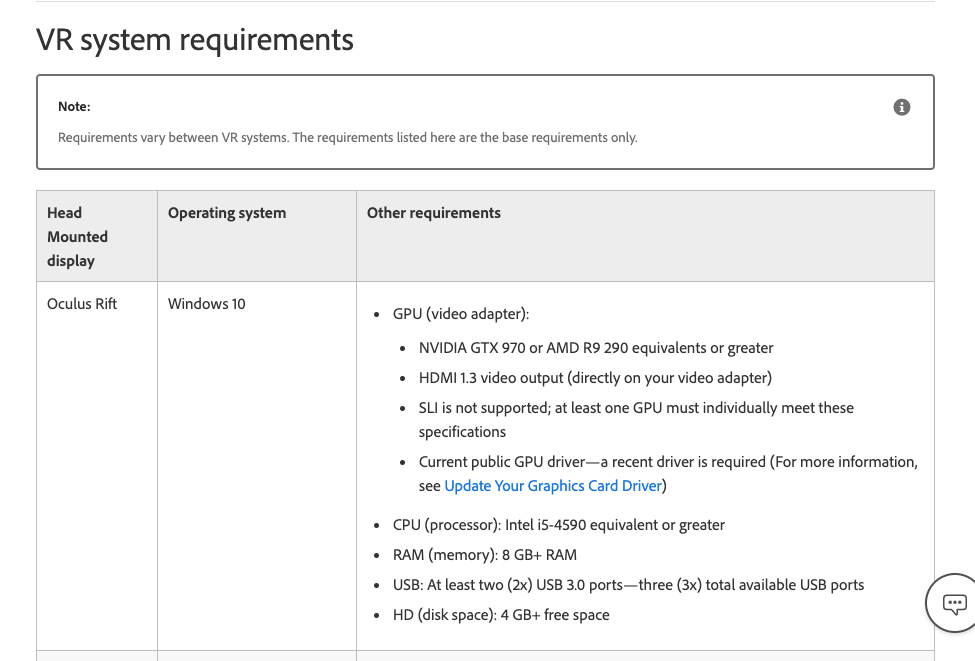
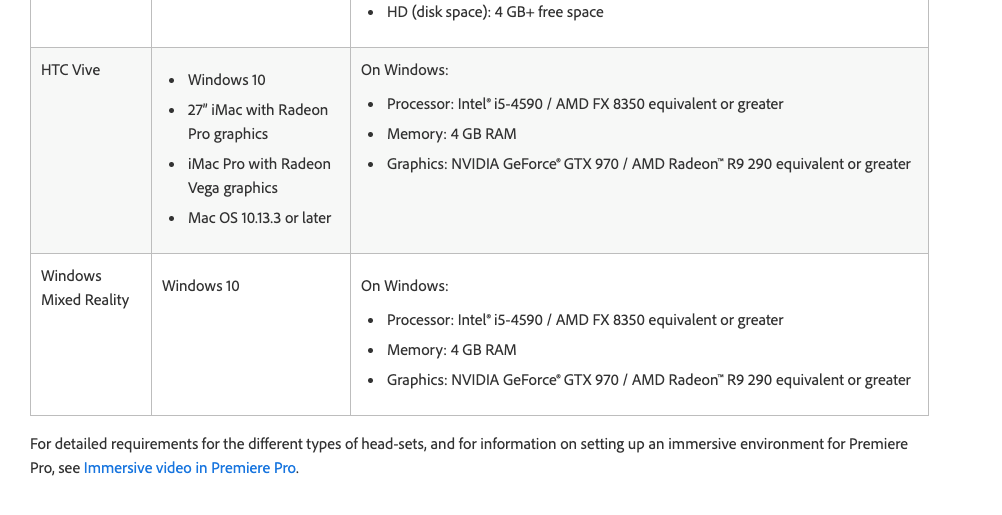
Oculus Rift (Facebook)
Google Cardboard, Google Daydream (Google)
HTC Vive (HTC & Valve)
Razer (FOV: 110°, RES: 2160 x 1200)
Gear VR (Samsung)
PlayStation VR
Microsoft HoloLens (Augmented/Mixed Reality)
There are other devices available today and other, more powerful devices coming soon,
however, these seem to saturate the headlines.
All have their strengths and weakness and vary with regards to
quality,
field of view
and other interactive features.
.
.
GEAR VR PLAYSTATION VR HTC VIVE OCULUS RIFT DAYDREAM
RESOLUTION 2560 x 1440 1920 x 1080 2160 x 1200 2160 x 1200 2560 x 14P-XL) 1920 x 1080 (Pixel)
PER EYE 1280 x 1440 960 x 1080 1080 x 1200 1080 x 1200 1280 x 14P-XL) 960 x 1080 (Pixel)
FIELD OF VIEW 100° 100° 110° 110° 90°
The FOV or Field of View in VR determines the part of the world that is visible through the VR device.
The wider the Field of View, the more realistic the experience,
and if you go wide enough it starts affecting your peripheral vision.
This is the future of VR,
however, many devices do not have a very wide field of view because there is increased chance for ‘motion sickness’ in many individuals.
So, as you can see in the table above, the highest field of view is 110°.
There are devices that are wider but are not as popular.
Another reason for the restricted field of view is simply about reducing the cost of the VR device
Monoscopic footage
.
The Different Types of Virtual Reality
While others do exist, the 2 most popular types of VR footage are:
MONOSCOPIC:
Monoscopic footage is also known as 360-degree footage.
Through the use of specialty cameras or multiple cameras,
Monoscopic is acquired by recording multiple overlapping angles and then “stitching” the different pieces of footage together.
The resulting footage is then stretched spherically like stretching skin around a globe.
Putting your VR glasses on is the equivalent of you sticking your head inside that globe and looking around! Note: Being a Stitching Artist is one occupation that has been created since VR began.
.
STEREOSCOPIC:
Stereoscopic is captured using a two lens system that kind of simulates the way humans see.
The two versions of Stereoscopic VR are Stereoscopic Side-By-Side and Stereoscopic Top/Bottom.
The difference between stereoscopic and monoscopic is that stereoscopic can yield more depth, allowing the VR experience to be even more real by enhancing the fact that certain objects are closer to you and other objects are further away.
stereoscopic footage
Not everything with Stereoscopic is perfection though.
One of the biggest issues with this type of footage is that it is difficult to stitch. Even subtle mistakes can seriously handicap this type of footage. As a result, monoscopic tends to take up the bulk of VR experiences out there.
VR Sequence settings
Working with Adobe Premiere and Virtual Reality
Working with Premiere and VR is quite easy. Most of the time, Premiere should recognize your VR footage automatically on import. To use the VR controls, you need to make sure that your Program Monitor is enabled for VR. To do this, click on the “little wrench” in your monitor settings for your Program Monitor and then go to VR VIDEO > ENABLE. Once you have enabled this, you now need to configure the VR settings to match whatever VR device you are editing for. To do this, go back to your Program Monitor settings and go to VR VIDEO > SETTINGS.
VR Video Settings
If you are using Monoscopic VR footage, the Stereoscopic View will be grayed out as above. If you are using Stereoscopic VR footage you will be given the choice to choose Side-By-Side or Top/Bottom variations. The remaining values control the FOV or Field of View for the device you are editing for. You want to find the Horizontal and Vertical FOV for your device so you as an editor can see exactly what your audience will see when they put on their VR goggles. Once this is finished, you would edit as normal, keeping in mind that the viewer will be able to look around in full 360° 3D space. To see what your audience sees, just left-click in your Program Monitor and drag the view around to see in 3D space.
Troubleshooting VR Guide in Premiere
If for some reason, your footage is not recognized and everything seems to be grayed out, here is your plan of attack:
STEP 01 –
Find out if your footage is either Monoscopic or Stereoscopic (if Stereoscopic, which kind?)
STEP 02 – Make sure your footage is “interpreted” as VR footage by selecting one or more pieces of VR footage in your Project Panel, then go to CLIP > MODIFY > INTERPRET VIDEO. Go to the bottom of the Interpret Dialogue menu to VR Properties and click on CONFORM TO. So often, Premiere will properly select either Monoscopic or Stereoscopic, but then is unable to define anything else. If your VR footage is Monoscopic, the Projection type is generally EQUIRECTANGULAR. Under Layout, choose the proper VR footage you have and your video clips are ready to go!
STEP 03 – If you are still unable to Enable your Program Monitor for VR viewing, your Sequence may not be ready for VR. To modify this, go to SEQUENCE > SEQUENCE SETTINGS and go to the bottom of the dialogue pop-up and change your VR Properties to match your VR clip settings.
Other Adobe Applications & Virtual Reality
Adobe Media Encoder and After Effects can also work with virtual reality. In order for your videos to be read as VR Video when you output from Premiere or re-encode VR footage, they must be “tagged” properly. To do this in Media Encoder, go to your Video Settings Tab and make sure to click on VIDEO IS VR. This turns on the VR tagging feature. You then just select the type of VR footage you are transcoding and all proper tags will be encoded. These tags will allow other software and social media networks like YouTube to recognize the outputs as VR video.
There are many things we can do to prep footage for VR in After Effects – though popular 3rd party plugins such as Mettle/Skybox or Dashwood Cinema Solutions 360 VR Toolbox are more popular and give you advanced control to convert video footage and your animations to VR.
The world is getting exciting with all this technology and Adobe is moving very quickly to embrace it.
VR is still a new feature across Adobe applications so expect even more features in the future
.
All images created and composited by Kristian Gabriel using…
Adobe Stock,
Techsmith Snag-It
Adobe Photoshop
.
*VERSION 13.1.4*
(BUILD 2)
“MAGICIAN”
.
*AS OF ’13 JANUARY 2021′* –>
(V14.8)
*APPLICABLE FROM ‘OCTOBER 2020’ ON*
(which is when V14.5 was released)
.
*LISTS REQUIREMENTS FOR* –>
‘WINDOWS’
‘MAC’
‘VR’
.
‘HARDWARE ACCELERATION’
.
.
*AVAILABLE LANGUAGES*
.
*DISPLAY*
(‘1280 x 800’ is minimum display dimensions required to edit in ‘adobe premiere pro’)
(‘1920 x 1080’ or higher is ‘recommended’)
(my ‘15.4 inch macbook’ is ‘1440 x 900’)
(meaning i am operating below ‘recommended’ settings)
(‘intel HD graphics 4000 1536 MB graphics’)
.
-as of [8 MAY 2026]-
.
.
*👨🔬🕵️♀️🙇♀️*SKETCHES*🙇♂️👩🔬🕵️♂️*
.
.
👈👈👈☜*-[PREMIERE PRO] 101-* ☞ 👉👉👉
.
.
💕💝💖💓🖤💙🖤💙🖤💙🖤❤️💚💛🧡❣️💞💔💘❣️🧡💛💚❤️🖤💜🖤💙🖤💙🖤💗💖💝💘
.
.
🔥🔥🔥🔥🔥🔥*we won the war* 🔥🔥🔥🔥🔥🔥