-as of [23 SEPTEMBER 2026]-
.
-DOWNLOAD [INSTAGRAM STORIES]-
.
*TRIFECTA* —>
-SOLO AKUSTIKA-
-[SOUNDCLOUD] / [STOP MOTION]-
-BRAINSTORMS-
.
-INSTAGRAM STORIES-
(REMOVED AFTER 24 HOURS)
(UNLESS YOU SAVE IT IN A “HIGHLIGHT”)
.
-X VIDEOS-
.
-KEEP YOUR VIDEOS [59.5 SECONDS] IN LENGTH-
(TO ENSURE NO FRAMES ARE DROPPED WHEN UPLOADED)
.
-CREATE A “SOCIAL MEDIA” TEMPLATE PP PROJECT-
.
-INSTAGRAM LIVE-
-YOUTUBE LIVE-
-TWITCH-
.
-[480] x [852]-
-USED TO BE [15 SECONDS]-
-NOW [60 SECONDS]-
“SET TO FRAME SIZE”
.
-YOU CAN DIVIDE LONGER VIDEOS INTO SHORTER CLIPS-
.
- 250 px below the top
- 300 px above the bottom
- 70 px from each side
-LOG IN TO “META BUSINESS SUITE” WITH [INSTAGRAM ACCOUNT]-
-META BUSINESS SUITE-
.
| OBS setting | Value |
|---|---|
| Base canvas | 720 × 1280 |
| Output resolution | 720 × 1280 |
| Frame rate | 30 |
| Encoder | H.264 hardware |
| Rate control | CBR |
| Video bitrate | 4,500 kbps |
| Keyframe interval | 2 seconds |
| Audio | AAC stereo |
| Audio sample rate | 44.1 kHz |
| Audio bitrate | 160–256 kbps |
.
1
-DUMP [SOURCE VIDEO] INTO “GOOGLE DRIVE FOR DESKTOP”–
.
*open ‘finder search window’* –>
-[COMMAND] + [OPTION] + [SPACE BAR]-
.
*close all ‘finder windows’* –>
-[COMMAND] + [OPTION] + [w]-
.
*open ‘finder search window’ again* –>
-[COMMAND] + [OPTION] + [SPACE BAR]-
.
*move ‘window’ to ‘left half’ of screen* –>
(via ‘spectacle’)
-[COMMAND] + [OPTION] + [LEFT ARROW]-
.
*open new [finder window]* –>
-[COMMAND] + [n]-
.
*move [window] to [right half] of screen* –>
(via “spectacle”)
-[COMMAND] + [OPTION] + [RIGHT ARROW]-
.
-DRAG FOLDERS FROM “GOOGLE PHOTOS DUMP” (GOOGLE DRIVE) TO YOUR COMPUTER-
.
*local destination* –>
-SOLO AKUSTIKA-
.
*file-path* –>

.
-OPEN [PREMIERE PRO]–
.
*CREATE NEW [PROJECT]* –>
-[COMMAND] + [OPTION] + [n]-
.
*CLICK INTO ‘PROJECT PANEL’* –>
*CREATE NEW ‘SEQUENCE’* –>
[COMMAND] + [n]
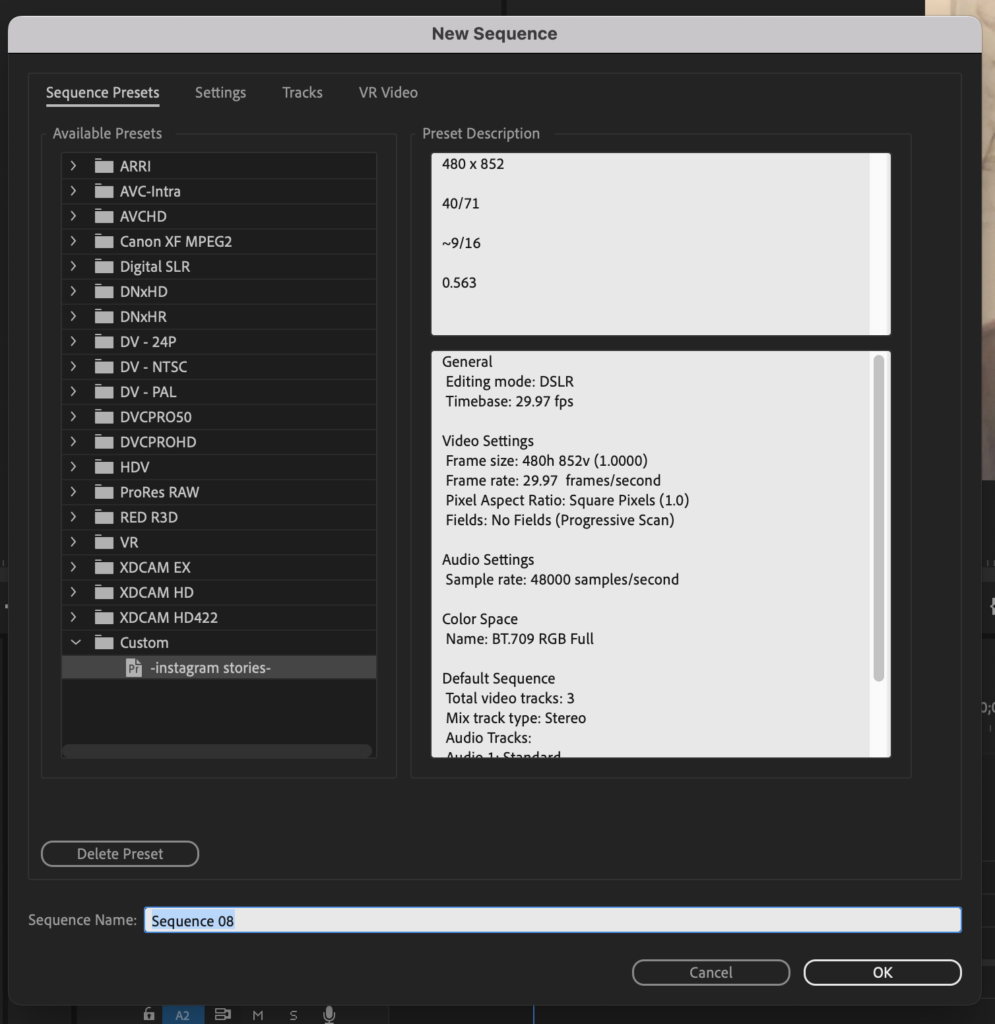
.
*4 TABS*
*SEQUENCE PRE-SETS*
*SETTINGS*
*TRACKS*
*VR VIDEO*
.
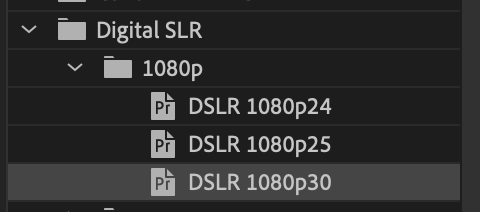
*TAB 1*
“SEQUENCE PRE-SETS”
*CHOOSE THE ‘DEFAULT’ PRE-SET* –>
*TAB 2*
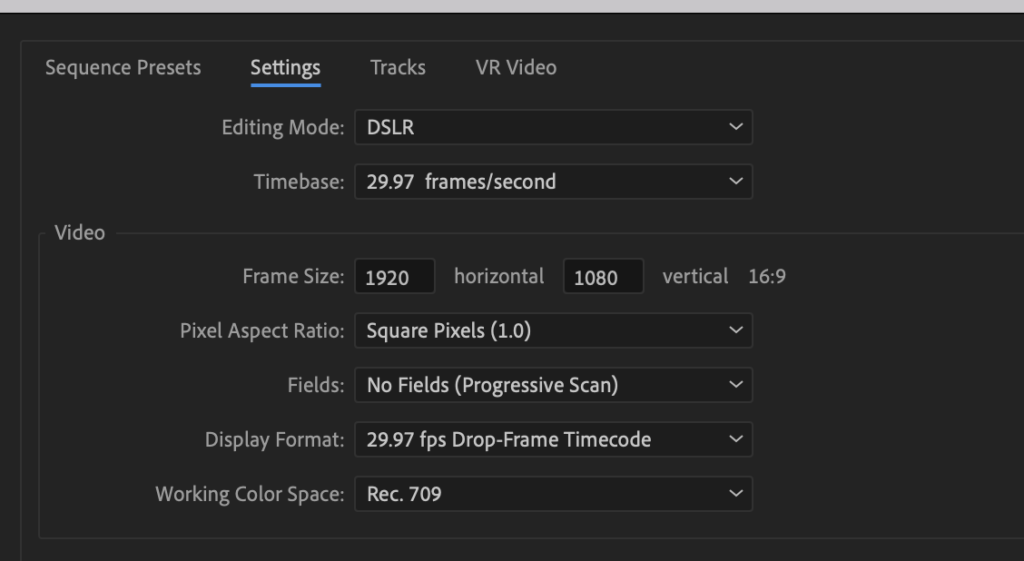
“SETTINGS”
.
*change ‘frame size’ to ‘480 x 852’* –>
(close to the 9:16 IG story frame size)
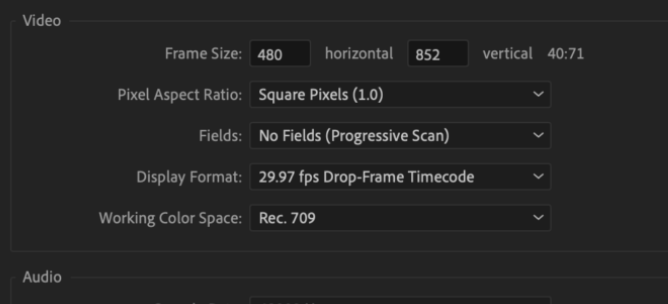
*BOTTOM LEFT CORNER* –>
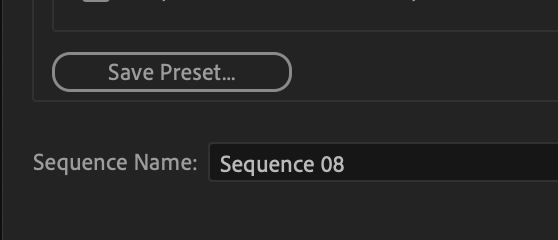
*name your sequence “instagram stories”*
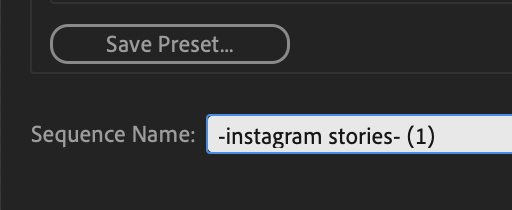
*CLICK ‘SAVE PRESET BUTTON’* –>
*NAVIGATE BACK TO ‘SEQUENCE SETTINGS TAB’ (1)*
*IN LEFT COLUMN, SCROLL DOWN TO ‘CUSTOM’* –>
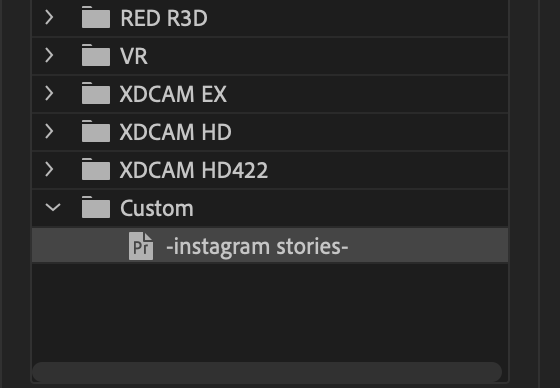
*when you select your new ‘instagram stories’ pre-set, it will display settings to the right*
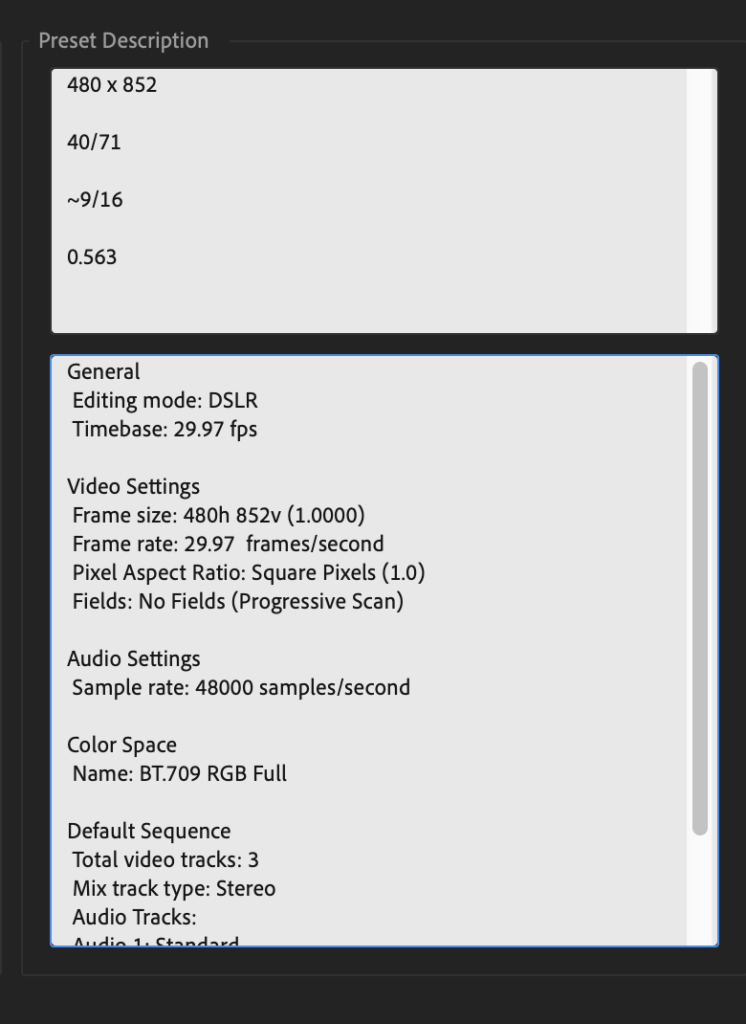
*you can type custom notes to yourself in the top ‘project description’ box*
*RESOLUTION* –>
480 x 852
40/71
~9/16
0.563
*the bottom box displays other spex*
*create a new sequence with your new ‘custom sequence pre-set’*
*go to ‘import tab’ + import your ‘source file’ into the new sequence*
*drag your ‘imported video’ from the ‘project panel’ to your new ‘timeline panel’*
(which should be blank)
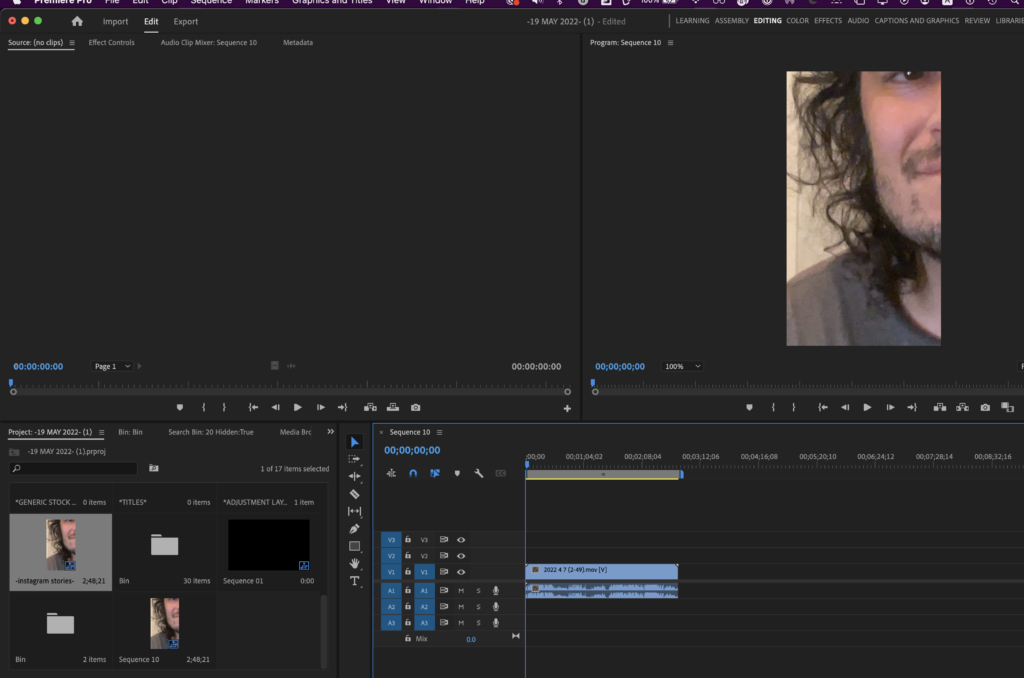
*since this video has a ‘horizontal resolution’, it will appear ‘zoomed in’ when adding to a sequence with a ‘vertical resolution’ setting*
.
-SET TO FRAME SIZE* VS *SCALE TO FRAME SIZE-
(they make look the same)
(but ‘scale to frame size’ will re-sample the video)
(‘set to frame size’ will not re-sample the video)
“SET TO FRAME SIZE”
(higher quality)
(higher CPU requirements)
*if you want to ALWAYS ‘set frame size’ when importing ‘media’ with a resolution different from your sequence…*
*open ‘preferences’* –>
[COMMAND] + [ , ]
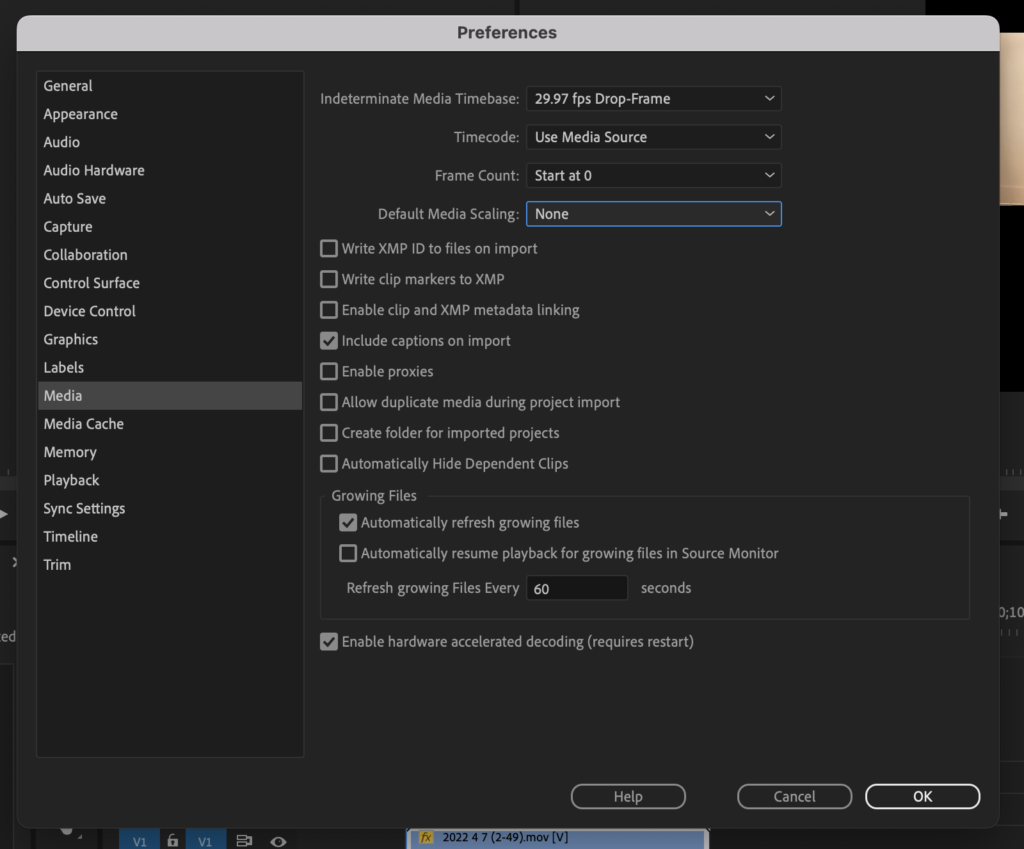
*in ‘left column’, choose ‘media’* –>
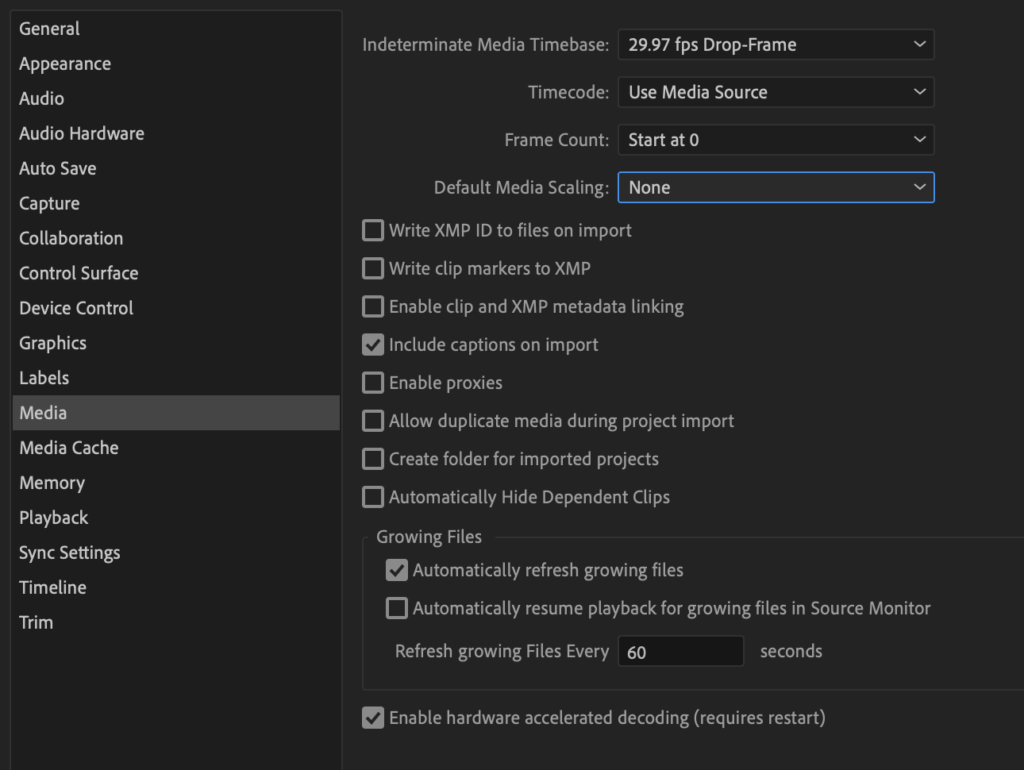
*click on ‘default media scaling’ dropdown* –>
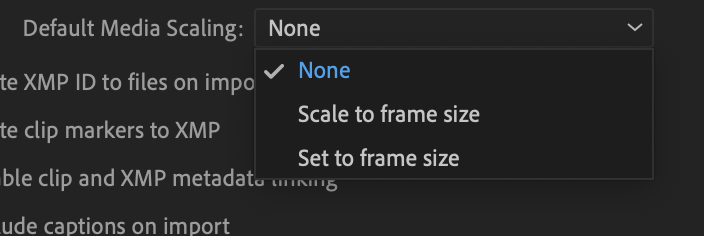
(default is ‘none’)
(set to ‘set to frame size’)
*click ‘OK’ in ‘bottom right corner’*
*now your frame should look like this* –>
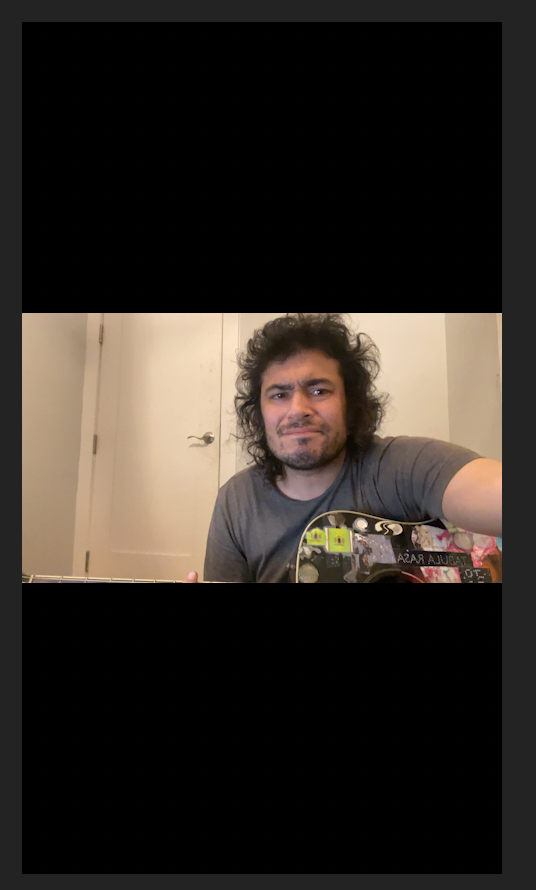
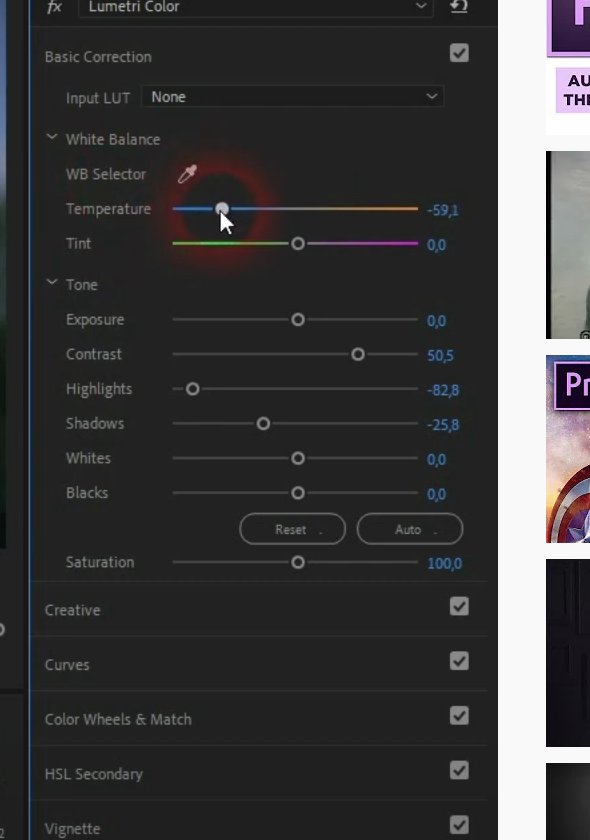
.
*go to ‘timeline’ + select your sequence* –>
[SHIFT] + [3]
.
*go to ‘program monitor’ + choose ‘starting point’* –>
[SHIFT] + [4]
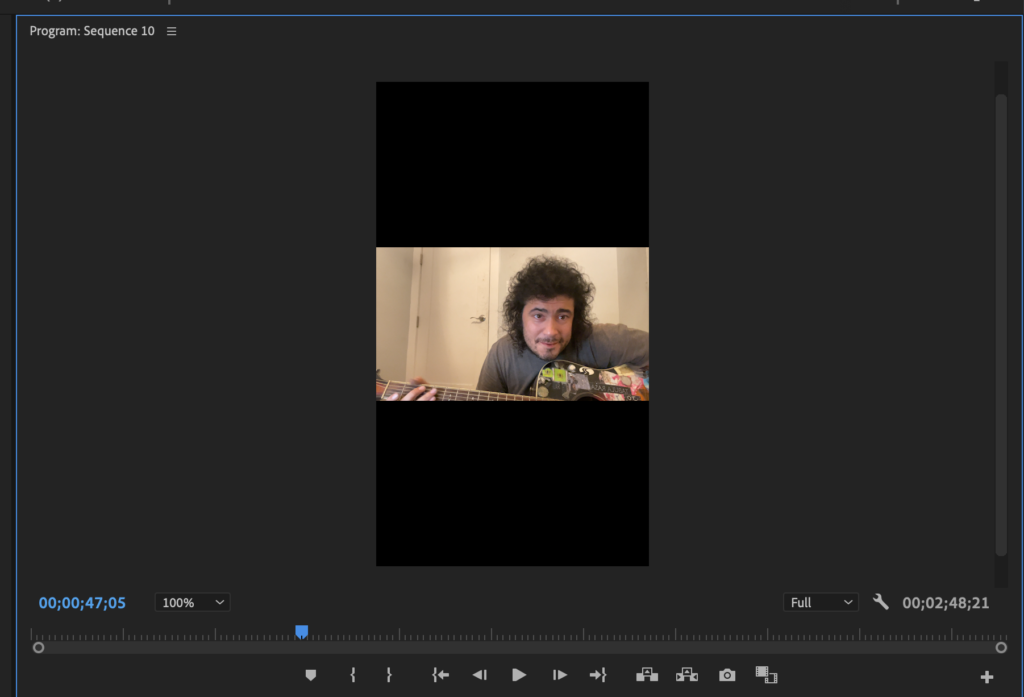
*mark ‘in point’ by pressing ‘i key’ where you want video to start*
*go to ‘timeline panel’ + press [COMMAND] + [k] to split clip*
*click on the ‘left clip split’*
*to ‘ripple delete’* –>
[OPTION] + [DELETE]
*drag your ‘work area bar’ to the ’15 second mark’*
*split the clip at the ’15 second mark’*
*click + delete the ‘right clip split*
*add ‘fade in/out’ of selected clip* –>
[SHIFT] + [d]
*to export* –>
[COMMAND] + [m]
*MODUS OPERANDI*
(turn on iphone)
(open ‘google photos app’)
(click ‘center bottom’ search button)
(select your ‘face’)
(scroll at random to pick a video)
(hit ‘star’)
(if it already has a ‘star mark’, then begin ‘randomizer’ again)
(if it doesn’t have ‘star mark’, then give it one)
(before you click into the ‘video stream’, note the date)
(insert date into ‘josephjgatti google photos’ WP entry)
(then jot down the running time in the entry)
(then save the video to your device)
(then listen through headphones to listen and make editing decisions)
*divide ‘stories’ into 15-second clips*
(you can upload video clips up to ‘1 minute’ long)
(which will be divided into 4 15-second clips)
(open iMovie iOS app)
.
.
.
*👨🔬🕵️♀️🙇♀️*SKETCHES*🙇♂️👩🔬🕵️♂️*
.
.
👈👈👈☜*“INSTAGRAM STORIES”* ☞ 👉👉👉
.
.
💕💝💖💓🖤💙🖤💙🖤💙🖤❤️💚💛🧡❣️💞💔💘❣️🧡💛💚❤️🖤💜🖤💙🖤💙🖤💗💖💝💘
.
.
*🌈✨ *TABLE OF CONTENTS* ✨🌷*
.
.
🔥🔥🔥🔥🔥🔥*we won the war* 🔥🔥🔥🔥🔥🔥