
-as of [1 AUGUST 2026]-
.
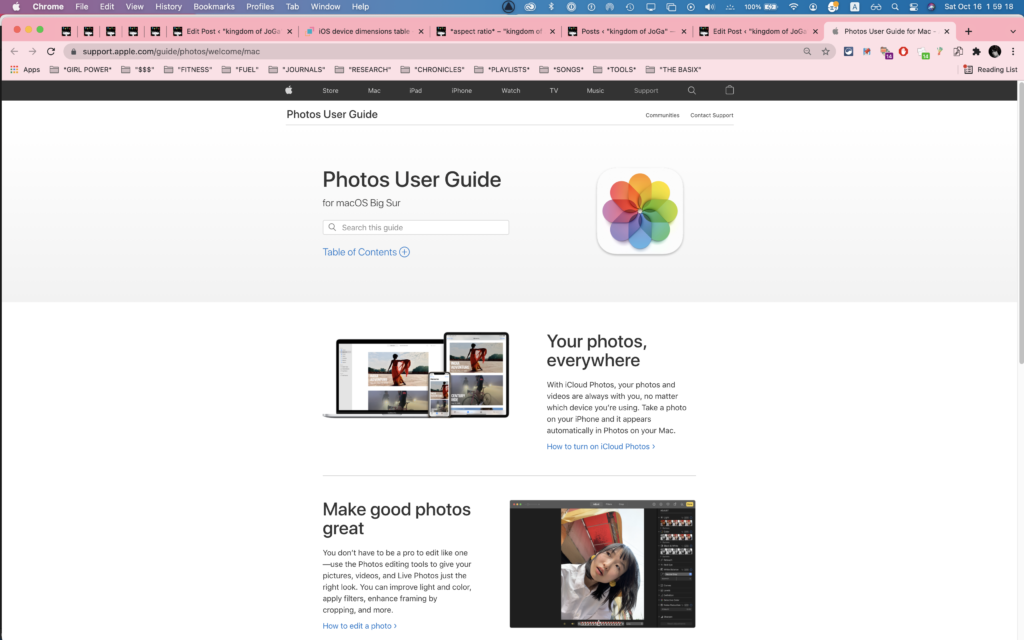
-USER GUIDE-
(OFFICIAL LINK)
.
.
.
.
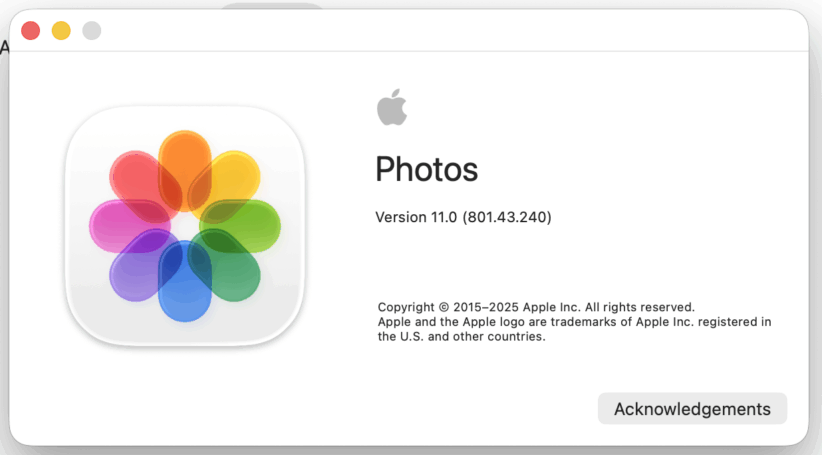
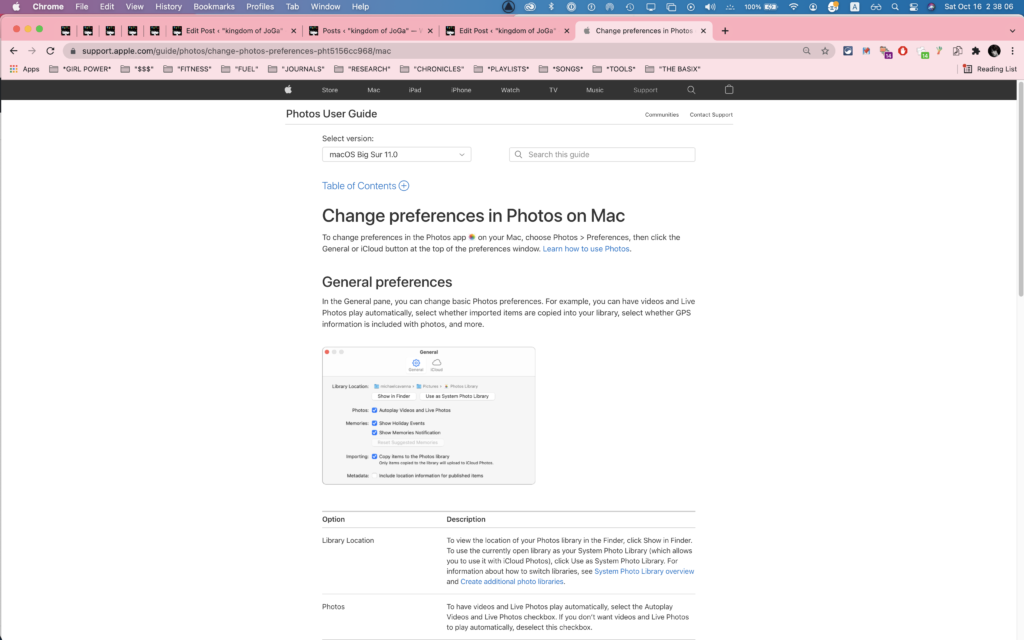
*ABOUT [PHOTOS]* —>
.
*AS OF [16 OCTOBER 2025]* —>
-VERSION 11.0 (801.43.240)-
.
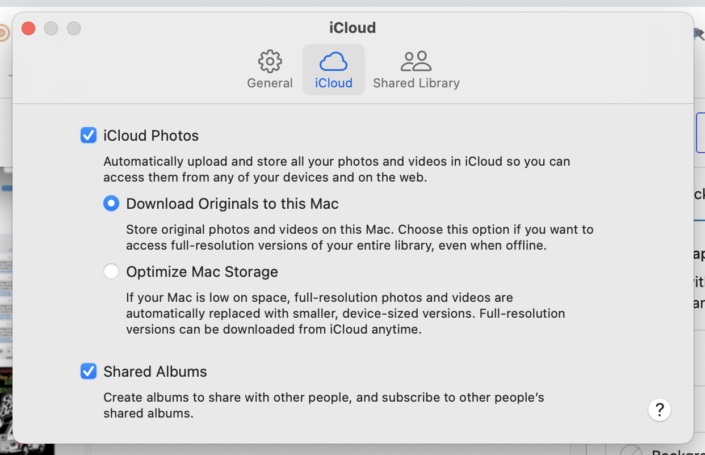
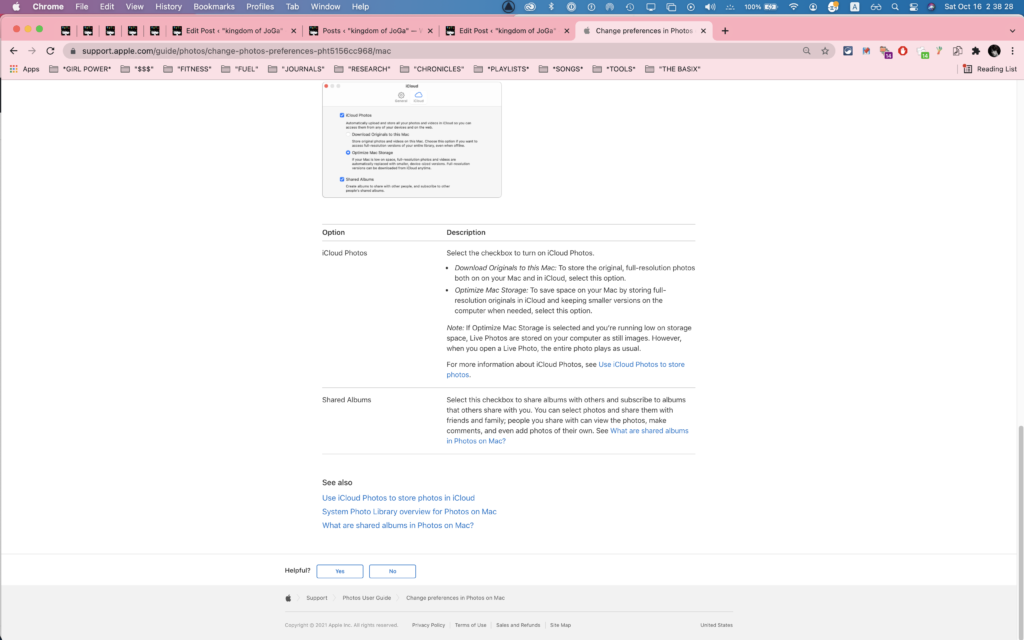
*OPEN [SETTINGS]* —>
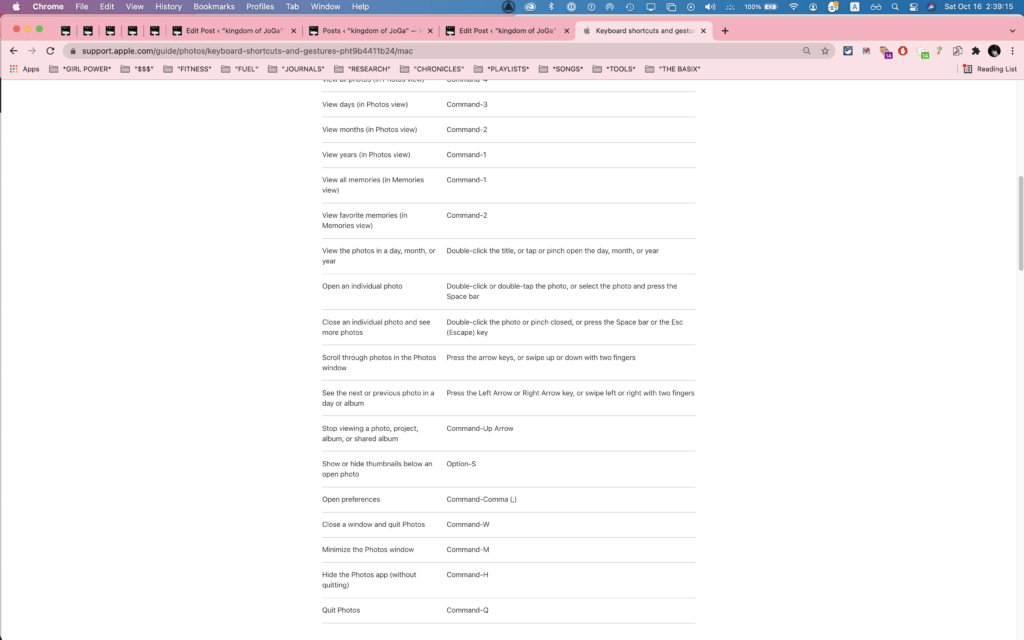
[COMMAND] + [ , ]
.
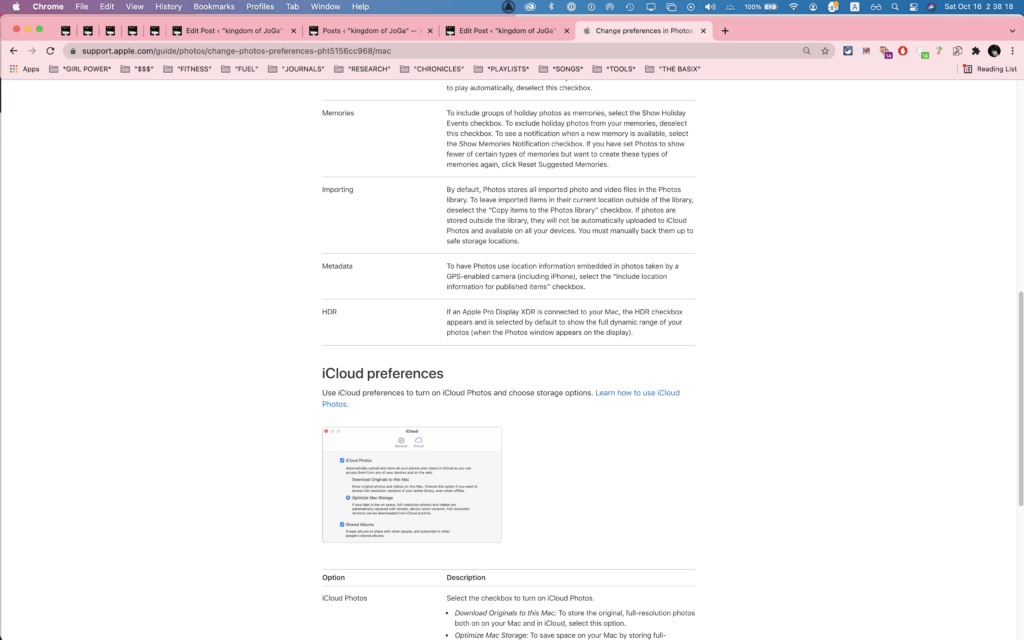
*CLICK THE [“iCLOUD” TAB]* —>
.
.
.
.
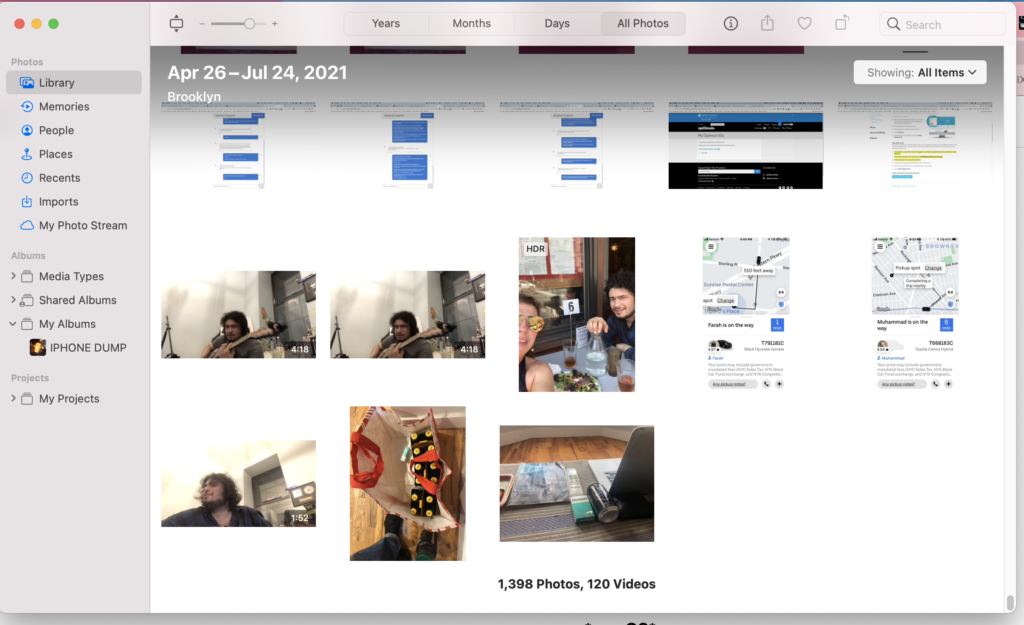
-WHEN YOU OPEN THE [PHOTOS macOS APP], IT WILL ALWAYS DISPLAY THE SCREEN YOU WERE ON WHEN YOU LAST CLOSED THE APP-
.
-[TABS] WILL OPEN TO THE SAME VERTICAL “SCROLL POSITION” YOU WERE IN LAST TIME YOU USED THE TAB-
(EVEN IF YOU [CLOSE/OPEN] THE [APP])
.
.
.
.
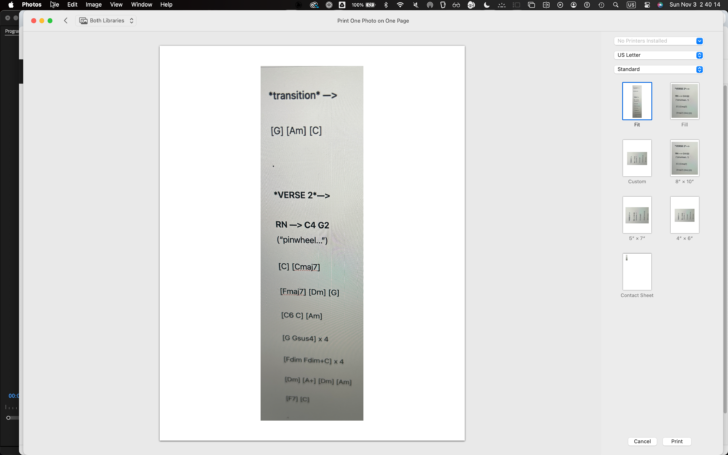
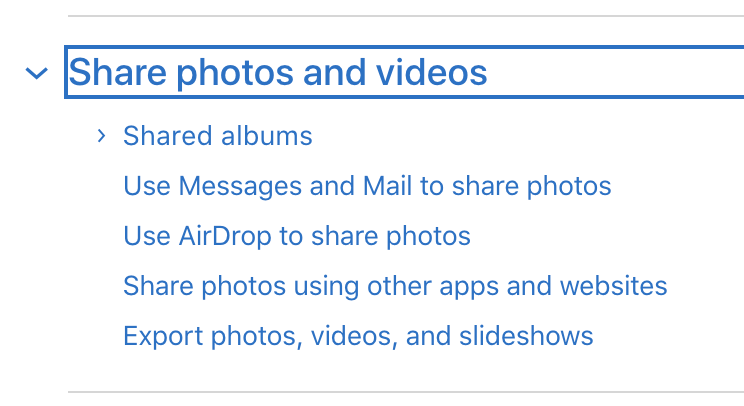
-EXPORT [SELECTED PHOTOS/VIDEOS]-
.
.
.
.
.
-TO CLOSE [PRINT WINDOW]* —>
[ESCAPE]
.
*CLOSE [PHOTOS macOS APP]* —>
“QUIT”
.
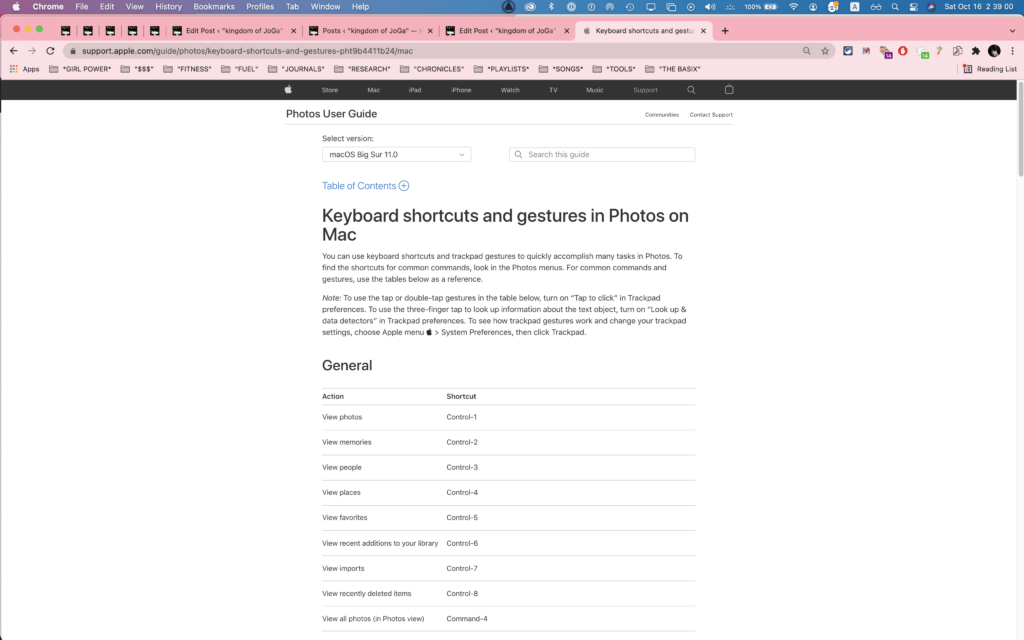
[COMMAND] + [ Q / W ]
.
.
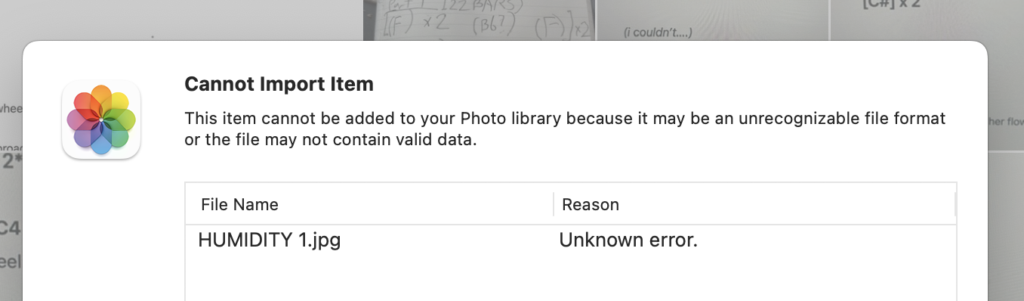
cannot import item
this item cannot be added to your photo library because it may be an unrecongizable file format or the file may not contain valid data
.
.
.
.
.
.
.
.
.
.
.
.
.
.
.
.
.
.
.
*macOS*
.
-[PHOTOS] VS [PREVIEW]-
For basic image editing tasks, the Preview app is often sufficient.
It offers tools for adjusting colors, cropping, resizing, and adding simple annotations.
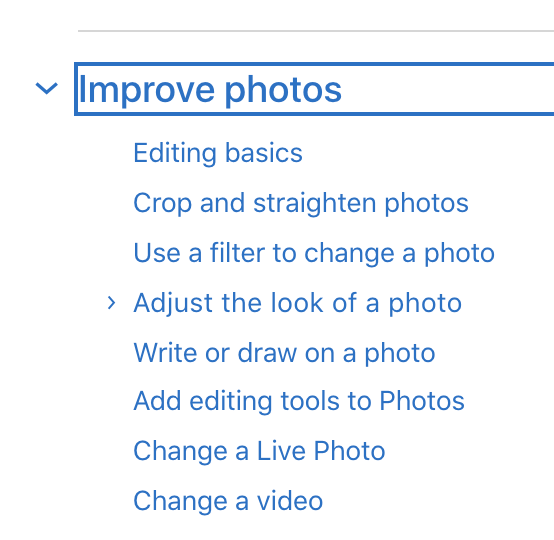
For more advanced editing, including complex adjustments, retouching, and organizing large libraries, Photos is generally the better choice. [1, 1, 2, 2, 3, 3, 4, 5, 6]
.
Here’s a more detailed breakdown:
Preview:
Strengths:
Quick, lightweight, good for basic edits, built-in to macOS.
It’s great for quick fixes like adjusting brightness, contrast, or cropping
.
Limitations:
Lacks advanced editing features like layers, complex retouching, or RAW image processing
.
Photos:
Strengths:
Powerful editing tools, including adjustments for color, exposure, and more, retouching capabilities, and organization features like albums and smart albums
.
Best for:
Users who need more control over their edits and want to manage a large library of photos, especially those with iPhones and iPads, as it integrates well with other Apple devices
In essence: If you need to make simple changes to an image, Preview is convenient.
If you need to do more advanced editing or manage a large photo library, Photos is the better option
.
AI responses may include mistakes.
[1] https://macmost.com/how-to-edit-images-in-preview-on-a-mac.html[2] https://eshop.macsales.com/blog/47357-macos-101-edit-images-with-preview/[3] https://support.apple.com/guide/photos/editing-basics-pht304c2ace6/mac[4] https://www.pcmag.com/reviews/apple-photos[5] https://www.reddit.com/r/apple/comments/b7tov3/preview_is_one_of_the_best_tools_apple_has_ever/[6] https://skylum.com/blog/how-to-use-macs-built-in-image-editor[7] https://thehoncho.app/blog/free-photo-editors/[8] https://affinity.serif.com/en-gb/photo/[9] https://www.reddit.com/r/mac/comments/qy5524/best_pdf_viewer_for_mac/[10] https://www.nytimes.com/2017/11/22/technology/personaltech/cropping-mac-preview.html[11] https://www.doxdirect.com/blog/adobe-express-vs-canva-for-page-design-tools/[12] https://skylum.com/blog/apple-photos-high-sierra[13] https://www.smartsight.in/industry-insights/why-is-taking-pictures-on-a-mac-so-easy/[14] https://www.shortstack.com/blog/create-graphics-using-picmonkey-canva-visme-and-photopea-a-review[15] https://www.quora.com/What-photo-editing-app-for-Mac-has-the-best-combination-of-cost-and-features[16] https://skylum.com/blog/affinity-photo-vs-lightroom[17] https://isorepublic.com/10-top-free-photo-editing-tools/[18] https://www.scanyourentirelife.com/photos-for-mac-pros-con-iphoto-aperture-miss/[19] https://gb.readly.com/magazines/mac-life/2021-07-20/60f627aa66ce1dacdc38ff56[20] https://mackeeper.com/blog/how-to-organize-photos-on-mac/[21] https://discussions.apple.com/thread/251490600[22] https://www.cnet.com/tech/computing/how-to-use-multiple-photo-libraries-with-photos-for-mac/
.
.
.
*👨🔬🕵️♀️🙇♀️*SKETCHES*🙇♂️👩🔬🕵️♂️*
.
.
👈👈👈 ☜ *-macOS DEFAULT APPS= (INSTRUCTIONS)*
.
*-PHOTOS- (the macOS app)* ☞ 👉👉👉
.
.
💕💝💖💓🖤💙🖤💙🖤💙🖤❤️💚💛🧡❣️💞💔💘❣️🧡💛💚❤️🖤💜🖤💙🖤💙🖤💗💖💝💘
.
.
*🌈✨ *TABLE OF CONTENTS* ✨🌷*
.
.
🔥🔥🔥🔥🔥🔥*we won the war* 🔥🔥🔥🔥🔥🔥