-as of [27 JULY 2026]-
.
.
.
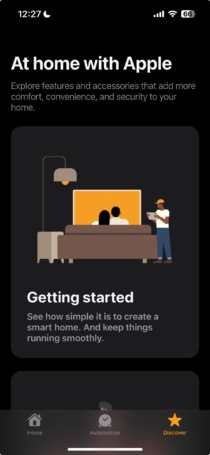
*3 TABS* —>
-HOME-
-AUTOMATION-
-DISCOVER-
.
1
*HOME* —>
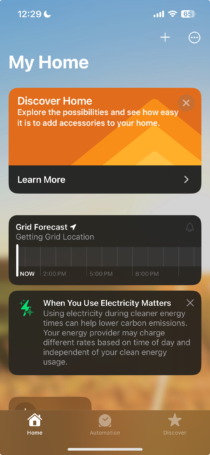
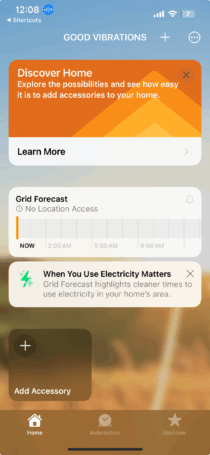
*TAP THE [PLUS BUTTON] IN [TOP RIGHT CORNER]* —>

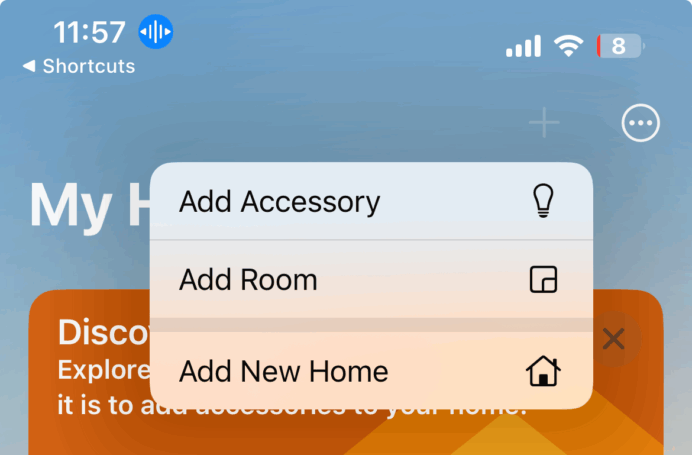
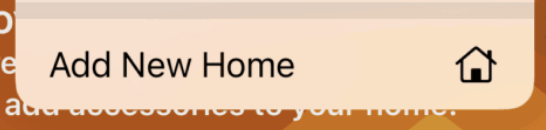
*TAP “ADD NEW HOME”* —>
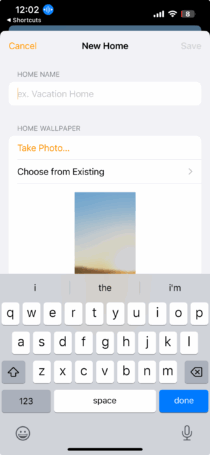
*NAME THE HOME + TAP [SAVE] IN [TOP RIGHT CORNER]* —>
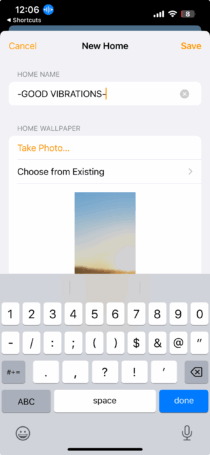
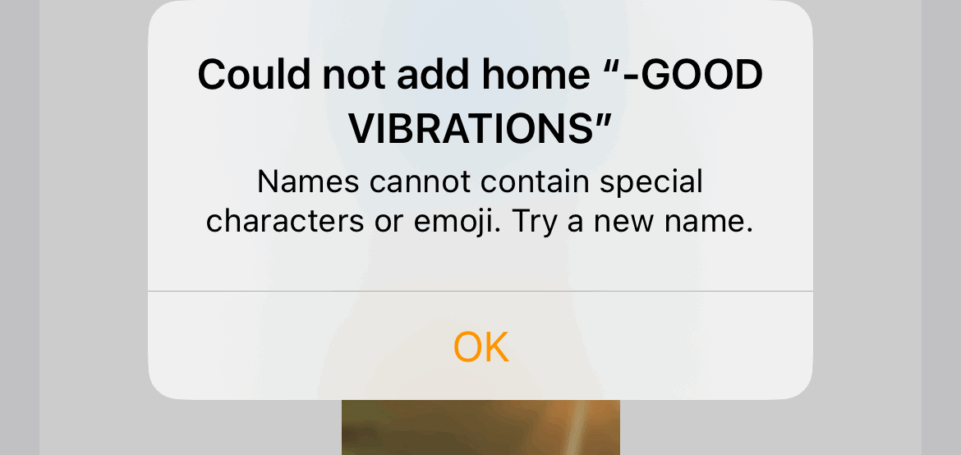
-DO NOT USE [HYPHENS] (OR ANY [SPECIAL CHARACTERS]) IN THE NAME* —>
.
2
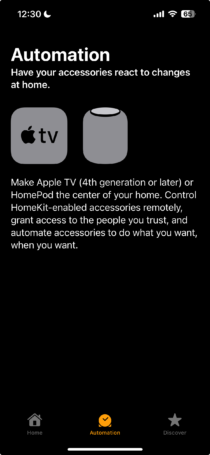
*AUTOMATION* —>
.
3
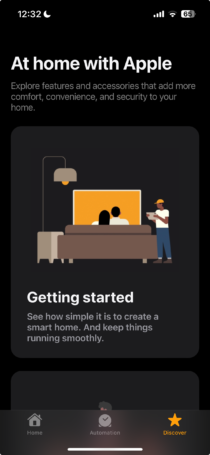
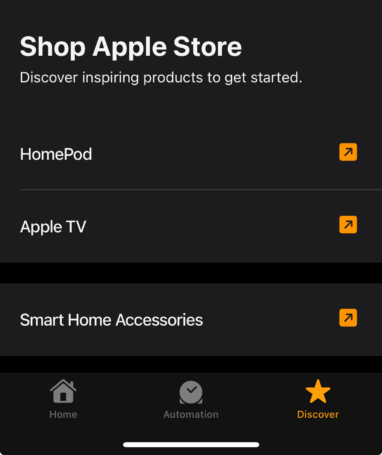
*DISCOVER* —>
(the app opens to this tab by default)
.
You can use the Home app to securely add, control, and automate HomeKit and Matter-enabled accessories, such as lights, locks, and thermostats.
When you set up security cameras that support HomeKit Secure Video, you can capture video, and receive a notification when a camera recognizes someone or when a package is left at the door.
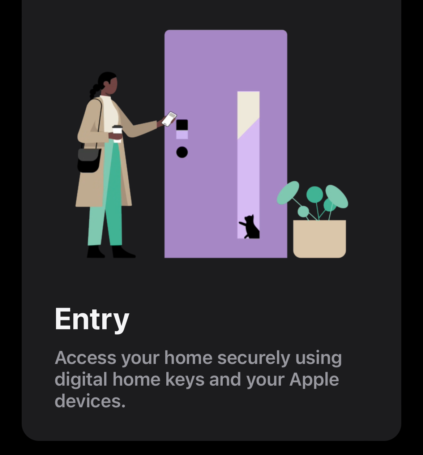
You can also open a compatible lock with a home key, group multiple speakers to play the same audio, and send and receive Intercom messages on supported devices.
You can create automations to run automatically at certain times, or when you activate a particular accessory (for example, when you unlock the front door).
You can also control your home remotely with the aid of a home hub—an Apple TV (4th generation or later) or HomePod speakers.
This lets you, and others you invite, securely control your home while you’re away
Note:
Matter-enabled accessories require a home hub, such as a HomePod speaker or Apple TV 4K.
Thread-based accessories require a Thread-enabled home hub such as Apple TV 4K, HomePod (2nd generation), HomePod mini, or a compatible third-party Thread border router.
Thread-enabled iPhone devices are able to locally pair and manage Thread accessories, which may require an update from the accessory manufacturer
Home overview
The Home app lets you easily navigate and control your accessories
In the Home app, tap the Home tab to show the following sections:
Categories:
Tap a category such as Climate, Lights, Security, Speakers & TVs, or Water to show all related accessories on one screen, organized by room
Cameras:
Video from up to four cameras can appear below Cameras.
Swipe left to see more cameras
Scenes:
Create scenes to control multiple accessories with a tap or Siri request—tap a scene to close the blinds and turn on the lights in the evening, for example.
Favorites:
Add to Favorites the accessories you use most often to quickly control them from the Home tab
Rooms:
Accessories are organized by room, helping you find just the accessory you need
The Home tab showing, from top to bottom, four categories, two scenes, three camera views, and the status of one room.
Across the bottom are the tabs Home (which is selected), Automation, and Discover
Edit the Home tab
You can organize the Home tab in ways that suit you best
Tap the More button, then do any of the following.
Rearrange items:
Select Edit Home View, then drag tiles to a different position.
Tap Done when you’re finished
Reorder sections:
To change the way sections such as Favorites or Scenes are ordered on the Home tab, choose Reorder Sections, then drag the Reorder button next to a section to a new position.
Tap Done when you’re finished
Resize icons:
Select Edit Home View, tap a tile, tap the Resize button, then tap Done
To learn more about how to create and accessorize a smart home with your Apple devices, tap Discover at the bottom of the screen
support.apple.com /en-in/guide/iphone/iph22d98bbca/ios
Intro to Home on iPhone
4-4 minutes
Select version:
Modifying this control will update this page automatically
Helpful?
Character limit: 250
Please don’t include any personal information in your comment.
Maximum character limit is 250.
Thanks for your feedback.
Previous Chapter
Next Chapter
.
.
.
*👨🔬🕵️♀️🙇♀️*SKETCHES*🙇♂️👩🔬🕵️♂️*
.
.
👈👈👈☜*-HOME-* ☞ 👉👉👉
-THE [APPLE APP]-
.
.
💕💝💖💓🖤💙🖤💙🖤💙🖤❤️💚💛🧡❣️💞💔💘❣️🧡💛💚❤️🖤💜🖤💙🖤💙🖤💗💖💝💘
.
.
*🌈✨ *TABLE OF CONTENTS* ✨🌷*
.
.
🔥🔥🔥🔥🔥🔥*we won the war* 🔥🔥🔥🔥🔥🔥