-as of [14 JULY 2026]-
.
-MACBOOK PRO-
-OPEN [OBS macOS APP]-
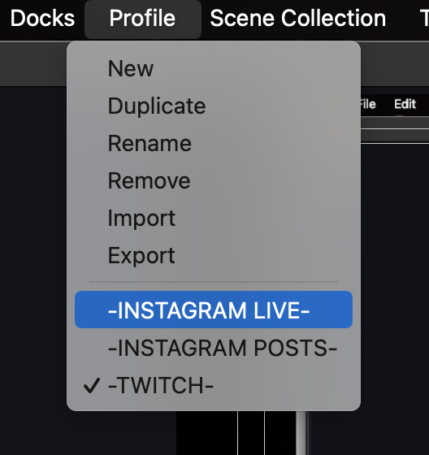
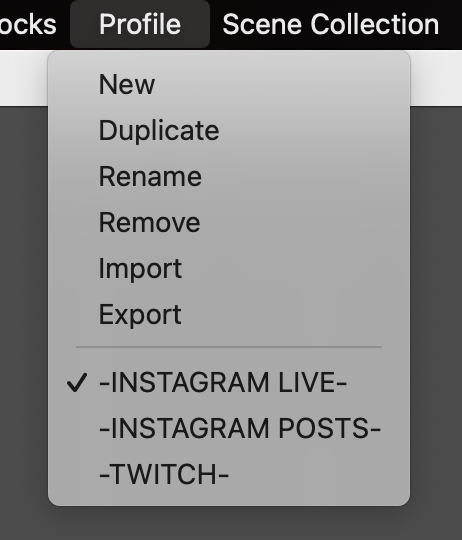
*OPEN THE [“PROFILE” MENU] IN [TOP MENU BAR] + SELECT “INSTAGRAM LIVE” PROFILE* —>
.
-“INSTAGRAM LIVE” OBS PROFILE-
.
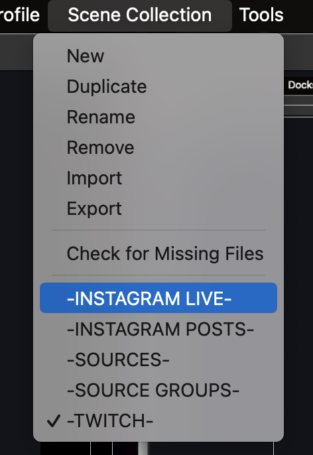
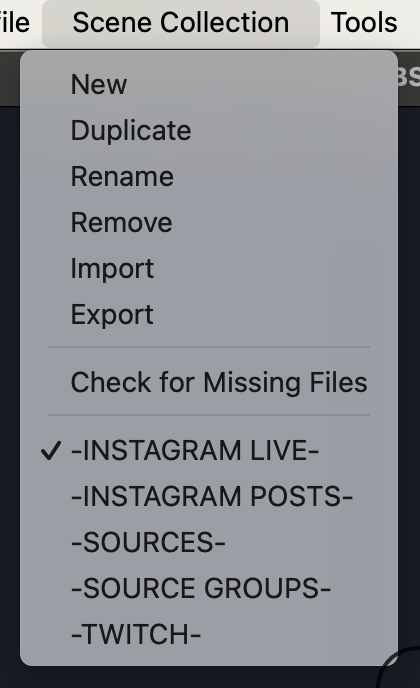
*OPEN THE [“SCENE COLLECTION” MENU] IN [TOP MENU BAR] + SELECT “INSTAGRAM LIVE” —>
.
-“INSTAGRAM LIVE” SCENE COLLECTION-
.
-INSTAGRAM LIVE-
(live-stream frame 1)
.
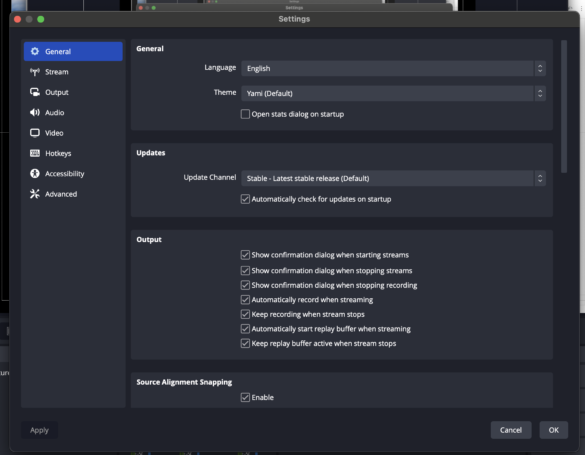
*OPEN [OBS PREFERENCES]* —>
-[COMMAND] + [ , ]-
.
.
*CLICK THE [STREAM] TAB* —>
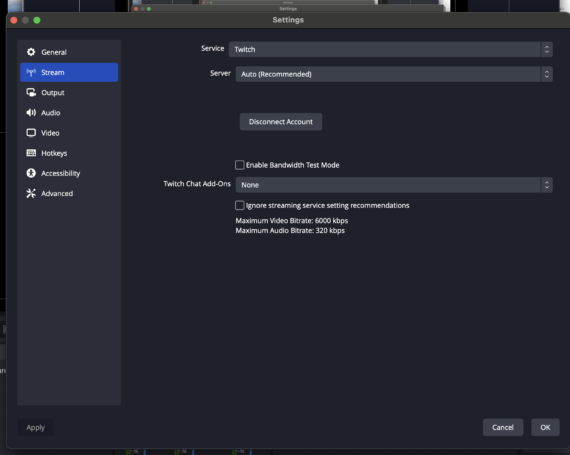
.
*SELECT “CUSTOM” FROM THE [SERVICE MENU]* —>
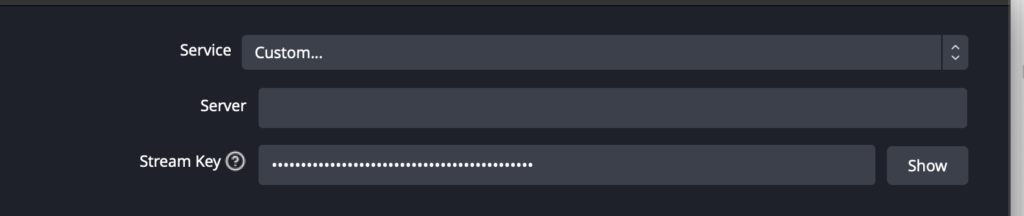
.
-OPEN [CHROME macOS APP]-
(via ‘spotlight’)
(FULL SCREEN)
.
.
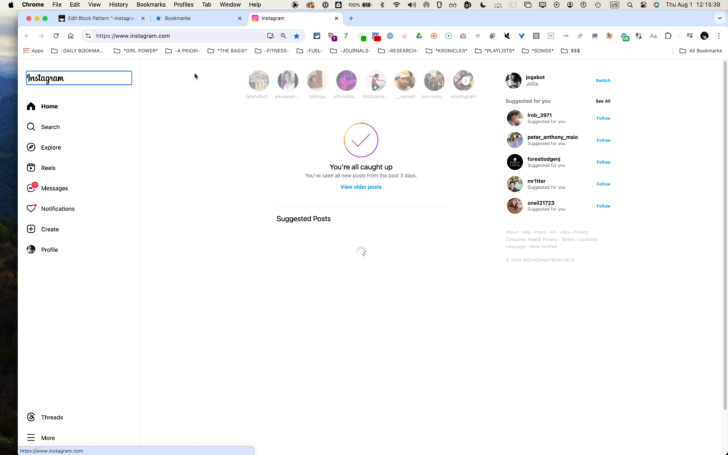
.
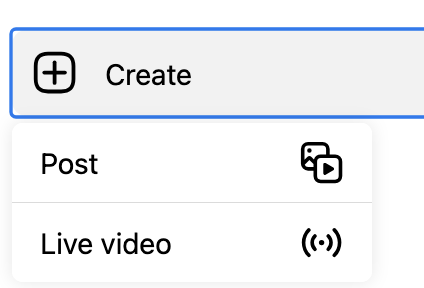
*CLICK [CREATE] IN [LEFT COLUMN]* —>
.
*CLICK [LIVE VIDEO]* —>
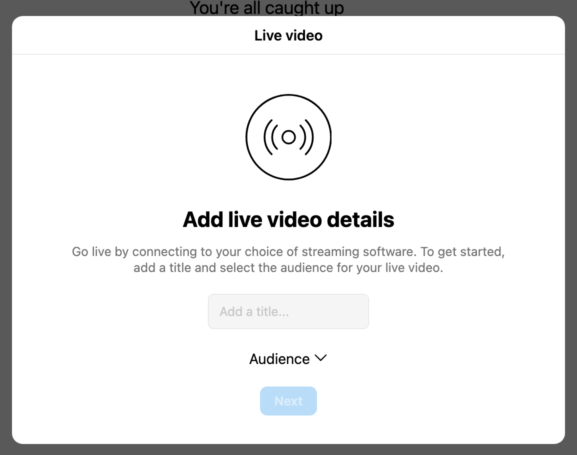
.
-ADD TITLE-
(“A BIGGER BANG”)
.
*CLICK “AUDIENCE”* —>
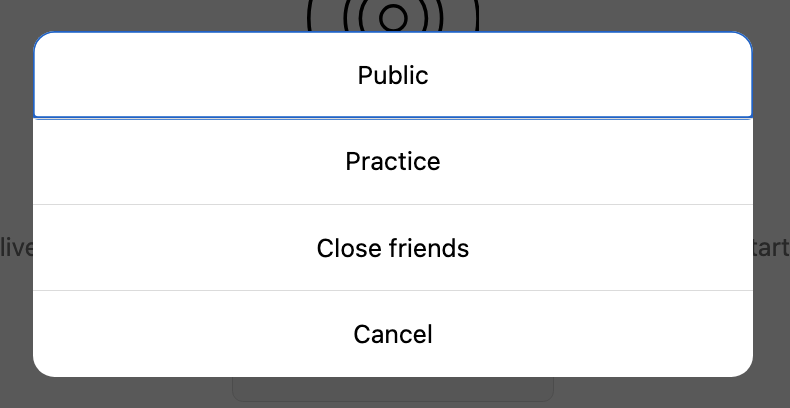
.
*CLICK “PRACTICE”* —>
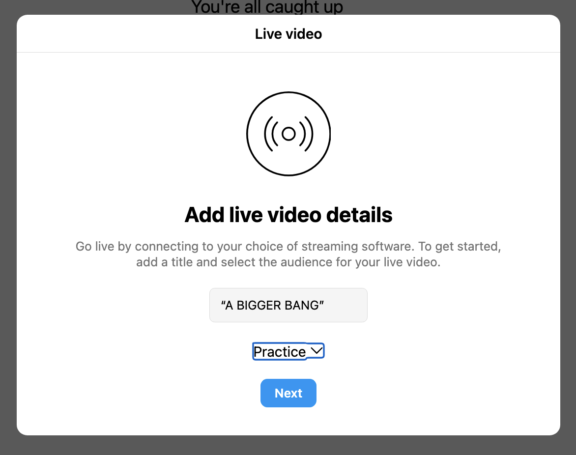
.
*CLICK [NEXT]* —>
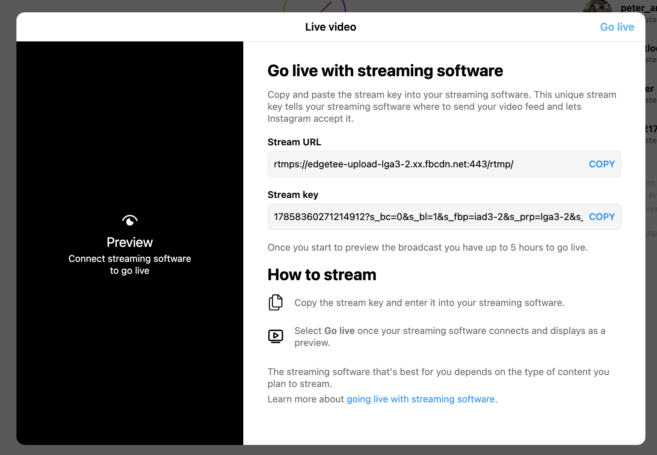
.
*CLICK THE FIRST [COPY BUTTON] TO COPY THE [STREAM URL]* —>

.
-[COMMAND TAB] TO [OBS macOS APP]-
.
*PASTE THE COPIED “STREAM URL” INTO THE “SERVER” INBOX* —>

.
-[COMMAND TAB] TO [CHROME macOS APP]-
.
*COPY THE “STREAM KEY”* —>

.
-[COMMAND TAB] TO [OBS macOS APP]-
.
*PASTE THE COPIED “STREAM KEY” INTO THE “STREAM KEY” INPUT BOX* —>

.
*CLICK “APPLY” IN “BOTTOM LEFT CORNER”* —>
.
*CLICK “OK” IN “BOTTOM RIGHT CORNER”* —>
.
*STEP 2*
*open ‘yellow duck’*
(via ‘spotlight’)
(LEFT HALF)
.
*STEP 3*
*open ‘OBS’*
(via ‘spotlight’)
(RIGHT HALF)
.
*STEP 4*
*open ‘activity monitor’*
(via ‘spotlight’)
(then hide it)
[COMMAND] + [ h ]
(to reload it, use |[COMMAND] + [TAB]| function)
.
*STEP 5*
*OPEN ‘KEYCASTR’*
(via ‘spotlight’)
*position the window in the ‘bottom center’ of your ‘top third panel’*
.
*STEP 6*
*top menu bar* –>
*in ‘profile dropdown’, select ‘instagram live’* –>
.
*STEP 7*
*in ‘scene collections dropdown’, select “INSTAGRAM LIVE”* –>
.
*STEP 8*
.
.
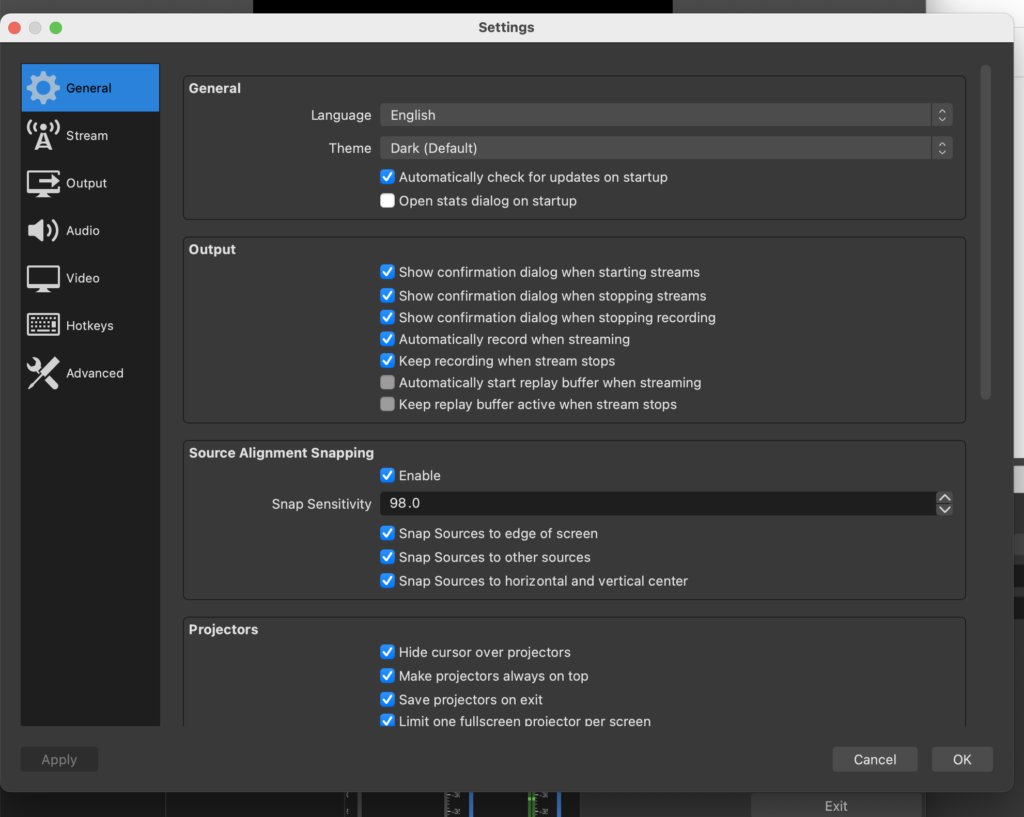
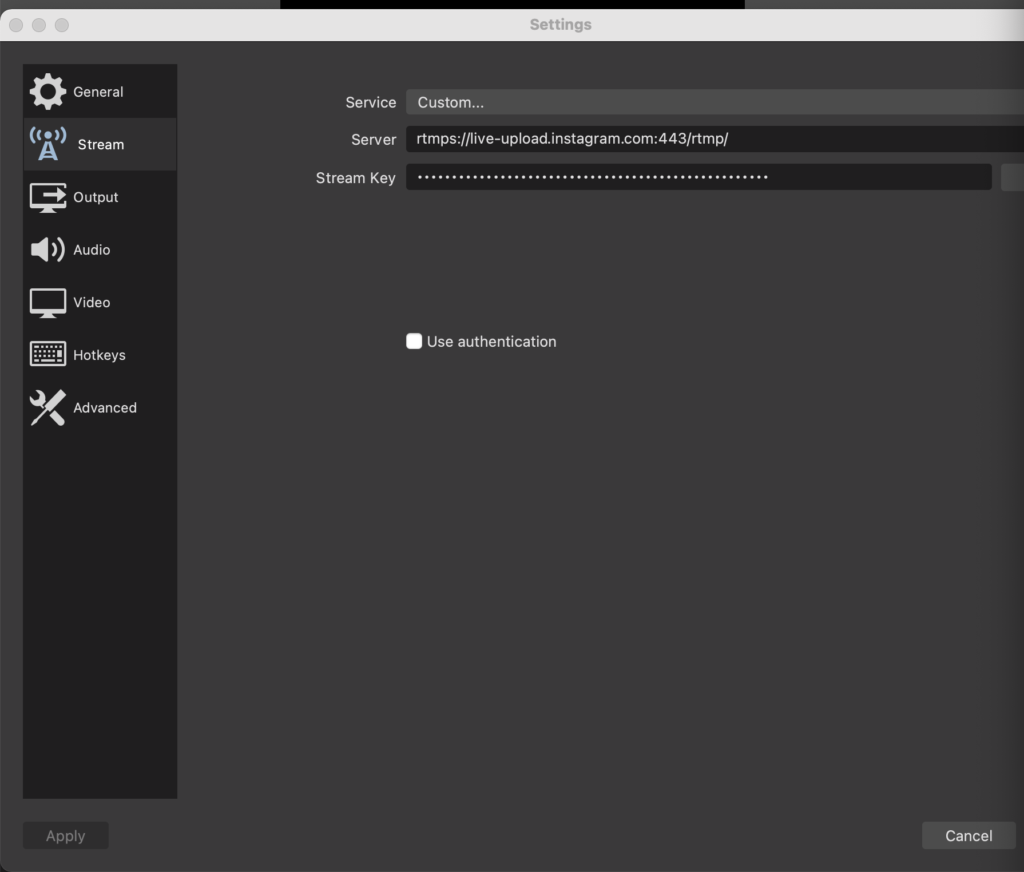
*choose the ‘stream tab’ from ‘left column’*
(2nd from top)
*just hit ‘down arrow’ after opening ‘preferences’*
.
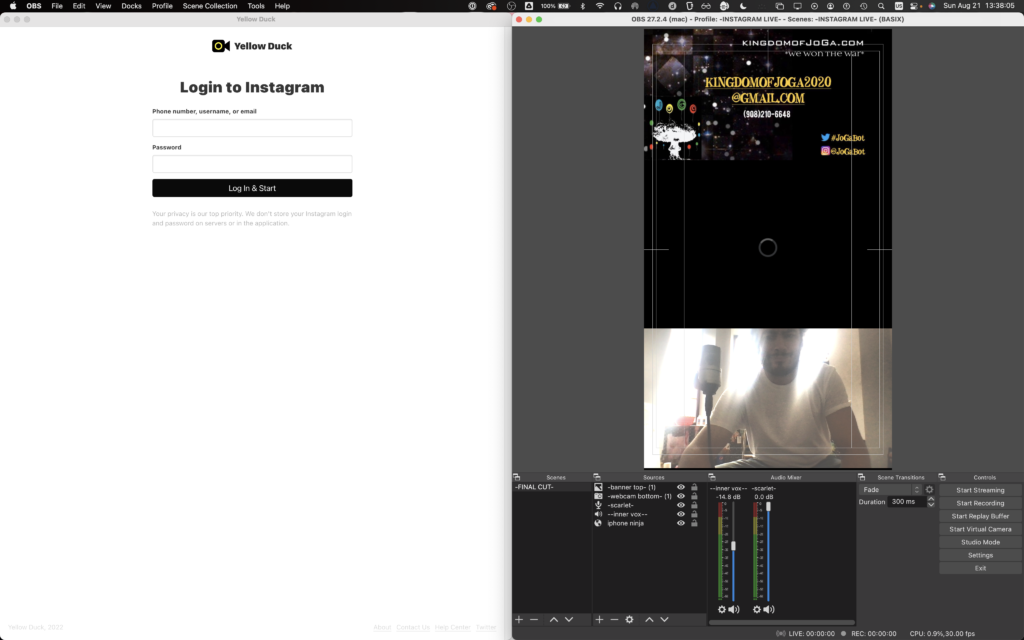
*move ‘OBS window’ to ‘right half’ of screen* –>
(via ‘spectacle’)
[COMMAND] + [OPTION] + [RIGHT ARROW]
.
*move ‘yellow duck window’ to ‘left half’ of screen* –>
(via ‘spectacle’)
[COMMAND] + [OPTION] + [LEFT ARROW]
.
.
*STEP 9*
-LOG INTO ‘INSTAGRAM’ VIA ‘YELLOW DUCK’-
.
.
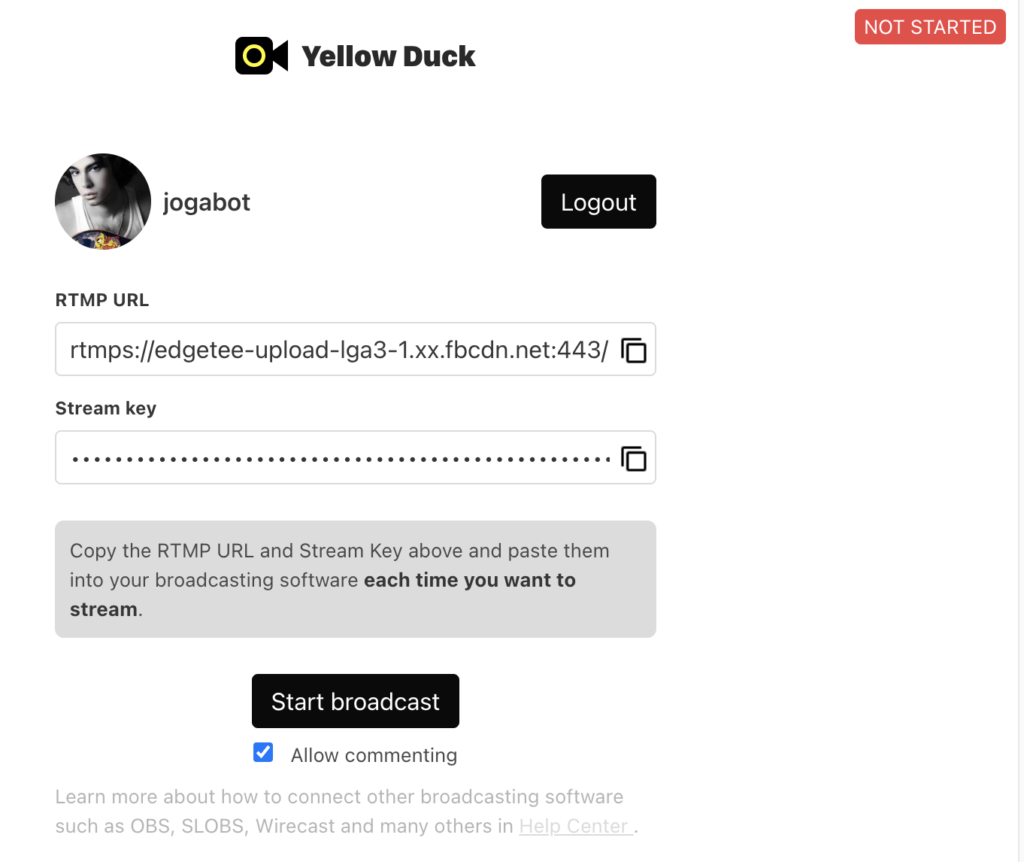
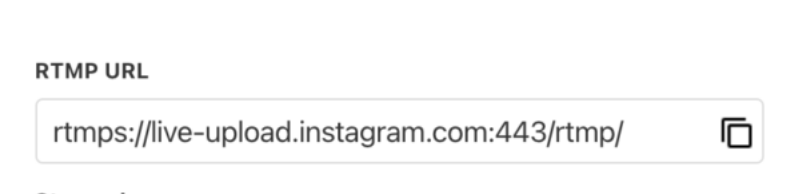
*click the ‘overlapping squares button’ to the right of the ‘RTMP URL’* –>
.
*this will copy the link to your ‘clipboard’*
.
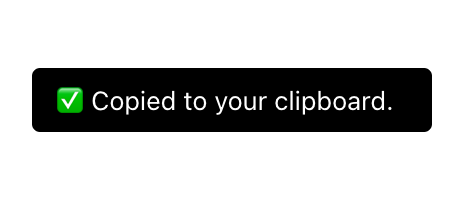
*there will be a confirmation message at the bottom of your screen* –>
.
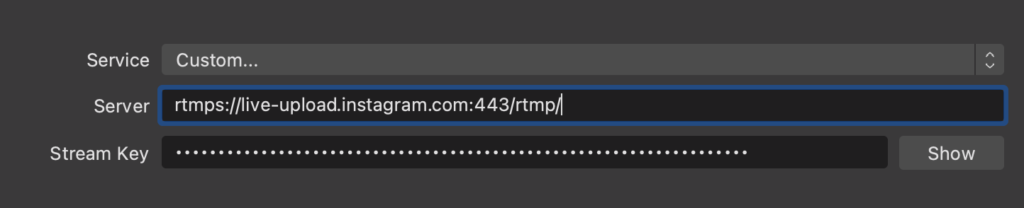
*navigate back to the ‘OBS stream preferences panel’*
.
*select all text in the ‘server’ box*
(with double/triple click)
.
*replace the text with the RTMP URL you copied to your clipboard*
.
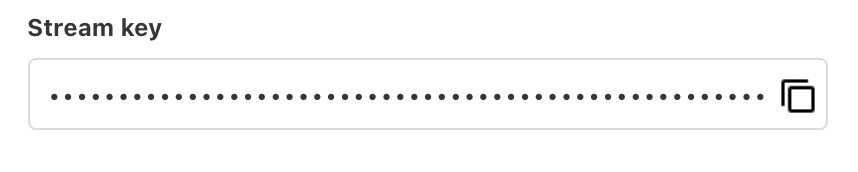
*go back to ‘yellow duck’ and click on the ‘overlapping squares button’ to copy the ‘stream key’ to your clipboard*
.
*go back to ‘OBS stream preference panel’*
.
*select all text in the ‘stream key box’*
(with double/triple click)
.
*replace the text with the ‘stream key’ you copied to your clipboard*
.
*click ‘apply button’ in ‘bottom left corner’ of your ‘OBS preferences panel’* –>
.
*click ‘OK’ in ‘bottom right corner’ to return to main screen* –>
(you can also just hit the ‘escape key’)
(just make sure to click ‘apply button’ to save changes)
.
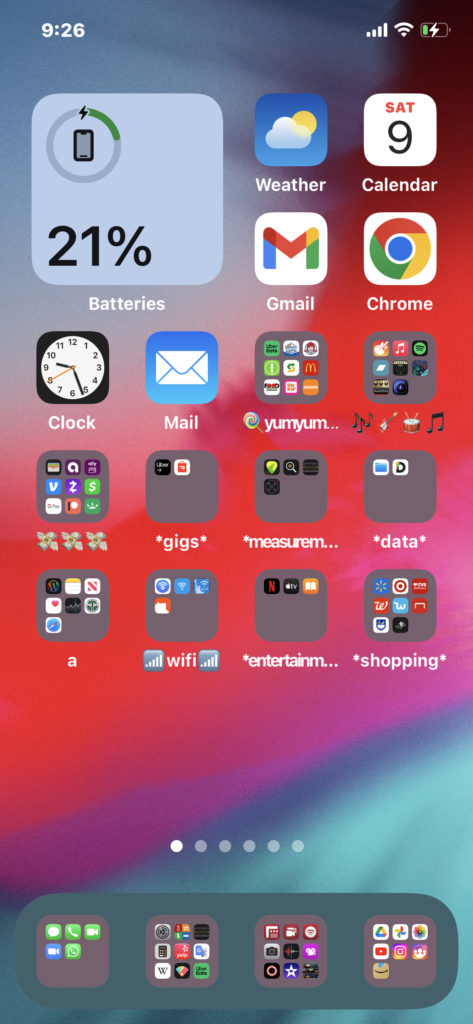
*you can go ‘instagram live’ directly from your iphone’*
*give your livestream a title*
*IPHONE*
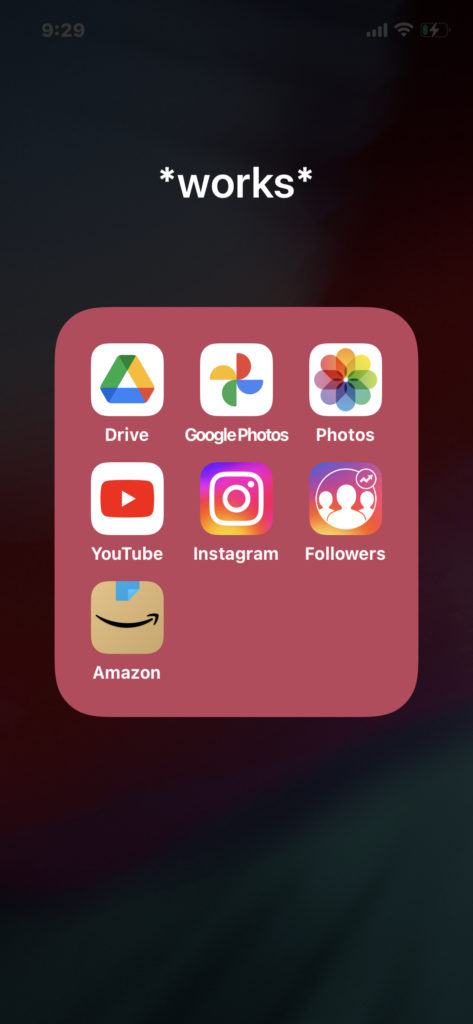
*’instagram icon button’ is in ‘works folder’*
(4th folder from left on bottom row)
*TEST YOUR ‘LIVE-STREAM’ ON YOUR ‘SHADOWBAN2000’ IG ACCOUNT*
(“private account”)
(so that your ‘IG followers’ don’t tune into your ‘test runs’ and be left unimpressed)
*on your ‘iphone 8’, log into ‘instagram account’ as “jogabot”*
*click on the ‘jogabot’ profile to monitor your live-stream*
*test whether OBS is capturing your ‘internal audio’*
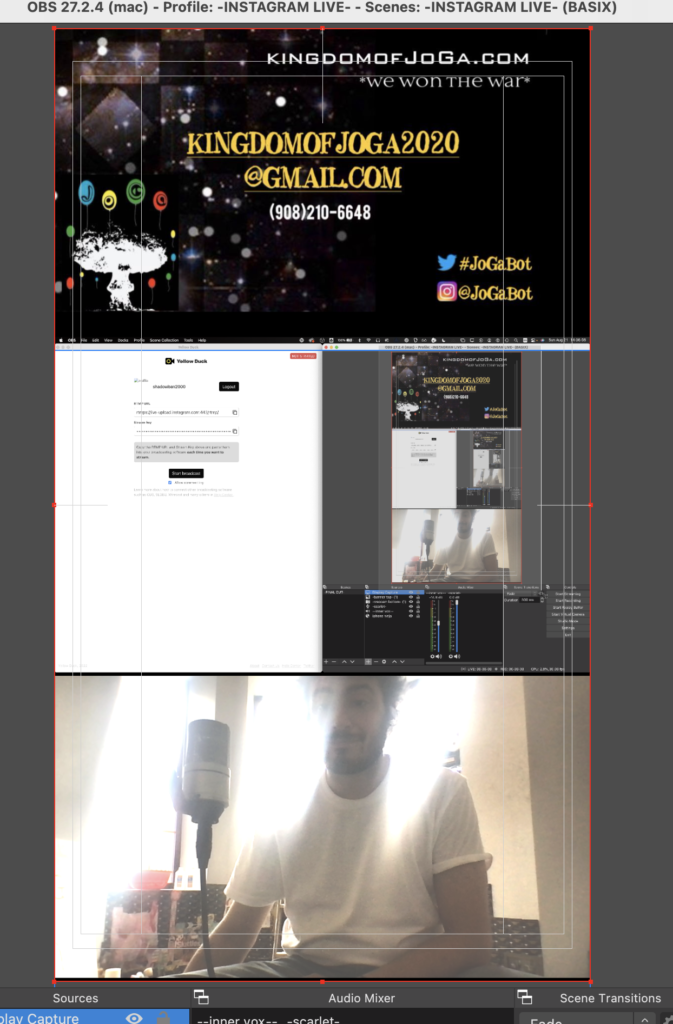
*place ‘webcam panel’ in top half of ‘vertical screen’*
*place ‘display capture’ in bottom half of ‘vertical screen’*
*if your display/webcam are ‘horizontal’, only use 1 horizontal half of your ‘display’* when creating your ‘vertical video layout’*
.
.
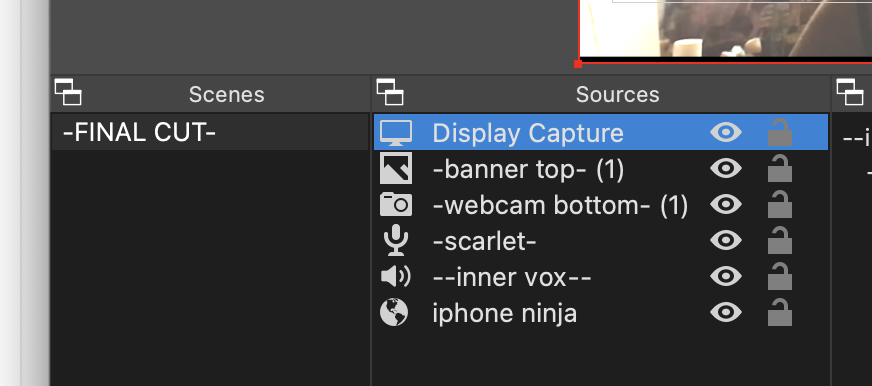
*select ‘display capture’ in ‘sources list’ and hit ‘delete’ to remove it from the list*
(it gets disconnected when you close OBS)
.
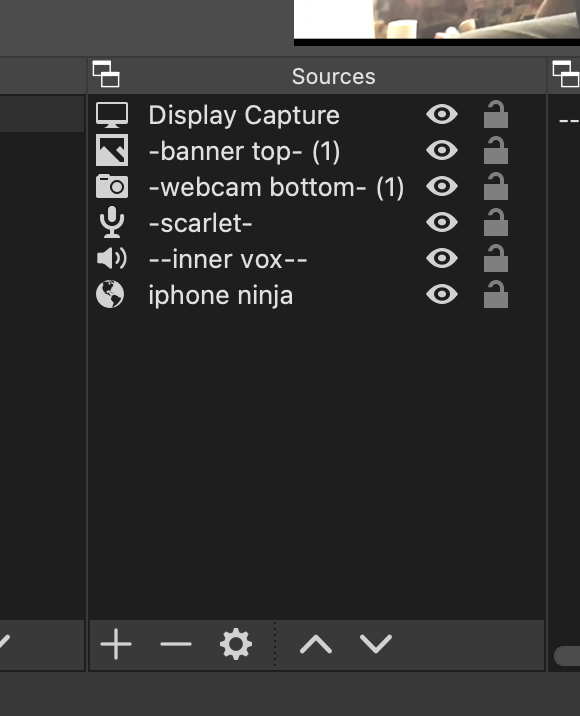
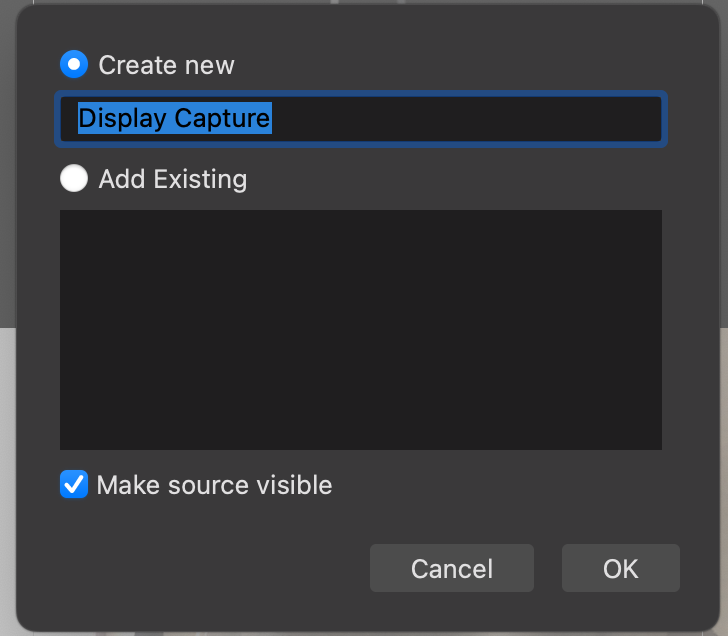
*click the ‘plus sign’ at bottom of ‘sources panel’ to add a new source* –>
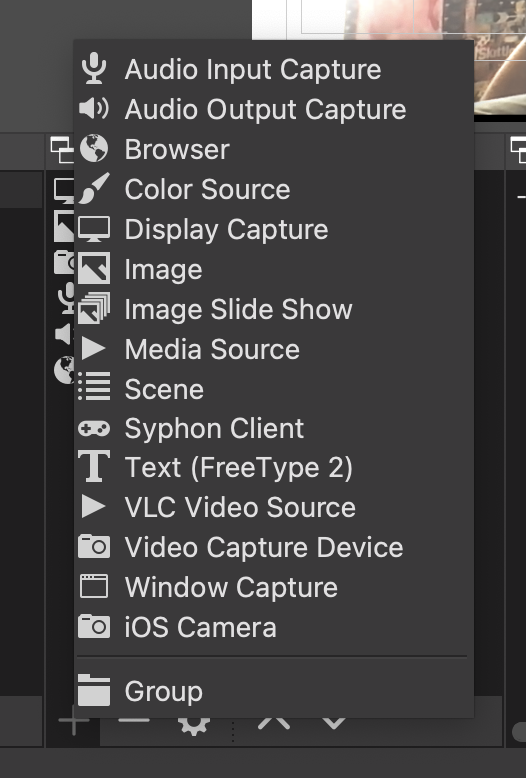
*choose ‘display capture’* –>
.
.
*in ‘bottom right corner’, hit ‘OK button’* –>
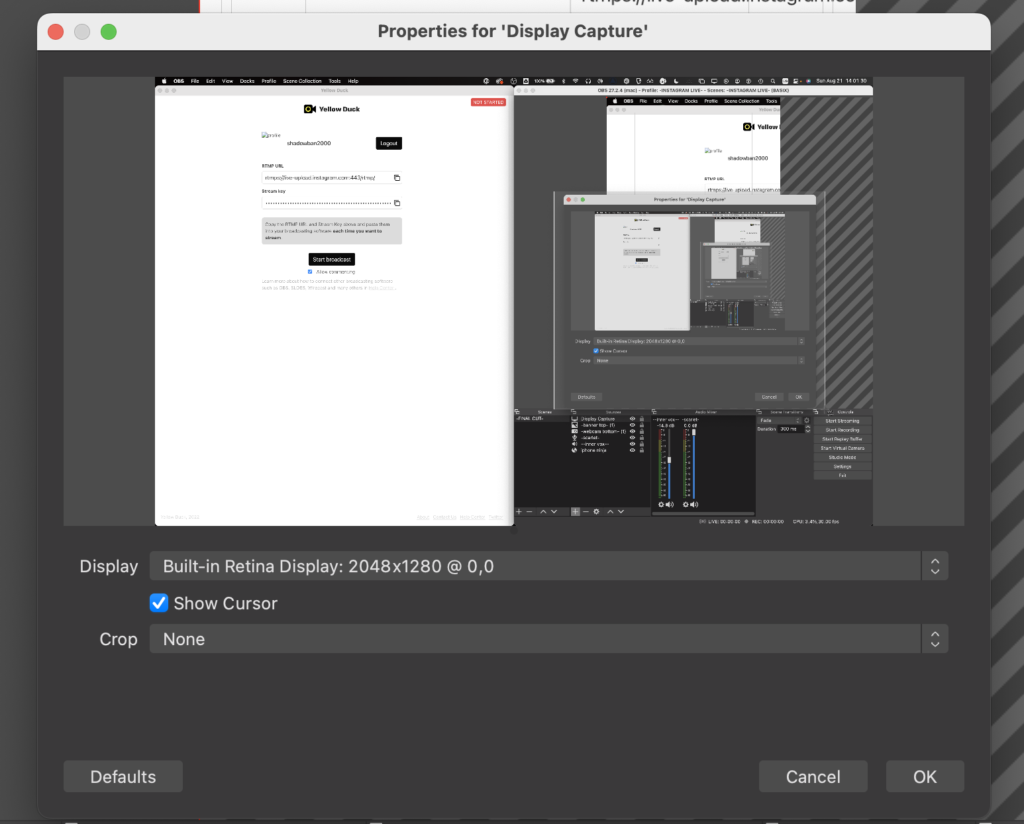
.
*fit the ‘display capture frame’ in the vertical ‘center 3rd’ of your screen* –>
[COMMAND] + [f]
.
.
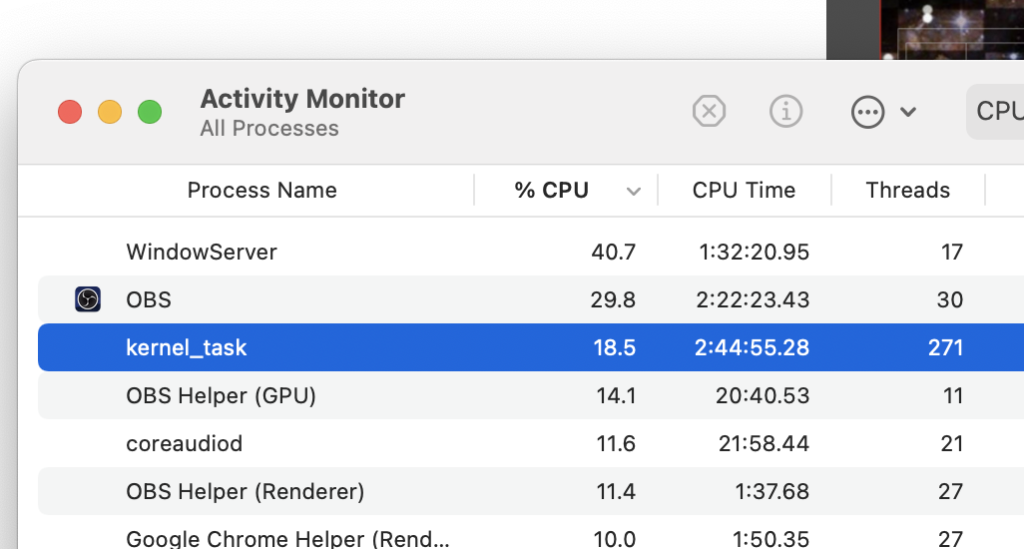
*open ‘activity monitor’*
(via ‘spotlight’)
*monitor your CPU*
*see if ‘kernel_task’ starts eating up all your CPU*
.
*CLOSE ‘CHROME’ IF NECESSARY*
(otherwise you need it to reference/edit your ‘workflow’ wordpress entries)
.
*if ‘webcam’ has too much ‘glare’, replace it with your ‘iphone 12 camera’*
(via ‘VOD ninja’)
(velcro strip to attach to ‘garbage can desk’)
.
(hiding OBS seems to be temporary fix for ‘kernel_task CPU explosions’)
.
.
.
.
.
.
.
.
*👨🔬🕵️♀️🙇♀️*SKETCHES*🙇♂️👩🔬🕵️♂️*
.
.
👈👈👈 ☜ *-[INSTAGRAM] INSTRUCTIONS-*
.
*-“INSTAGRAM LIVE” (OVERVIEW)-* ☞ 👉👉👉
.
.
💕💝💖💓🖤💙🖤💙🖤💙🖤❤️💚💛🧡❣️💞💔💘❣️🧡💛💚❤️🖤💜🖤💙🖤💙🖤💗💖💝💘
.
.
*🌈✨ *TABLE OF CONTENTS* ✨🌷*
.
.
🔥🔥🔥🔥🔥🔥*we won the war* 🔥🔥🔥🔥🔥🔥