
-as of [25 JULY 2026]-
.
.
*COMMAND* —>
.
.
*[[PREMIERE PRO] PROJECT DATABASE] FILEPATH* —>
‘/Users/joga/Desktop/[GOOGLE DRIVE SYNC FOLDERS]/-JOSEPHJGATTI-/-APPS-/-PREMIERE PRO-/-PROJECTS-‘
.
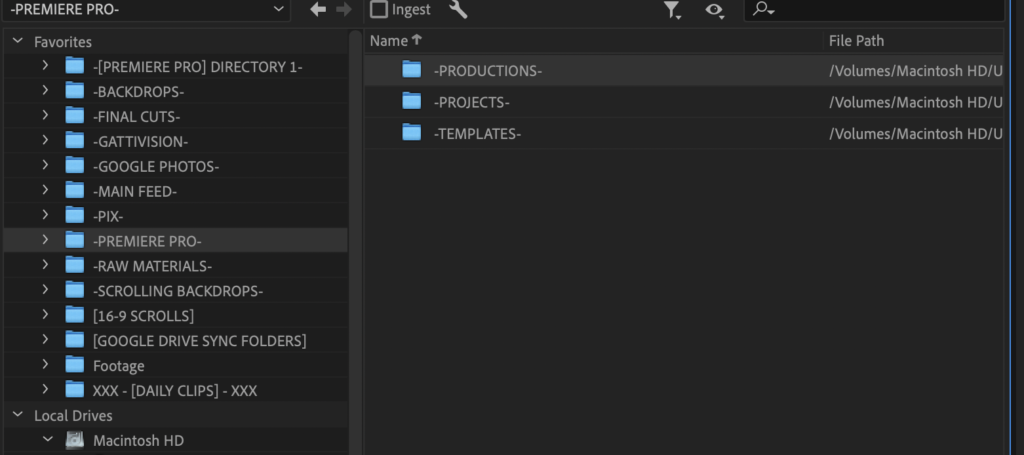
*ADD SELECTED [FOLDER] TO “FAVORITES LIST”* —>
[SHIFT] + [OPTION] + [CONTROL] + [ f ]
(our custom KS)
.
.
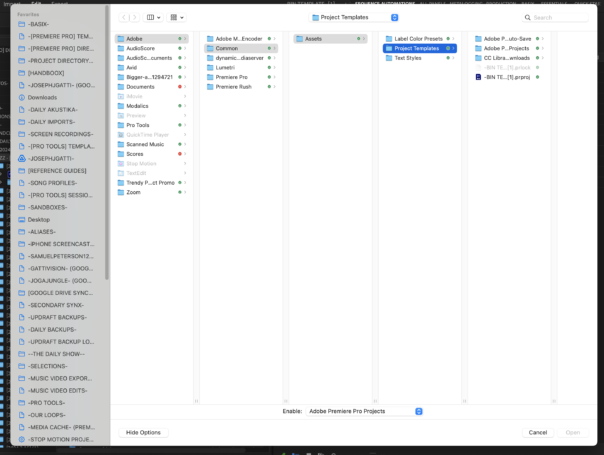
*TO OPEN THE LOCAL [“PROJECT TEMPLATES” FOLDER]* —>
-[SHIFT] + [ p ]-
.
.
*to select more than 1 non-contiguous file, use ‘control-click’*
*to select more than 1 contiguous file, use ‘shift-click’*
.
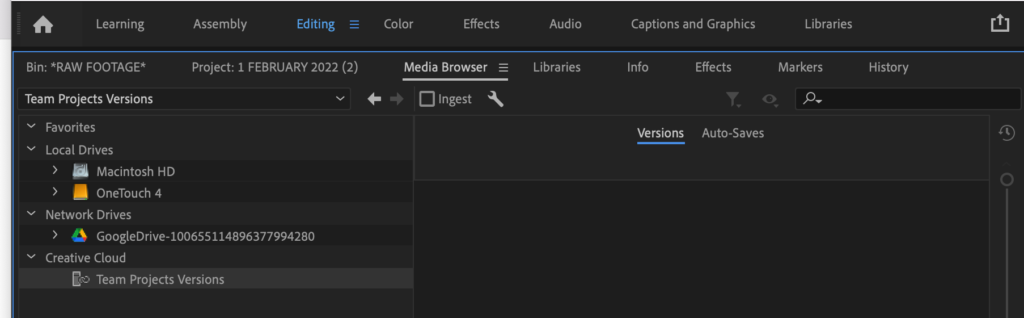
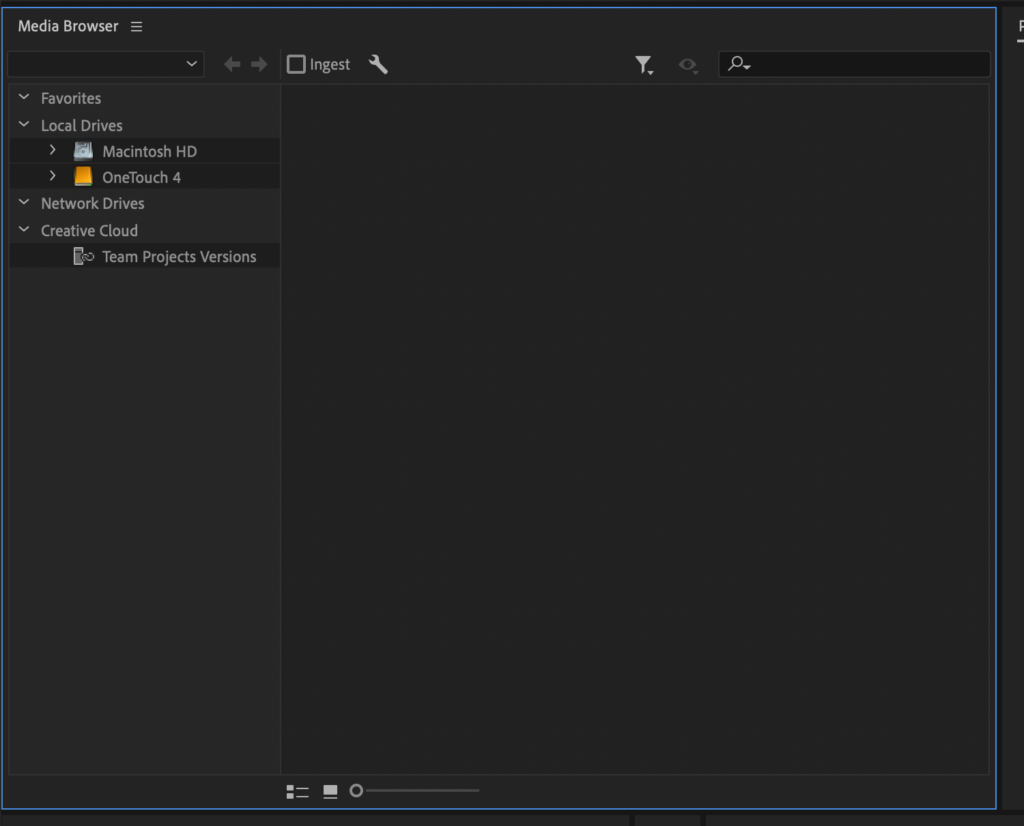
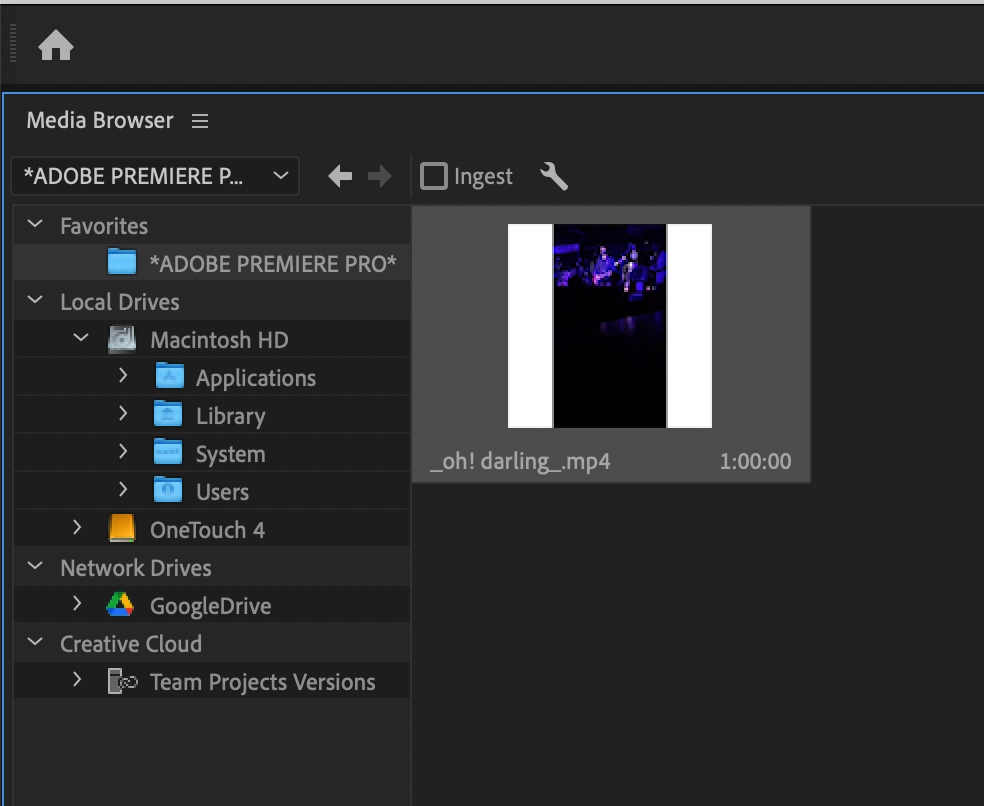
*the left column is your ‘system directory’*
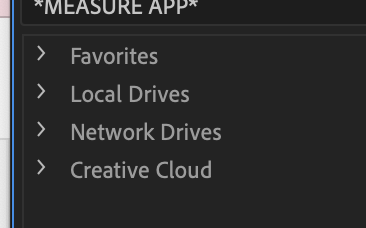
(click the ‘arrows’ to the left of ‘folder names’ to show/hide folder contents)
(the ‘option click’ on arrows does not ‘show all contents of all folders’ like it does in ‘project panel’)
.
*navigate to your ‘g-drive sync folder’* –>
*LOCAL DRIVES* –> *MACINTOSH HD* –> *USERS* –> *JOGA* –> *DESKTOP* –> *G-DRIVE SYNC*
.
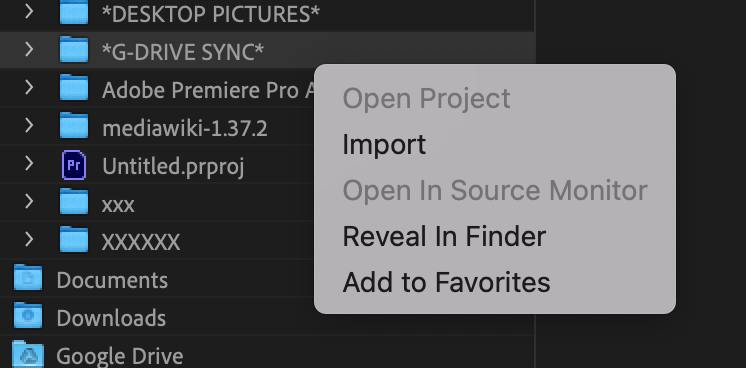
*right-click the folder* –>
.
*select ‘add to favorites’*
.
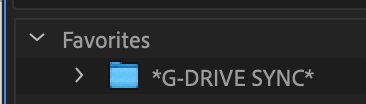
(the ‘g-drive sync folder’ will now be listed under ‘favorites’…)
.
*the ‘right column’ shows the contents of the folder selected in the ‘left column’*
.
*you can switch between ‘list view’ + ‘thumbnail view’ in the right column* –>
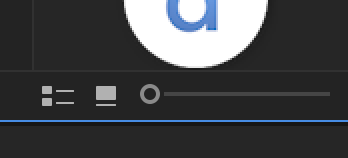
(what is the ‘keyboard shortcut’?)
.
*in ‘thumbnail view’, hovering your cursor over a ‘video thumbnail’ will generate a short visual ‘preview’*
*double-clicking a ‘video file’ will open the video in the ‘source monitor’ panel*
.
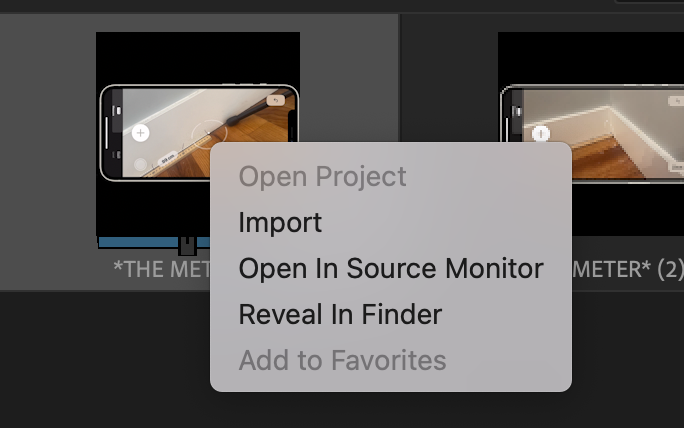
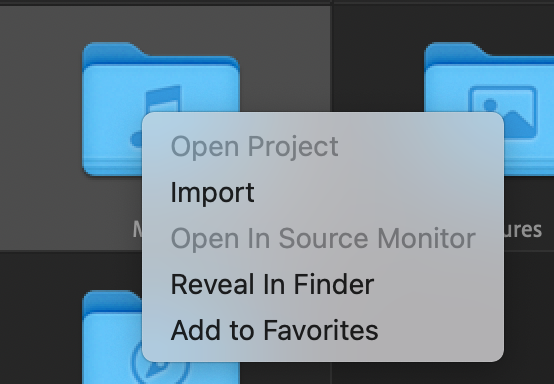
*right-click a ‘video file’* –>
.
*importing a ‘video clip’ inserts it into the ‘project panel’ for current project*
(it will be inserted into whichever bin was last open)
(it doesn’t detect duplicates)
.
.
.
.
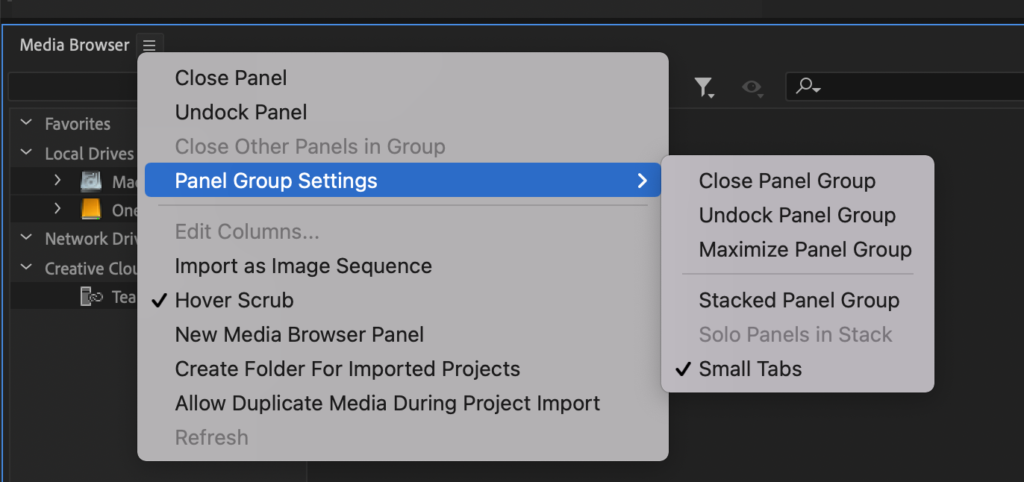
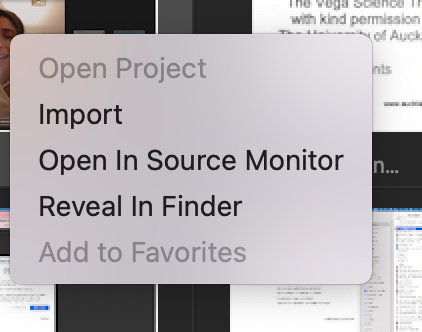
[when you ‘right click’ a ‘folder’, the following menu opens…]
.
[when you ‘right click’ a ‘file’, the following menu opens…]
.
*to import ‘media files’ using the ‘media browser panel’* –>
browse to the files you’d like to import
select the clips you want to work with in ‘premiere pro’
right-click one of the selected clips,
and choose Import
.
Once the media is imported, you’re ready to edit.
as you edit, be sure to save your work (choose File > Save) periodically.
to close your project, choose File > Close Project
.
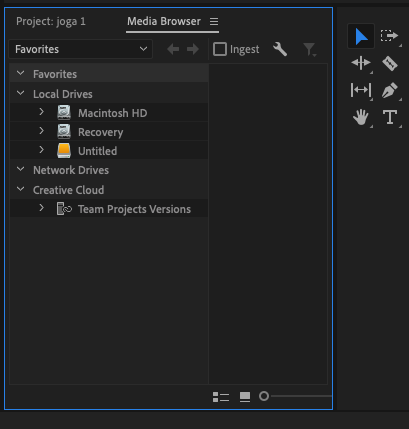
(to import files…)
(on top right, click ‘media browser’…)
.
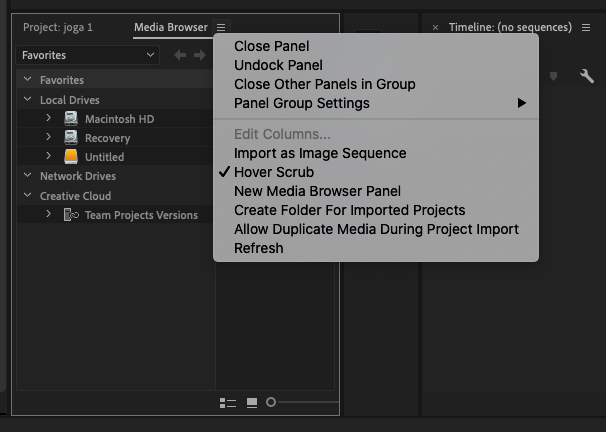
(click on the ‘top right hamburger button’ for this drop-down menu…)
.
(you can re-size the ‘media browser window’ by hovering cursor over any window boundary and dragging to desired location)
(if you decrease width to the point where the top column titles are hidden, you will see a drop-down arrow in top right corner)
.
*IMPORTING CLIPS*
*to import a clip from your computer* –>
[COMMAND] + [i]
.
[OPTION] + [COMMAND] + [i]
.
*double-clicking either ‘project’ / ‘media browser’ headings shifts to media browser ‘full-screen mode’*
(double-click again to return pane to original size)
.
.
What you learned:
Import media
Use the Media Browser panel to locate and import your media files
.
.
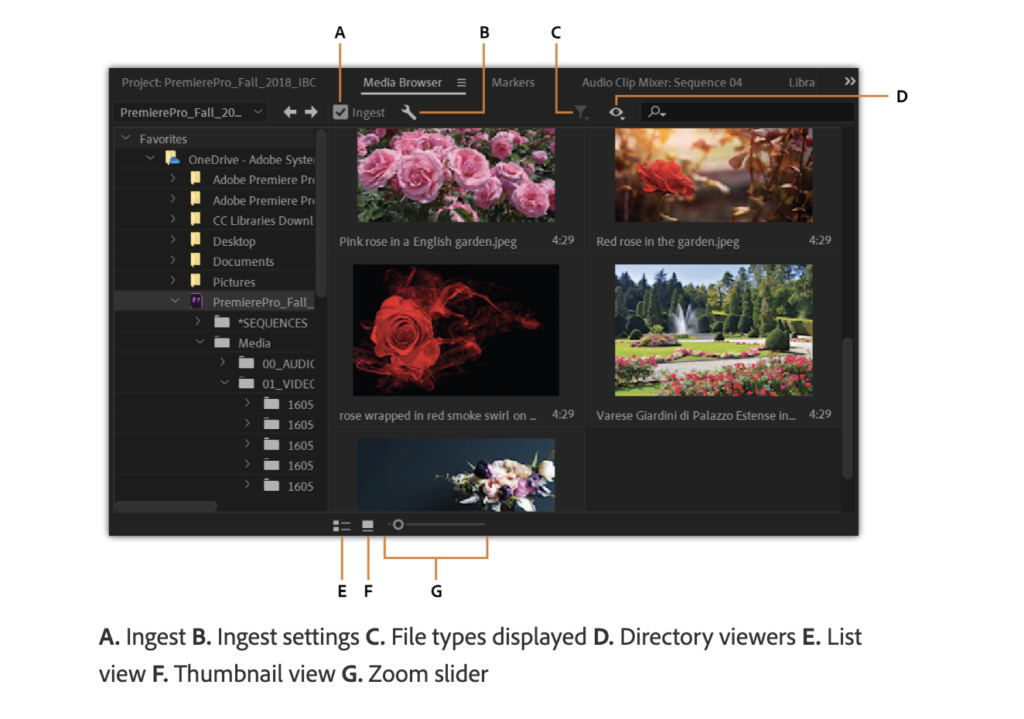
*MEDIA BROWSER*
(AUDIO/VIDEO FILES FROM COMPUTER LOCATED HERE)
(UNDER “MEDIA BROWSER” TAB)
(CHANGE TO “LIST” VIEW BY CLICKING BOX AT THE BOTTOM)
.
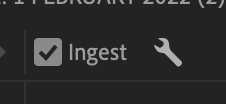
*”INGEST” CHECK-BOX* –>
.
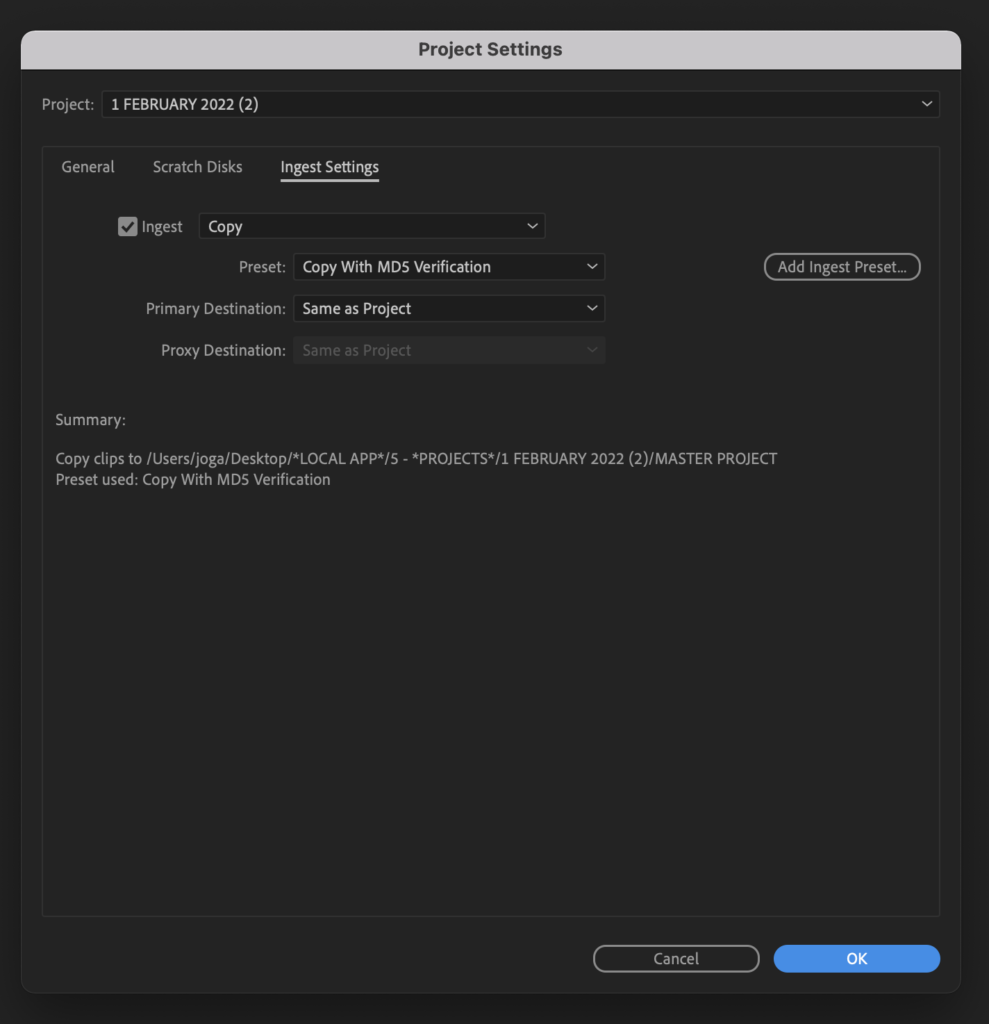
*click the ‘wrench button’ to navigate to the 3rd tab of ‘project settings’* –>
(the same tab made available when you create a ‘new project’)
.
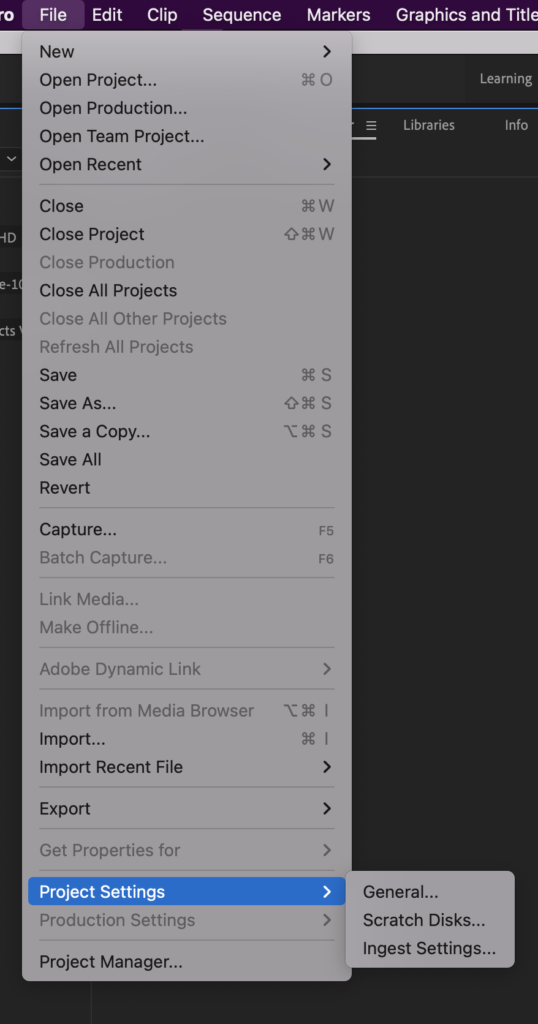
*you can also just select from ‘file menu’ in ‘application menu bar’* –>
.
.
.
*👨🔬🕵️♀️🙇♀️*SKETCHES*🙇♂️👩🔬🕵️♂️*
.
.
👈👈👈☜*-ADOBE PREMIERE PRO-* ☞ 👉👉👉
*THE BASIX*
.
.
💕💝💖💓🖤💙🖤💙🖤💙🖤❤️💚💛🧡❣️💞💔💘❣️🧡💛💚❤️🖤💜🖤💙🖤💙🖤💗💖💝💘
.
.
🔥🔥🔥🔥🔥🔥*we won the war* 🔥🔥🔥🔥🔥🔥