
-as of [15 SEPTEMBER 2024]–
.
.
*[premiere pro] opens to the ‘home screen’* –>
.
*to create a ‘new project’* –>
[COMMAND] + [OPTION] + [n]
.
*or click the ‘new project button’ in ‘top left’ of screen* –>
.
*the ‘home screen’ closes*
.
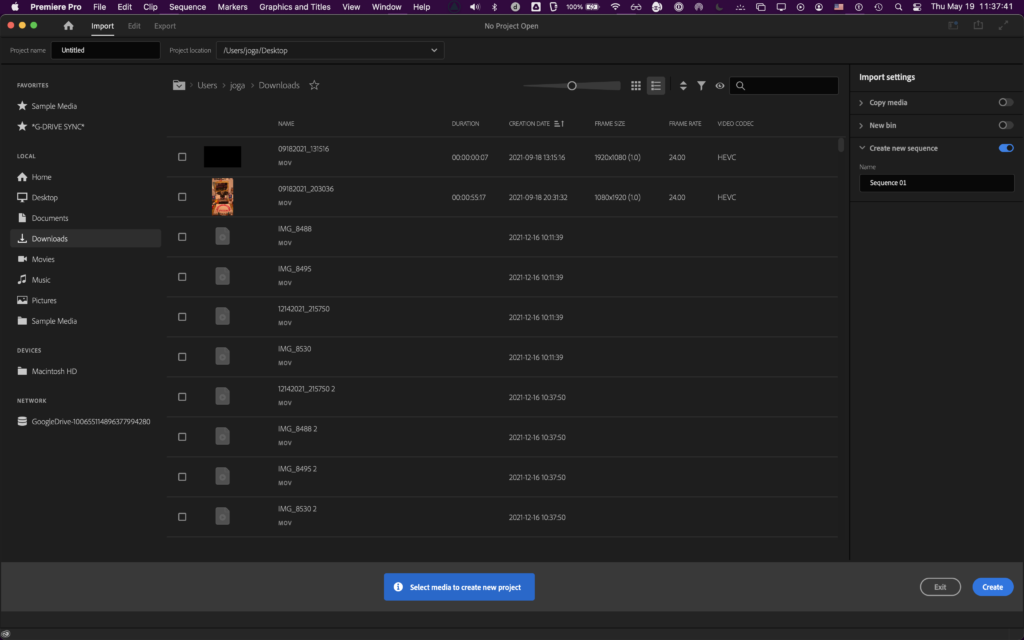
*’NEW PROJECT’ SCREEN*
.
*this becomes the new ‘main screen’*
(meaning that if you click the ‘red button’ in ‘top left corner’, the program closes)
.
*to re-access the ‘home screen’, press the ‘home button’ in ‘top left corner’* –>

.
*the ‘home screen’ becomes a ‘pop-up window’*
*you can close it without exiting the program*
*but if you close the ‘import screen’ while ‘home-screen pop-up window’ is open, the program still closes*
.
*if you click the ‘home button’ from the ‘edit screen’, you can also click in the ‘top left corner PR button’ to close the ‘home screen’ and return to the ‘edit screen’* –>
.
*the center of the ‘top bar’ will display the name of the project*
.
*if there is no project open* –>
.
*this is now called “IMPORT”*
.
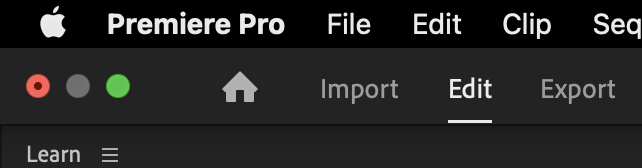
*TOP LEFT CORNER* –>
.
(you must ‘import’ before you can ‘edit’ or ‘export’)
(otherwise, go ‘home’)
.
*click the ‘green circle button #3’ to enter ‘full-screen mode’*
*the 3 circle buttons disappear*
*if you hover pointer in ‘top left corner’ of screen, the 3 ‘window buttons’ become visible again*
*move pointer away and the 3 buttons disappear again*
.
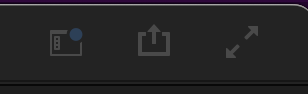
*top right corner* –>
.
.
.
.
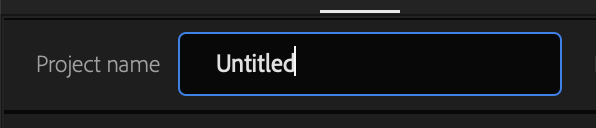
*NAME YOUR PROJECT* –>
.
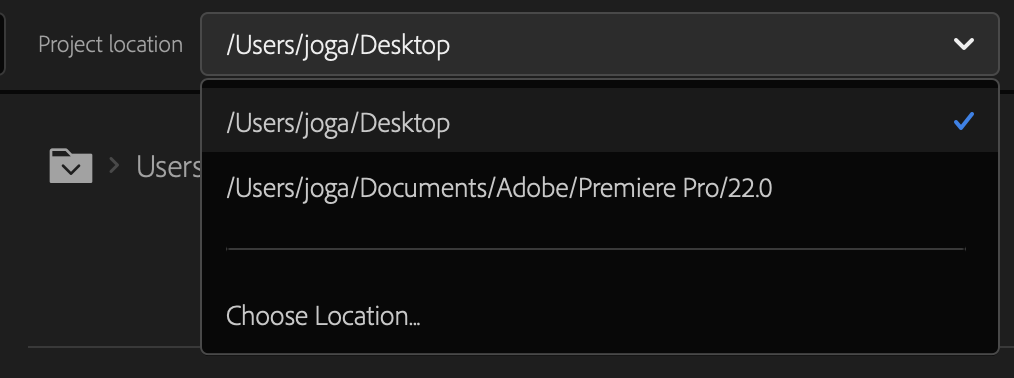
*SET ‘PROJECT LOCATION’* –>
.
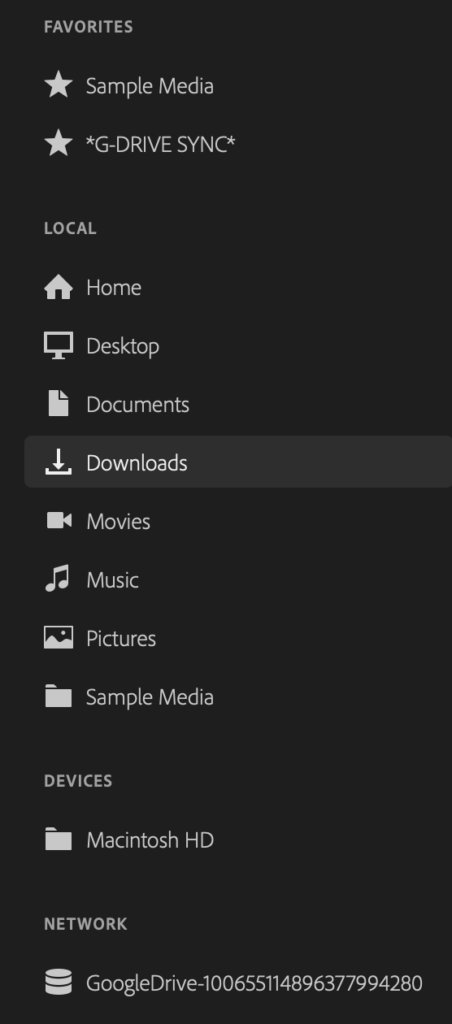
*LEFT COLUMN* –>
.
*4 CATEGORIES* –>
“FAVORITES”
“LOCAL”
“DEVICES”
“NETWORK”
.
*USE THE ‘PATH BAR’ TO FIND ‘MEDIA FILES’ TO ‘IMPORT’* –>
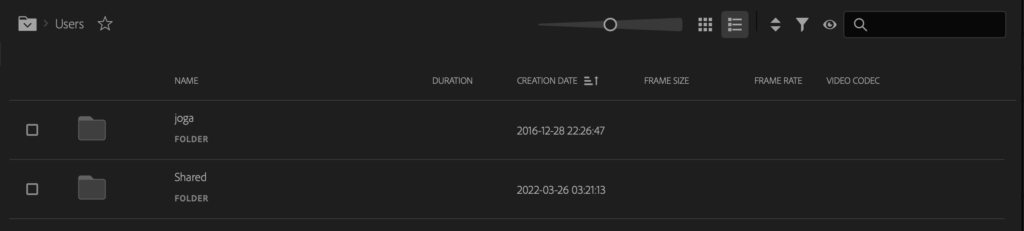
.
*CLICK THE ‘EMPTY STAR’ TO ADD A FOLDER TO ‘FAVORITES’* –>
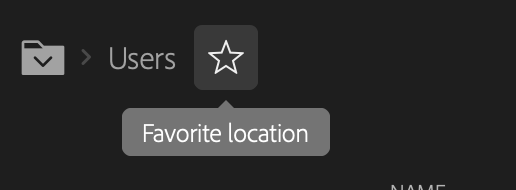
.
*CHANGE ‘THUMBNAIL SIZE’* –>
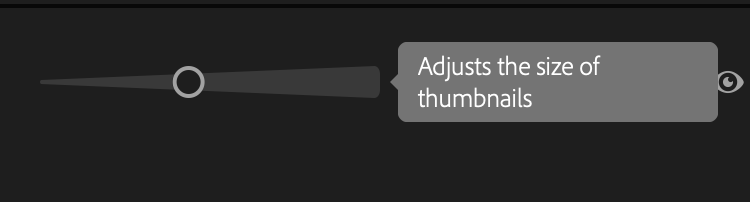
.
*GRID VIEW* –>
.
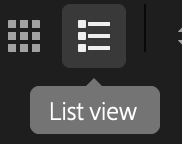
*LIST VIEW* –>
.
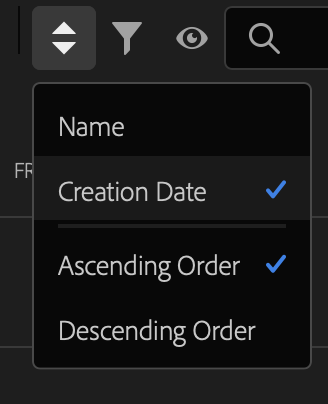
*SORT BY* –>
.
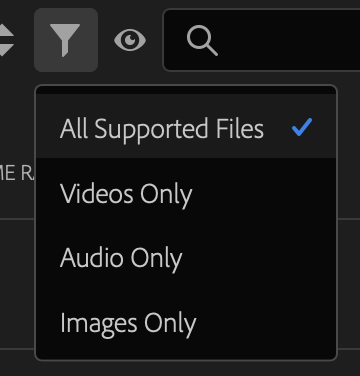
*’FILE TYPE’ DISPLAYED* –>
.
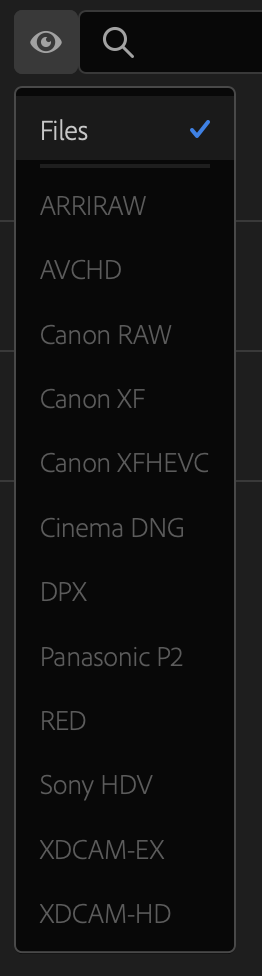
*DIRECTORY VIEWERS* –>
.
*SEARCH FILES* –>
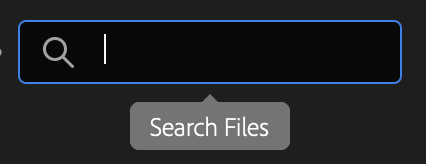
.

.
*’LIST VIEW’ DISPLAYS SEVERAL VARIABLES* –>

.
*’SORT BY’ OPTIONS* –>
*NAME*
*CREATION DATE*
.
*MORE VARIABLES* –>
*DURATION*
*FRAME SIZE*
*FRAME RATE*
*VIDEO CODEC*
.
.
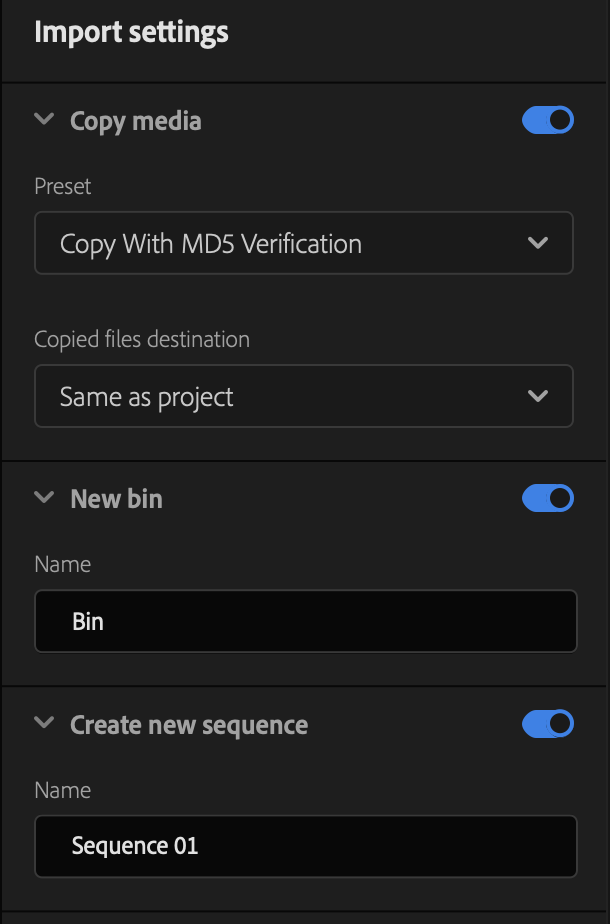
*RIGHT COLUMN* –>
“IMPORT SETTINGS”
.
*3 SECTIONS* –>
*COPY MEDIA*
*NEW BIN*
*CREATE NEW SEQUENCE*
.
1
“COPY MEDIA”
Toggle Copy media on if you want to copy your media files from a temporary location, like a camera card or removable drive.
You can begin editing while Premiere Pro copies the media in the background.
Use ‘MD5 checksum verification’ to ensure no files are corrupted while copying.
(what is “MD5 verification”?)
(something to do with ingest / proxies)
(at first, i read it as ‘MDS’)
(‘capital S’ looks like a ‘5’)
(just rounded at the top)
.
(i can use this to select video files from ‘google drive’ and bulk-copy them to local destination folder)
.
2
*NEW BIN*
*creates a ‘folder’ in your ‘project panel’*
.
3
*CREATE NEW SEQUENCE*
*the assets in ‘selection tray’ create a new sequence in your ‘timeline panel’*
*they are added in the order that you selected them in*
.
*THE ‘SEQUENCE SETTINGS’ ARE BASED ON THE FIRST ASSET SELECTED*
‘resolution’
‘frame rate’
.
(so check these stats in ‘finder’ before importing them into ‘new project’)
.
.
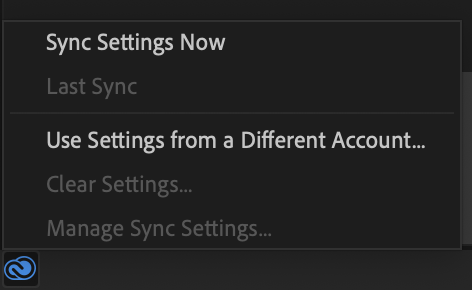
*BOTTOM LEFT CORNER* –>
.
*BOTTOM CENTER* –>
.
(not a ‘button’)
(just an ‘instruction’)
.
*click on ‘files’ to select/unselect*
.
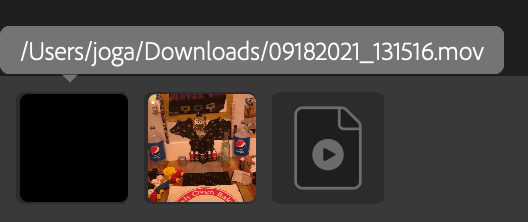
*all ‘selected files’ will appear in the ‘selection tray’*
(which starts from the ‘bottom left corner’ of screen)
.
(hover over any ‘selection tray icon’ to view [file name/path])
.
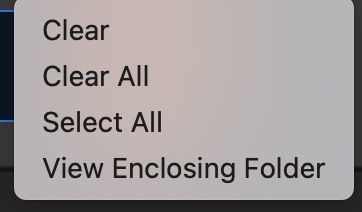
*’right-click’ any ‘selection tray icon’ for this menu* –>
.
*BOTTOM RIGHT CORNER* –>
.
*click ‘create’ to start working on your project*
*click ‘exit’ to return to ‘home screen’ and start all over again*
.
*ONCE YOU HIT ‘CREATE’, YOU ENTER THE ‘EDIT’ SECTION* –>
.
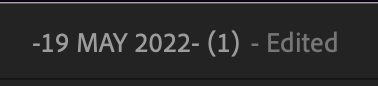
*the ‘top bar’ now displays your ‘project name’ in the ‘center’* –>
.
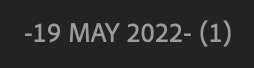
*when there are ‘unsaved changes’ to the project, you will see “EDITED” to the right of ‘project name’*
.
*to save project* –>
[COMMAND] + [s]
.
*the “EDITED” tag should disappear from your ‘top bar’* –>
.
*if you click ‘IMPORT’ in ‘top left corner’. you will be taken back to the ‘import section’*
*this peforms same function as your ‘media browser’*
*files will be imported to the current project*
.
*if you want to create a new project* –>
[COMMAND] + [OPTION] + [n]
.
*you can have multiple projects open at once*
*the new project will be placed in ‘project panel’ along with other open projects*
*the ‘selected project’ will be displayed at the center of the ‘top bar’*
.
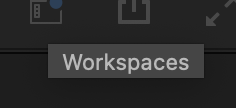
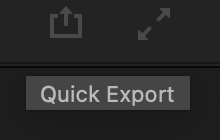
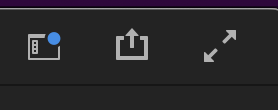
*in ‘EDIT SECTION’, you can now access the 3 buttons in ‘top right corner’* –>
.
1
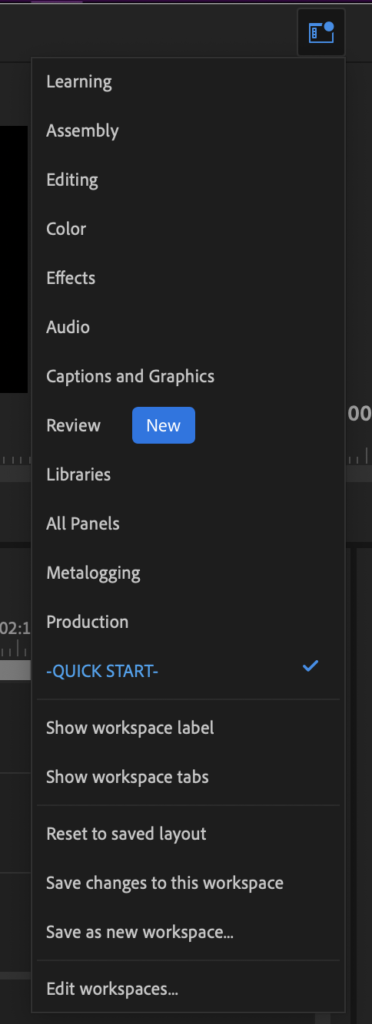
“WORKSPACES”
.
2
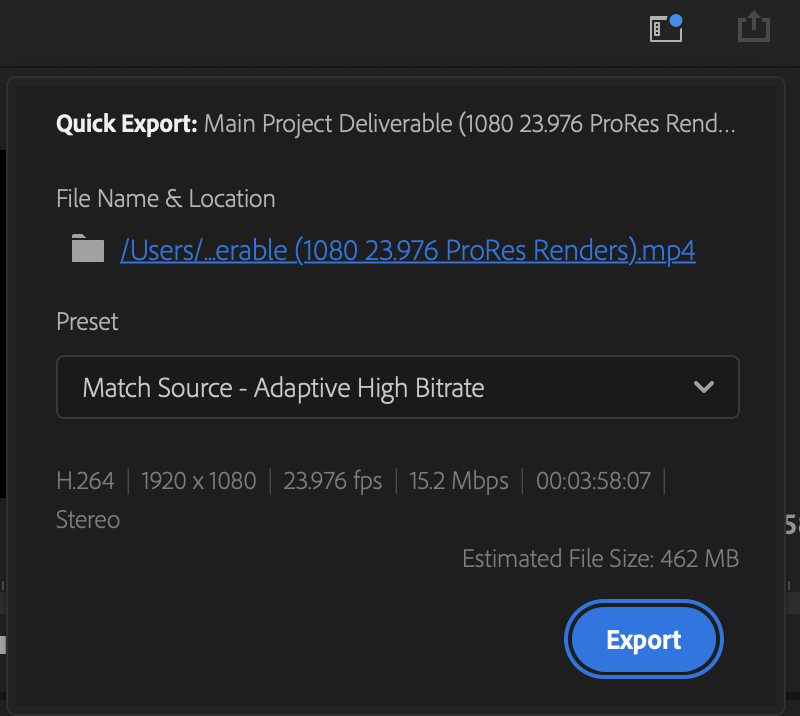
“QUICK EXPORT”
.
*default name* –>
Main Project Deliverable (1080 23.976 ProRes Renders)
.
*the name gives you information about the file* –>
*resolution* –>
1920 x 1080
(abbreviated ‘1080’)
(‘resolution’ displayed in ‘width x height’ notation)
.
*frame rate* –>
23.976
.
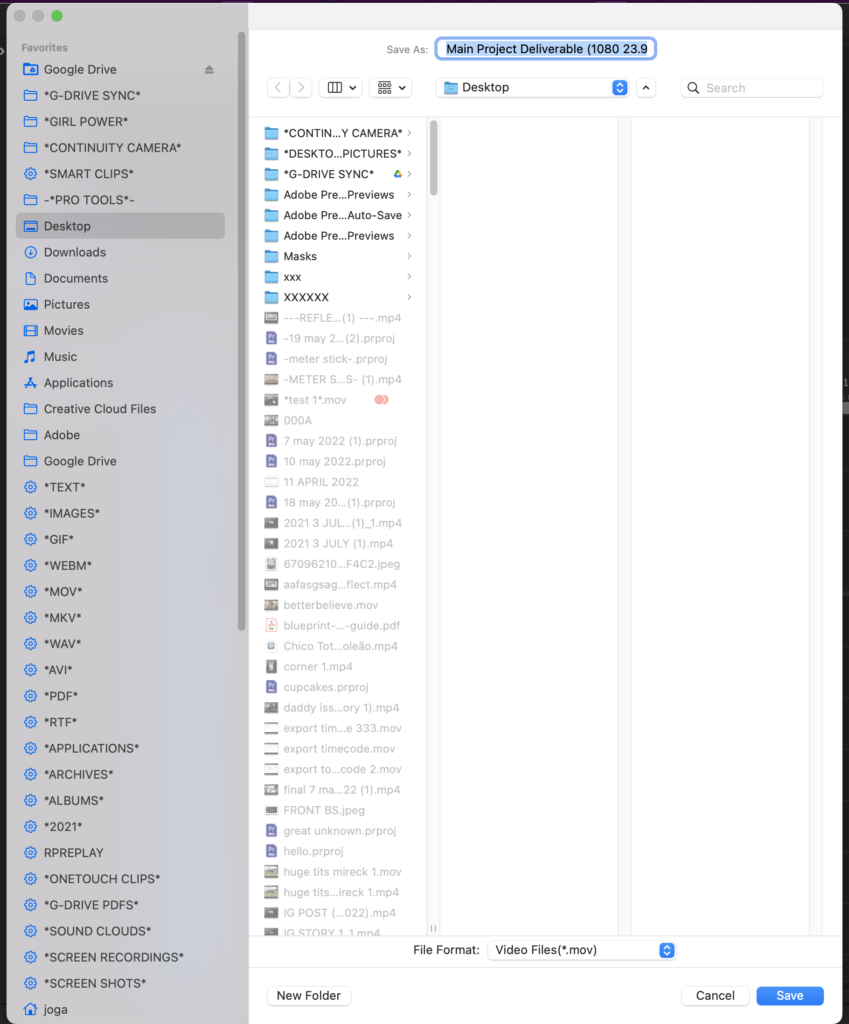
*you can change name / set location by clicking on the left folder below ‘default project name’* –>

.
.
.
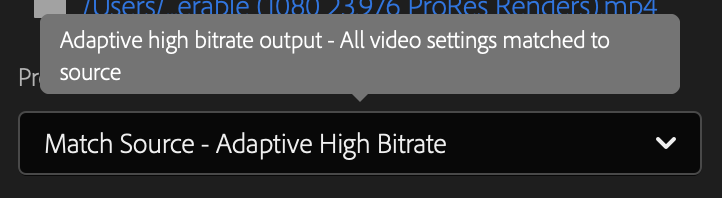
*DEFAULT* –>
.
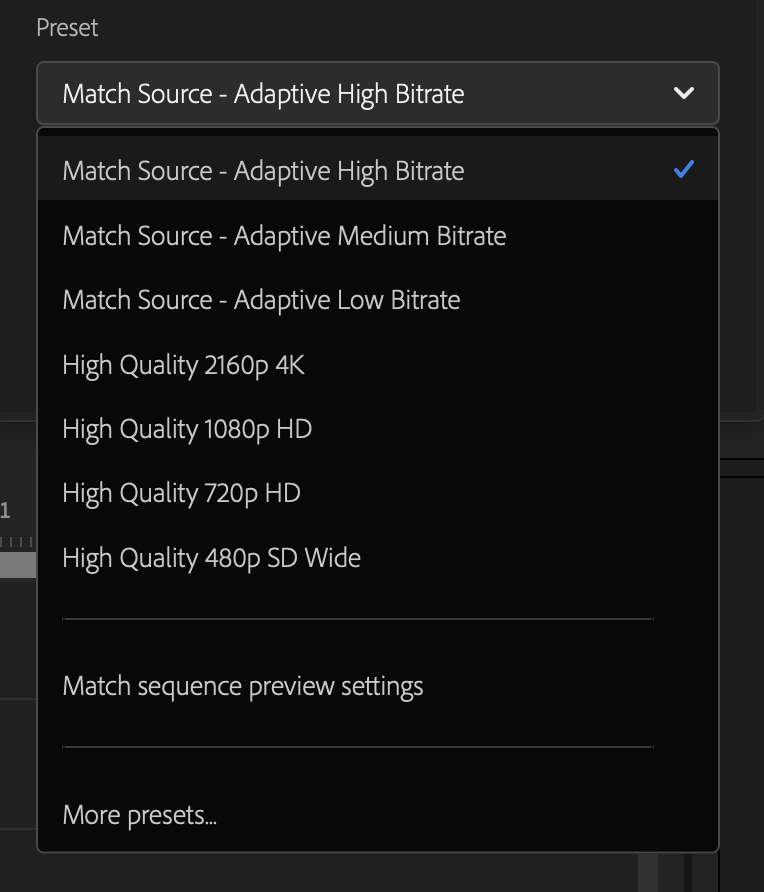
*HIGHEST QUALITY* –>
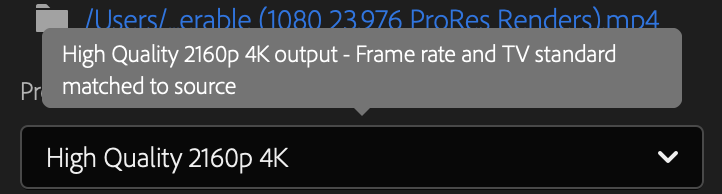
.
“MATCH SOURCE”
(‘export file’ based on ‘sequence settings’)
(‘resolution’)
(‘frame rate’)
.
*3 options for ‘bit-rate’* –>
*adaptive low*
*adaptive medium*
*adaptive high*
.
*4 HIGH QUALITY OPTIONS* –>
-2160 4K-
-1080p HD-
-720p HD-
-480 SD WIDE-
.
.
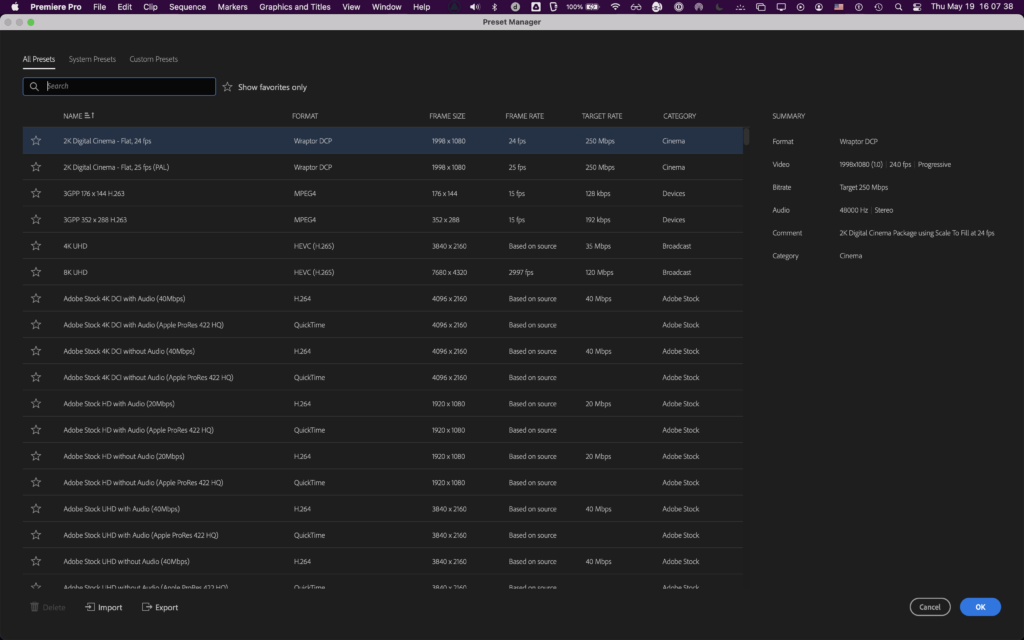
*you can also click ‘more presets’* –>
.
*3 OPTIONS* –>

.
*ALL PRE-SETS*
*SYSTEM PRE-SETS*
*CUSTOM PRE-SETS*
.
*you can ‘text search’ for a pre-set*
*you can set certain pre-sets as ‘favorites’ by clicking on the star to the left of ‘pre-set name’*
*you can then filter your search results by clicking on “show favorites only”*
.
*each pre-set has 6 ‘variables’* –>

.
(click on any ‘variable name’ to reverse ‘sort order’)
.
*NAME*
*FORMAT*
*FRAME SIZE*
*FRAME RATE*
*TARGET RATE*
*CATEGORY*
.
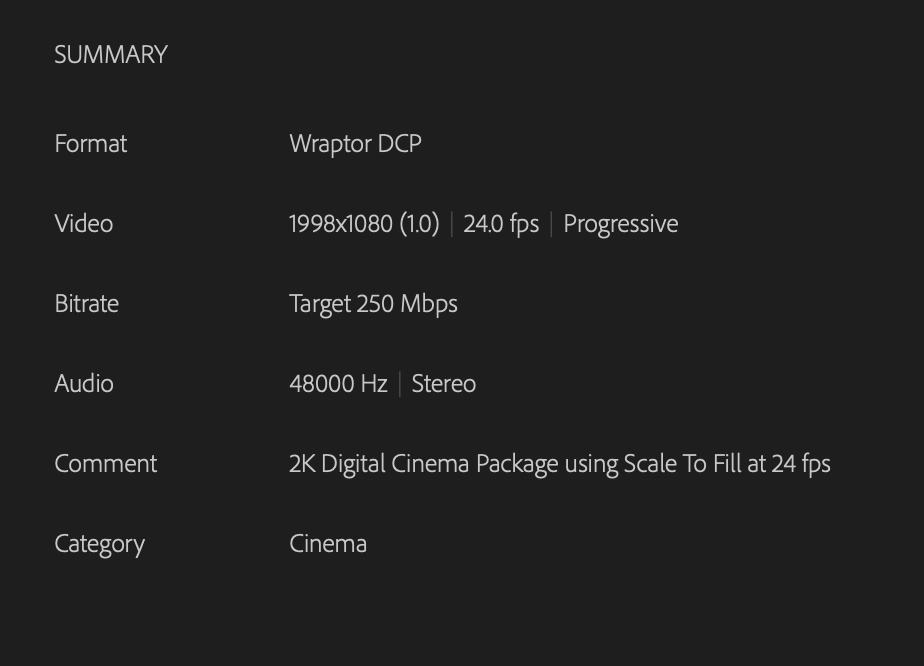
*when you click on a pre-set, you will see its profile on the ‘right column’* –>
.
*6 VARIABLES* –>
*FORMAT*
*VIDEO*
(display/pixel resolution / frame rate / scanning method)
*BITRATE*
(‘target’)
(measured in Mbps)
*AUDIO*
(‘sample rate’ measured in Hz)
(stereo/mono)
*COMMENT*
(resolution)
(frame rate)
(“scale to fill”)
*CATEGORY*
.
*11 CATEGORIES* –>
adobe stock
audio only
broadcast
camera
cinema
devices
DVD + blu-ray
image sequence
other
VR
web video
.
.
*you can import/export ‘pre-sets’ from ‘bottom left corner’* –>
.
*video pre-set files have file extension .EPR*
.
*the ‘export file’ selected settings are listed* –>

.
*7 VARIABLES* –>
1
*video compression standard*
(H.264)
.
2
*resolution*
(3840 x 2160)
(width x height)
(a ‘1.0’ tag indicates a ‘square pixel resolution’)
100
63% HLG
51% PQ
“hardware encoding”
.
3
*frame rate*
(23.976 FPS)
.
4
*bitrate*
80 Mbps
.
5
*duration*
(minutes / seconds / milli-seconds)
.
6
*stereo/mono*
.
7
*estimated file size*
(in MB)
(divide by 1000 to convert to GB)
.
.
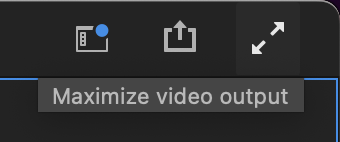
*click this button in ‘top right corner’ to expand your current video monitor to ‘full screen’* –>
.
(click ‘escape key’ to return ‘video monitor’ to previous size)
.
.
*to the right of ‘EDIT BUTTON’ in ‘top left corner’ is ‘EXPORT BUTTON’* –>
.
.
*3 TABS* –>
.
1
.
2
.
3
.
*to open existing project* –>
[COMMAND] + [o]
.
.
*👨🔬🕵️♀️🙇♀️*SKETCHES*🙇♂️👩🔬🕵️♂️*
.
.
👈👈👈☜*“ADOBE PREMIERE PRO”* ☞ 👉👉👉
*THE BASIX*
.
.
💕💝💖💓🖤💙🖤💙🖤💙🖤❤️💚💛🧡❣️💞💔💘❣️🧡💛💚❤️🖤💜🖤💙🖤💙🖤💗💖💝💘
.
.
🔥🔥🔥🔥🔥🔥*we won the war* 🔥🔥🔥🔥🔥🔥