
-as of [8 AUGUST 2025]-
.
-SETTINGS-
-]CAPTURE] TAB-
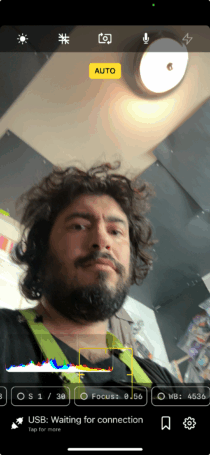
-CAMERA PREVIEW-
.
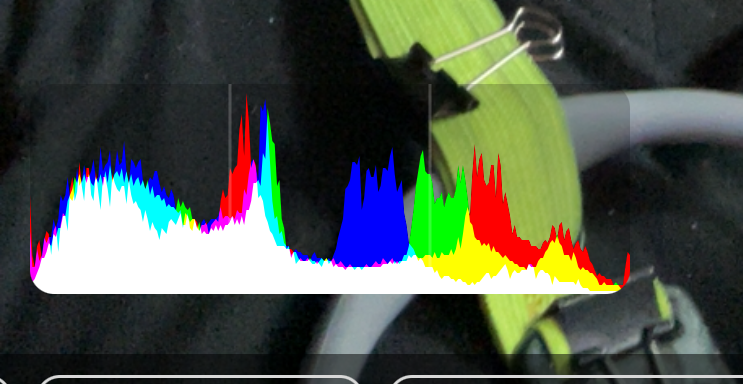
*IF “HISTOGRAM” IS VISIBLE, IT WILL BE DISPLAYED IN [BOTTOM LEFT CORNER] OF SCREEN* —>
.
.
-IT ADJUSTS AS YOU MOVE THE [CAMERA LENS]-
-IT ADJUSTS AS YOU “RE-ARRANGE FRAME”-
.
The histogram in the OBS Camera iOS app displays a graphical representation of the tonal distribution of the image captured by your iPhone’s camera
.
Here’s what it shows:
Horizontal Axis (X-axis):
Represents the range of brightness values in the image, from pure black on the far left (0% brightness) to pure white on the far right (100% brightness).
The areas in between represent shadows, midtones, and highlights
.
Vertical Axis (Y-axis):
Represents the number of pixels at each specific brightness level.
The taller a bar or peak on the histogram, the more pixels in the image have that particular brightness value
.
In essence, the histogram provides a visual summary of your image’s exposure and tonal range
.
What the histogram can tell you
Exposure:
If the histogram is bunched up towards the left, it indicates an underexposed image (too dark), with a high concentration of dark pixels and potential loss of detail in the shadows.
If the histogram is bunched up towards the right, it suggests an overexposed image (too bright), with a lot of bright pixels and potential loss of detail in the highlights.
.
A well-exposed image generally has a histogram spread across the entire range of brightness levels, with information captured in the shadows, midtones, and highlights without being clipped
.
Contrast:
A narrow histogram indicates low contrast,
meaning there’s not a big difference between the brightest and darkest tones.
A wide histogram indicates high contrast,
with a significant difference between the brightest and darkest tones
.
Color
(if RGB histograms are available):
Some histograms, including those in the OBS Camera app, also show the distribution of red, green, and blue color channels.
These can be useful for identifying if one color is overly saturated (clipped) or if there’s a color balance issue
.
In Summary
The histogram in the OBS Camera iOS app helps you evaluate and adjust your image’s exposure and tonal balance before and during streaming or recording.
By understanding how to read and interpret it, you can make informed decisions about your camera settings (like exposure, aperture, ISO, and shutter speed) to achieve the desired look for your video.
While a “perfect” histogram may not exist, as it depends on the scene and your creative intentions, it’s a valuable tool to ensure you’re capturing the tonal information you need without losing detail in the highlights or shadows
.
.
*👨🔬🕵️♀️🙇♀️*SKETCHES*🙇♂️👩🔬🕵️♂️*
.
.
👈👈👈☜*-CAMERA PREVIEW-* ☞ 👉👉👉
-[OBS CAMERA] iOS APP-
.
.
💕💝💖💓🖤💙🖤💙🖤💙🖤❤️💚💛🧡❣️💞💔💘❣️🧡💛💚❤️🖤💜🖤💙🖤💙🖤💗💖💝💘
.
.
*🌈✨ *TABLE OF CONTENTS* ✨🌷*
.
.
🔥🔥🔥🔥🔥🔥*we won the war* 🔥🔥🔥🔥🔥🔥