-as of [23 SEPTEMBER 2026]-
.
-CREATE [TEMPLATE PROJECT]-
-IMPORT [BOOKEND SEQUENCE]-
-PROJECT PANEL-
-FULL SCREEN-
-EXPAND ALL BINS-
-SELECT ALL [ASSETS]-
-DRAG/DROP [SELECTED ASSETS] OVER ANY [LABEL SQUARE] IN [LEFTMOST COLUMN]-
-DELETE [SEQUENCE IMPORT] BIN-
-CUSTOM [PROJECT PANEL] LAYOUT-
-CREATE [BOOKEND] BIN-
-CREATE [[MASTER SEQUENCE] SUB-BIN]-
-MOVE [MASTER SEQUENCE] INTO ITS [SUB-BIN]-
-OPEN [MASTER SEQUENCE] IN [TIMELINE]-
-CREATE [[NESTED SEQUENCE] SUB-BIN] IN [MASTER SEQUENCE] BIN-
-SCAN THE [MASTER SEQUENCE] FOR [NESTED SEQUENCES]-
-TO ADD SEQUENCE “GRAFIX” TO THE [PROJECT PANEL], SEECT THE [SEQUENCE] IN [TIMELINE] + “UPGRADE TO SOURCE GRAPHIC”* —>
-[OPTION] + [CONTROL] + [ g ]-
-CREATE A “PERMANENT AUDIO SLUG”-
-MERGE [SLUG/AUDIO CLIP] IN “NESTED SEQUENCE”-
“RENDER/REPLACE”
-[AUDIO] WORKSPACE]-
-REVIEW [AUDIO CLIPS]-
-OPEN [MASTER SEQUENCE] IN [TIMELINE]-
-OPEN [NESTED SEQUENCE] INTO ITS OWN [TIMELINE TAB]-
-REVEAL [SOURCE CLIPS] IN [PROJECT PANEL]-
-OPEN [SOURCE CLIPS] IN [SOURCE MONITOR]-
-PLAY BACK [SOURCE CLIPS] IN [SOURCE MONITOR]-
-CLOSE [SOURCE CLIP] FROM [SOURCE MONITOR]-
-CLOSE [SOURCE MONITOR]-
-PLAY BACK [NESTED SEQUENCE] IN [PROGRAM MONITOR]-
-PLAY BACK [MASTER SEQUENCE] IN [PROGRAM MONITOR]-
-MAKE SURE THEY AREN’T “CLIPPING”-
-IF YOU CHANGE “GAIN” FROM “SOURCE”, ITS CHANGES WILL BE REFLECTED TO NEXT TIME YOU INSERT THE [SOURCE] INTO A [SEQUENCE]-
-IF YOU CHANGE “GAIN” FROM “NESTED SEQUENCE”, ITS CHANGES WILL BE REFLECTED IN ALL [MASTER SEQUENCES] THAT THE “NESTED SEQUENCE” IS NESTED IN-
-IF YOU CHANGE “GAIN” FROM “MASTER SEQUENCE, ITS CHANGES WILL ONLY APPLY TO THAT “MASTER SEQUENCE”-
-SET [IN/OUT POINTS] OF SELECTED [CLIP] IN [MASTER SEQUENCE]* —>
-[ x ]-
*PLAY [IN] TO [OUT]* —>
-[OPTION] + [ k ]-
*CLEAR [IN/OUT] POINTS* —>
-[COMMAND] + [OPTION] + [F1]-
*LOUDNESS METER* —>
*INTRO* —>
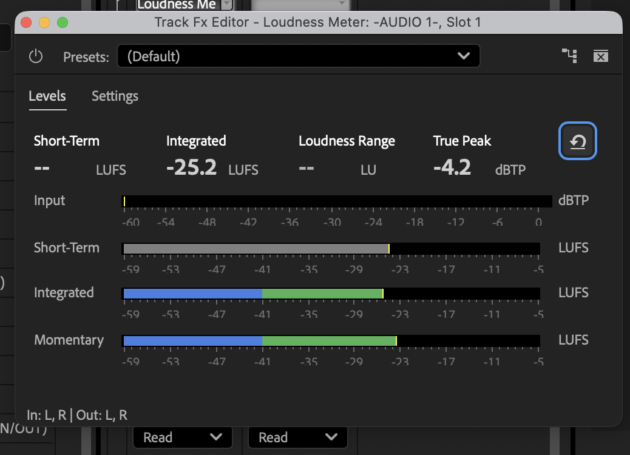
*OUTRO* —>
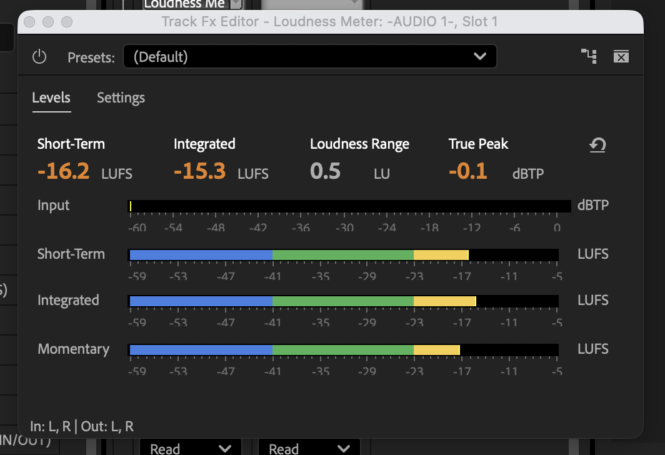
-“TRUE PEAK” SHOULD BE [-1]-
-TO ACHIEVE THIS, ADJUST CLIP [GAIN] IN [MASTER SEQUENCE]-
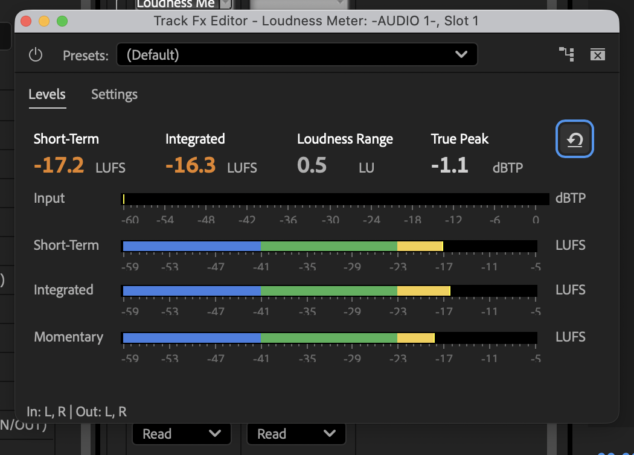
-THIS ALSO REDUCES “SHORT TERM LUFS” + “INTEGRATED LUFS” BY [-1]-
.
.
.
.
.
-[CLOUD] MUSIC VIDEO [DATABASE]* —>
‘/Users/joga/Library/CloudStorage/GoogleDrive-josephjgatti@gmail.com/My Drive/-FINAL CUTS-/0B -TRAX-/-SOUNDCLOUDS-/-THE LONG RUN-‘
*ALIAS* —>
‘/Users/joga/Desktop/-SYNC FOLDERS-/-ALIASES-/-SONG PROFILES-/-THE LONG RUN-‘
*FINDER LEFT SIDEBAR* —>

.
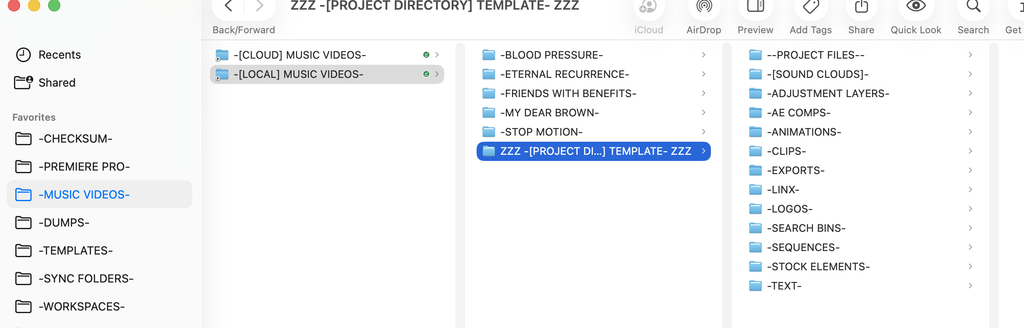
*[LOCAL] SONG PROJECTS* —>
‘/Users/joga/Desktop/-LOCAL EDITS-/-PREMIERE PRO-/-PROJECTS-/–MUSIC VIDEOS–‘
-[[LOCAL SONG PROJECT] DIRECTORY] ALIAS* —>
‘/Users/joga/Desktop/-SYNC FOLDERS-/-ALIASES-/-MUSIC VIDEOS-/-[LOCAL] MUSIC VIDEOS-‘
*FINDER LEFT SIDEBAR* —>
.
.
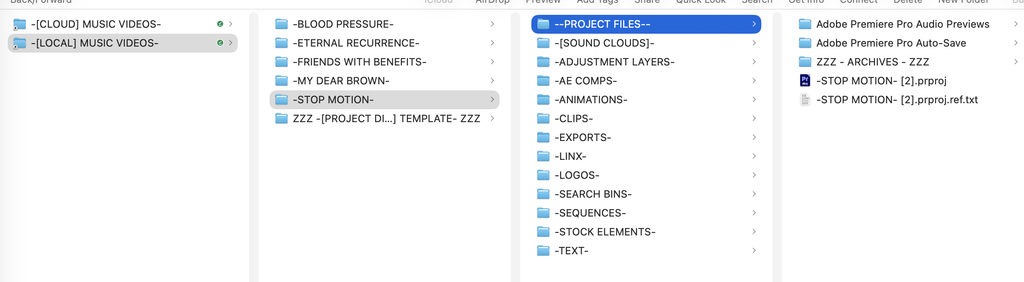
*PROJECT FILES* —>
.
-PROJECT PANEL-
.
-CREATE AN [“ARCHIVES” BIN] TO HOLD YOUR “SUPPLEMENTARY BINS”-
-CREATE A [“DAILY” BIN] TO HOLD “BOOKEND SEQUENCE” + “BODY SEQUENCE”-
.
-OPEN [BOOKEND SEQUENCE] IN [TIMELINE]-
-OPEN [BODY SEQUENCE] IN [SOURCE MONITOR]-
-MOVE [TIMELINE PLAYHEAD] TO END OF [INTRO]-
-TURN ON “NESTING”-
-SOURCE PATCH [V1 / A1]-
-TRACK TARGET [V1 / A1]-
-TRACK LOCK ALL OTHER [TRAX]-
-INSERT [BODY SEQUENCE] INTO [BOOKEND SEQUENCE]-
-ZOOM TO [TIMELINE SEQUENCE]-
-OPEN [NESTED BODY SEQUENCE] INTO ITS OWN [TIMELINE SEQUENCE]-
.
-DELETE [GAP] BETWEEN [BODY OUT] + [OUTRO IN]-
.
.
.
.
.
.
*AFTER EACH [SESSION], BACK UP [SONG PROJECT] TO [CLOUD]-
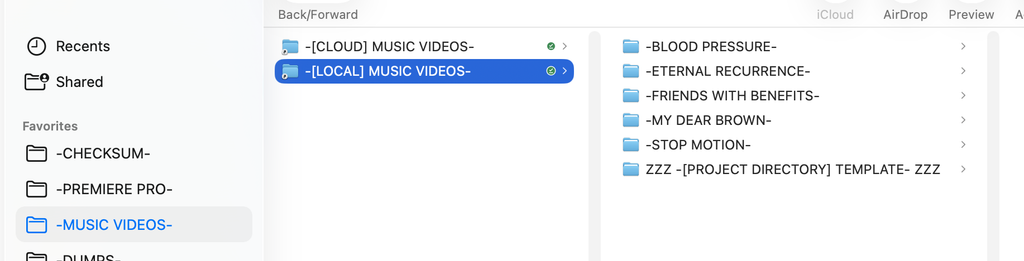
*LOCAL [MUSIC VIDEO] DIRECTORY* —>
‘/Users/joga/Desktop/-LOCAL EDITS-/-PREMIERE PRO-/-PROJECTS-/–MUSIC VIDEOS–‘
*FINDER LEFT SIDEBAR* —>
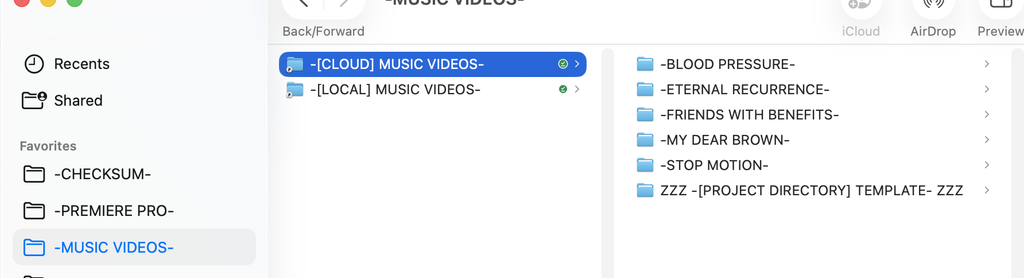
*CLOUD [MUSIC VIDEO] DIRECTORY* —>
‘/Users/joga/Library/CloudStorage/GoogleDrive-josephjgatti@gmail.com/My Drive/-RAW MATERIALS-/-MACBOOK PRO-/-WORKSPACES-/-PREMIERE PRO-/-MUSIC VIDEOS-‘
*FINDER LEFT SIDEBAR* —>
.
.
.
-OPEN [PREMIERE PRO]-
-OPEN [LIBRETTO TEMPLATE]-
-[BLANK SLATE] WORKSPACE-
-PROJECT PANEL-
-DOCK THE PANEL-
-[SKELETON] BIN-
-MAIN SEQUENCE-
-V11-
-DUPLICATE “-SKELETON- (MAIN) [V11]” SEQUENCE-
-RENAME IT “-SKELETON- (MAIN) [V12]”-
-CREATE [V12] BIN-
-INSERT DUPLICATED [SEQUENCE] INTO [V12] BIN-
-CUSTOM [PROJECT PANEL] LAYOUT-
-ADJUST [COLUMN WIDTHS] IF NEEDED-
-SAVE AS NEW [WORKSPACE]-
(PROJECT PANEL)
-PRESS ANY [ARROW KEY] TO SELECT THE FIRST [ITEM] IN YOUR [PROJECT PANEL]-
(LISTED ALPHABETICALLY)
-PRESS [DOWN ARROW] KEY UNTIL YOUR “SKELETON SEQUENCE” IS SELECTED-
*OPEN [SELECTED SEQUENCE] IN [TIMELINE]* —>
-[OPTION] + [ t ]-
-THIS OPENS YOUR [TIMELINE] + [PROGRAM MONITOR]-
-CLOSE [PROJECT PANEL] + [PROGRAM MONITOR]-
-SAVE NEW WORKSPACE AS [TIMELINE]-
-[TRACK LOCK] ALL [AUDIO]-
-[TRACK LOCK] ALL [VIDEO]-
(YOU CANNOT OPEN “NESTED SEQUENCES” IF THE TRAX ARE LOCKED)
-MOVE [PLAYHEAD] TO BEGINNING OF [TIMELINE]-
-ZOOM TO [FRAME]-
-TARGET TRACK [V1] / [A1]-
-SELECT [INTRO] NESTED SEQUENCE-
-OPEN IT IN A NEW [TIMELINE TAB]-
-CLOSE [PROGRAM MONITOR]-
-PRESS [ESCAPE] TO [DE-SELECT] ALL [CLIPS] IN THE [TIMELINE]-
-IF THE SELECTED ITEM DOESN’T OPEN IN NEW TAB WHEN YOU USE YOUR [OPEN NESTED SEQUENCE] KS, IT IS A [CLIP]-
-CREATE A [TIMELINE / FX CONTROLS] WORKSPACE-
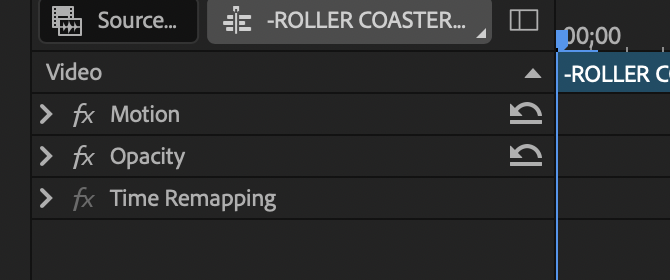
*WHEN YOU CLOSE ALL [DROPDOWN MENUS* —>
.
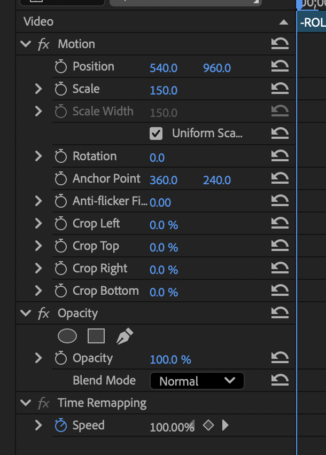
*IF YOU “OPTION-CLICK” ANY [[TOP LEVEL] MENU], ALL [[TOP LEVEL] MENUS] OPEN* —>
.
-[OPTION-CLICK] ANY [[TOP LEVEL] MENU] AGAIN TO CLOSE ALL [[TOP LEVEL] MENUS]-
.
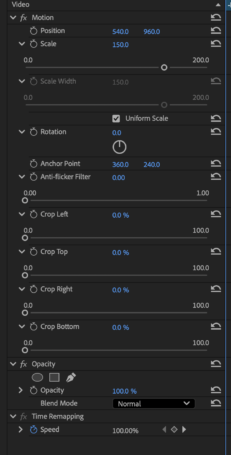
*IF YOU [OPTION-CLICK] ANY [[2ND LEVEL] MENU], ALL [[2ND LEVEL] MENUS] IN THAT [[TOP LEVEL] MENU] OPEN* —>
.
-[OPTION-CLICK] ANY [[2ND LEVEL] MENU] IN THAT [[TOP LEVEL] MENU] AGAIN TO CLOSE ALL [[2ND LEVEL] MENUS] IN THAT [[TOP LEVEL] MENU]-
.
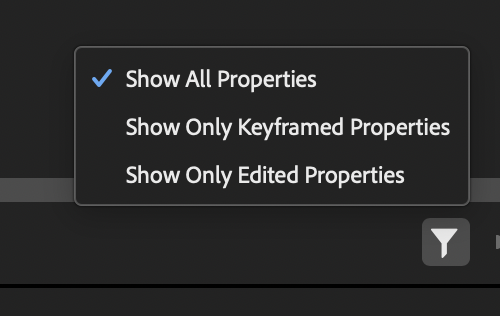
*BOTTOM RIGHT CORNER* —>
.
*TO CYCLE THROUGH THESE 3 [FILTER SETTINGS]* —>
-[OPTION] + [CONTROL] + [ = ]-
.
*SHOW ALL PROPERTIES* —>
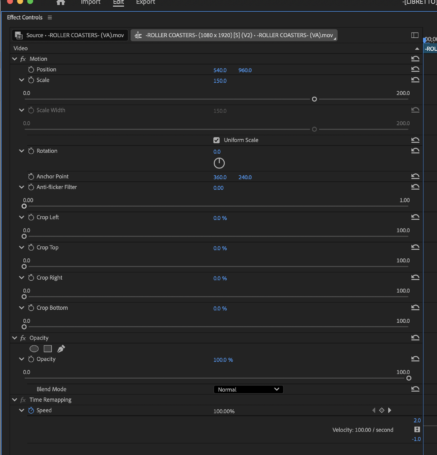
.
*SHOW ONLY [KEYFRAMED] PROPERTIES* —>
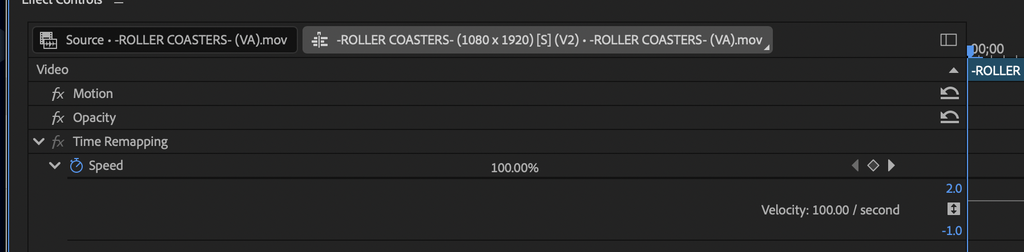
(“SPEED” IS ALWAYS AUTOMATICALLY “KEYFRAMED”)
.
*SHOW ONLY [EDITED] PROPERTIES* —>
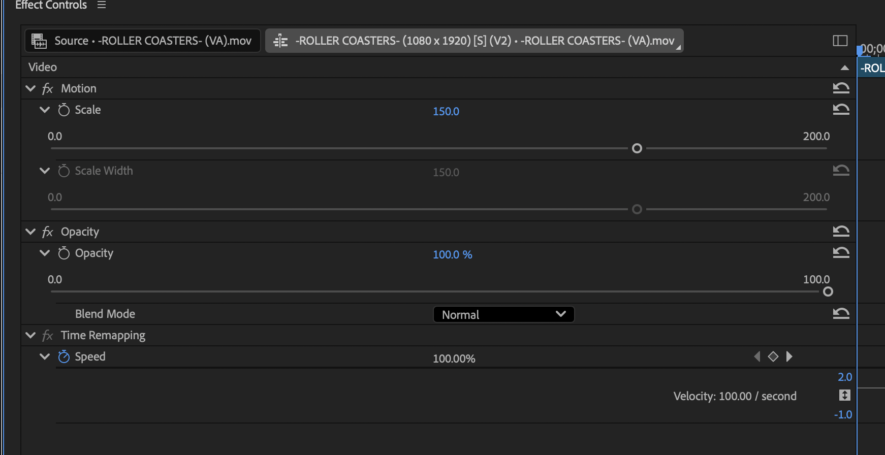
-THE [SCALE] IS [100%] BY DEFAULT-
-THIS REFERS TO THE PEERCENTAGE CHANGE IN SCALE [HEIGHT] ACCOMPANIED BY A CHANGE IN [WIDTH] THAT PRESERVES THE CLIP’S [ASPECT RATIO]-
-IF YOU [FIT TO FRAME], YOU CHANGE THE CLIP’S [SCALE]-
(IT IS [150%] IN THIS SCREENSHOT)
.
*YOU CAN ONLY ADJUST “SCALE WIDTH” IF YOU UNCHECK “UNIFORM SCALE”* —>
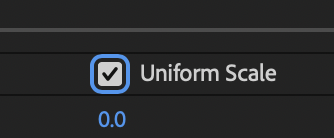
-THIS SETTING PRESERVES [ASPECT RATIO]-
-SO IF [SCALE HEIGHT] WAS CHANGED BY [150%], THEN [SCALE WIDTH] IS ASO CHANGED BY [150%]-
.
-[OPACITY] IS SET TO [100%] BY DEFAULT-
*BLEND MODEI* —>
“NORMAL”
(MEANING THE [TOP] VIDEO CLIP COMPLETELY OBSCURES ALL [VIDEO CLIPS] BENEATH IT ON THE [TIMELINE]-
.
-ALL [KEYFRAMED PROPERTIES] ARE [EDITED PROPERTIES]-
.
*TIME [RE-MAPPING]* —>
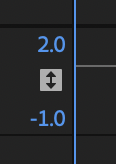
-THIS MEANS YOU CAN PLAY BACK THE VIDEO WITH ALTERED SPEED FROM [-100%] (“REVERSE SPEED”) TO [+200%] (“DOUBLE SPEED”)
.
“AUTOMATIC RANGE RESCALING”
-THIS AUTOMATICALLY ADJUSTS THE [HEIGHT] OF [KEYFRAME GRAPH] SO THAT YOUR [KEYFRAMES] ARE ALWAYS VISIBLE ON YOUR SCREEN-
.
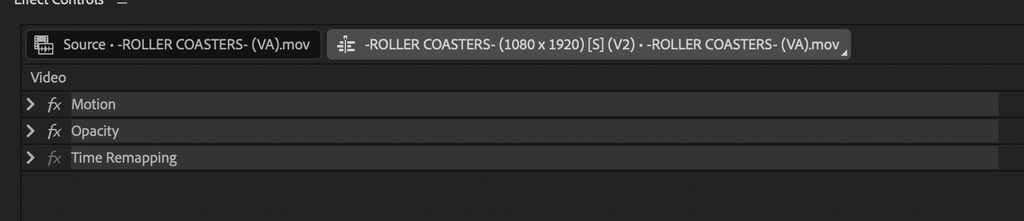
*COLLAPSE ALL [DROP-DOWN MENUS] + “SELECT ALL”* —>
.
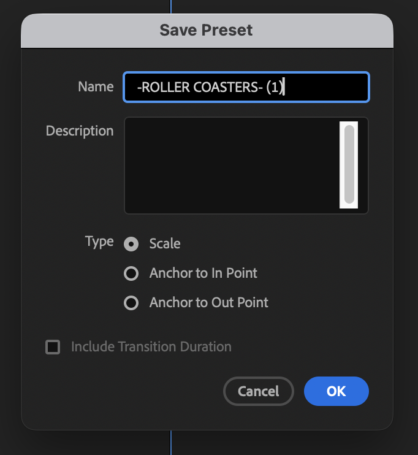
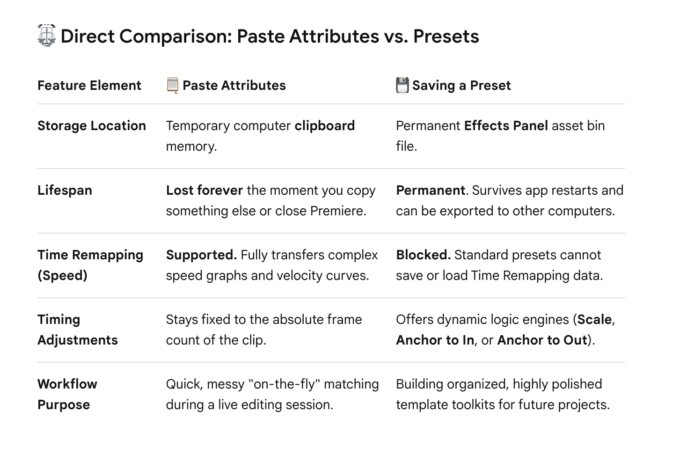
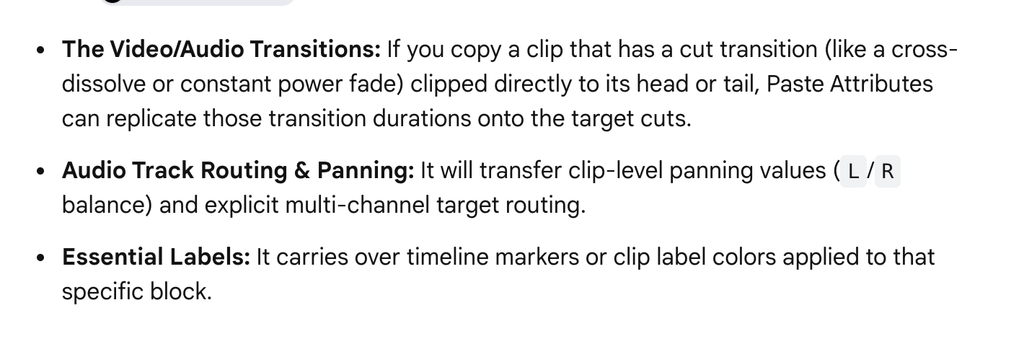
*SAVE PRESET* —>
-[COMMAND] + [CONTROL] + [F10]-
.
.
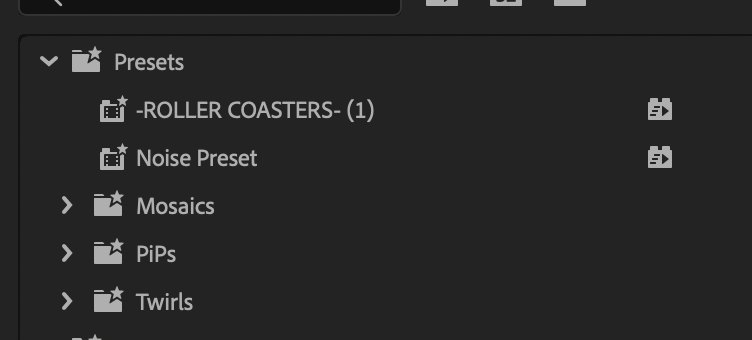
*THESE [PRE-SETS] ARE SAVED IN THE [PRE-SETS] BIN IN YOUR [EFFFECTS PANEL]* —>
.
.
.
.
.
.
.
-MOVE [SEQUENCES] BETWEEN [PROJECTS]-
.
-66 FRAMES-
-[30] FPS-
-[2.2] SECONDS-
-[TITLE] ENTERS AFTER [42 FRAMES]-
-[1.4] SECONDS-
-“MAIN SEQUENCE” ENTERS WHEN “INTRO” ENDS-
*V4* —>
“TITLE”
*V3* —>
-CAPTION GRAFIX-
*V2* —>
-“SHEEN” ADJUSTMENT LAYER-
-ADD “CROSS DISSOLVE” FADE-IN TO “CAPTIONS GRAPHIC”-
-SELECT THE [CAPTIONS GRAFIX]-
.
*UPGRADE TO “SOURCE GRAPHIC”* —>
-[OPTION] + [CONTROL] + [ g ]-
(THIS CANNOT BE “UNDONE”)
.
*THIS ALLOWS YOU TO SELECT THE “CROSS DISSOLVE” BY CLICKING IT TWICE* —>
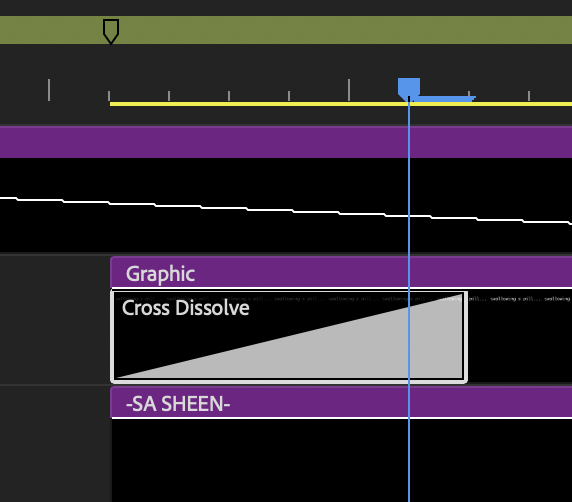
-WHEN YOU ARE “ZOOMED TO FRAME”, YOUR [PLAYHEAD] WILL HAVE A SMALL HORIZONTAL LINE EXTENDING FROM THE [RIGHT] OF YOUR [PLAYHEAD]-
(THE “LENGTH” OF THE “FRAME”)
-ADD A MARKER THERE-
.
*TO MOVE [PLAYHEAD] TO THE SELECTION’S “START/END”* —>
-[SHIFT] + [fn] + [LEFT/RIGHT ARROW]-
.
-CAPTIONS ARE FULLY VISIBLE AFTER [71 FRAMES]-
-[2.183] SECONDS-
-[TITLE] FADES OUT AFTER [79 FRAMES]-
-[2.31666] SECONDS-
.
-CAPTION GRAPHIC-
-PROPERTIES PANEL-
-[CENTER ALIGN] THE TEXT-
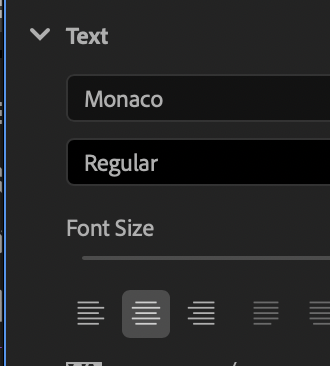
-CENTER THE [GRAPHIC] HORIZONTALLY-
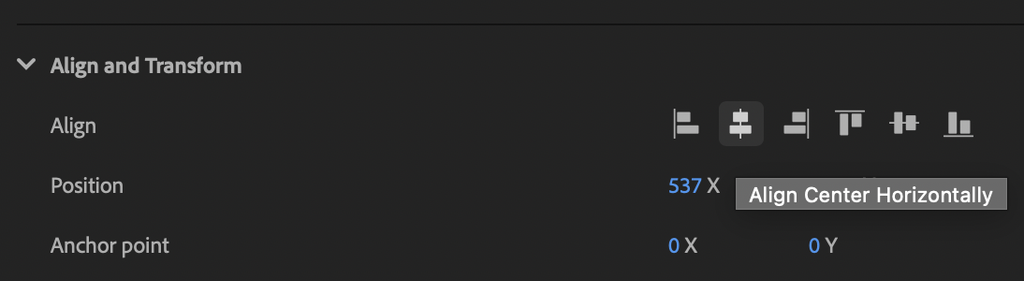
*ADJUST THE [FONT SIZE] UNTIL YOUR LONGEST CAPTION FITS IN THE [SAFE MARGINS]-

.
*TO TRACK ASSETS* —>
-[TIMELINE] PANEL-
-TARGET [TRACK]-
-SELECT [SEQUENCE]-
*REVEAL [NESTED SEQUENCE]* —>
-[SHIFT] + [CONTROL] + [ f ]-
-TARGET [TRACK]-
-SELECT [CLIP]-
*REVEAL IN [FINDER]* —>
-[COMMAND] + [CONTROL] + [ f ]-
-COPY/PASTE [FILEPATH] INTO [WORDPRESS ENTRY]-
(ALONG WITH [FOLDER DIRECTORY LIST TO NAVIGATE TO ITS MIRRORED “CLOUD DIREECTORY”)
(ALONG WITH EVERY INSTANCE IT IS USED IN THE [MASTER SEQUENCE])
‘/Users/joga/Desktop/-LOCAL EDITS-/-PREMIERE PRO-/-TEMPLATES-/-INTROS-/-ROLLER COASTERS-/1 -IMPORTS-/-KING OF THE CATS- (RAW IN).mp4’
‘/Users/joga/Library/CloudStorage/GoogleDrive-josephjgatti@gmail.com/My Drive/-RAW MATERIALS-/-MACBOOK PRO-/-WORKSPACES-/-PREMIERE PRO-/-TEMPLATES-/-INTROS-/-ROLLER COASTERS-/1 -IMPORT-/-KING OF THE CATS- (RAW IN).mp4’
-INTRO VIDEO-
-OUTRO VIDEO-
-OUTRO AUDIO-
‘/Users/joga/Desktop/-LOCAL EDITS-/-PREMIERE PRO-/-TEMPLATES-/-SOUNDCLOUDS-/-GOLDEN GLOBES-/-SOUNDCLOUD-/-GOLDEN GLOBES-.wav’
‘/Users/joga/Library/CloudStorage/GoogleDrive-josephjgatti@gmail.com/My Drive/-RAW MATERIALS-/-MACBOOK PRO-/-WORKSPACES-/-PREMIERE PRO-/-TEMPLATES-/-SOUNDCLOUDS-/-GOLDEN GLOBES-/-SOUNDCLOUDS-/-GOLDEN GLOBES-.wav’
-INTRO AUDIO-
‘/Users/joga/Desktop/-LOCAL EDITS-/-PREMIERE PRO-/-TEMPLATES-/-CALLING CARDS-/-FRONT-/-FRONT BANNER- [1].jpg’
‘/Users/joga/Library/CloudStorage/GoogleDrive-josephjgatti@gmail.com/My Drive/-RAW MATERIALS-/-MACBOOK PRO-/-WORKSPACES-/-PREMIERE PRO-/-TEMPLATES-/-CALLING CARDS-/-FRONT-/-FRONT BANNER- [1].jpg’
-OUTRO VIDEO-
.
*SOLO AKUSTIKA BODY CLIPS* —>
*LOCAL FILEPATH* —>
‘/Users/joga/Desktop/-LOCAL EDITS-/-PREMIERE PRO-/-PROJECTS-/–MUSIC VIDEOS–/-STOP MOTION-/–PROJECT FILES–/-STOP MOTION- [2].prproj’
*CLOUD FILEPATH* —>
‘/Users/joga/Library/CloudStorage/GoogleDrive-josephjgatti@gmail.com/My Drive/-RAW MATERIALS-/-MACBOOK PRO-/-WORKSPACES-/-PREMIERE PRO-/-MUSIC VIDEOS-/-STOP MOTION-/-PROJECTS-/-STOP MOTION- [2].prproj’
-[COPY/PASTE] UPDATED “LOCAL PROJECT FILE” INTO “CLOUD LOCAL PROJECT FOLDER” AFTER EVERY [EDITING SESSION]-
-MOVE THE PREVIOUS “CLOUD LOCAL PROJECT FILE” INTO ITS DEDICATED “ARCHIVES” CLOUD FOLDER-
.
.
.
.
-IF THE [CLOUD BACKUP] IS OT IN THE FOLDER, IT MAY HAVE BEEN DELETED AS “DUPLICATE” VIA [FILEREV]-
-SEARCH FOR IT IN THE [GOOGLE DRIVE] WEB INTERFACE-
-FILTER BY “VIDEO”-
-SEARCH FOR “TITLE VARIANTS”-
-SELECT A “VIDEO RESULT”-
*TO VIEW “FILE INFORMATION”* —>
-[OPTION] + [ v ]-
-THEN “D”-
(OPENS THE “DETAILS” TAB OF THE [FILE INFORMATION] RIGHT “POP-UP COLUMN”)
.
*MAKE A NOTE OF THE “BOOKENDS” BIN [FILEPATH]* —>
“SKELETON” —>
“MAIN SEQUENCE” —>
“V9” —>
“SKELETON (MAIN [V9]”
.
-BACK UP [LIBRETTO TEMPLATE] TO [GOOGLE DRIVE]-
*LOCAL FILEPATH* —>
‘/Users/joga/Documents/Adobe/Common/Assets/Project Templates/-[LIBRETTO] TEMPLATE-.prproj’
*CLOUD FILEPATH* —>
‘/Users/joga/Library/CloudStorage/GoogleDrive-josephjgatti@gmail.com/My Drive/-RAW MATERIALS-/-MACBOOK PRO-/-WORKSPACES-/-PREMIERE PRO-/-TEMPLATES-/–TEMPLATE PROJECTS–/-[LIBRETTO] TEMPLATE-.prproj’
.
*OPEN [SONG PROJECT]* —>
‘/Users/joga/Desktop/-LOCAL EDITS-/-PREMIERE PRO-/-PROJECTS-/–MUSIC VIDEOS–/-STOP MOTION-/–PROJECT FILES–/-STOP MOTION- [2].prproj’
.
-IMPORT THE [BOOKEND SEQUENCE] FROM [LIBRETTO TEMPLATE]-
-RENAME ITS [BIN]-
(NAMED AFTER THE “TEMPLATE PROJECT” THE SEQUENCE WAS IMPORTED FROM)
-ADD ENOUGH [Z] TO BEGINNING OF [BIN NAME] UNTIL IT IS POSITIONED AT BOTTOM OF [ALPHABETICAL LIST] IN [PROJECT PANEL]-
-OPEN THE [SEQUENCE] IN THE [TIMELINE]-
-OPEN THE SONG’S FIRST [BODY SEQUENCE] IN [TIMELINE]-
-NAVIGATE TO [PROGRAM MONITOR]-
*OPEN [OVERLAY SETTINGS]* —>
-[OPTION] + [CONTROL] + [ o ]-
-SELECT AN [OVERLAY] PRE-SET-
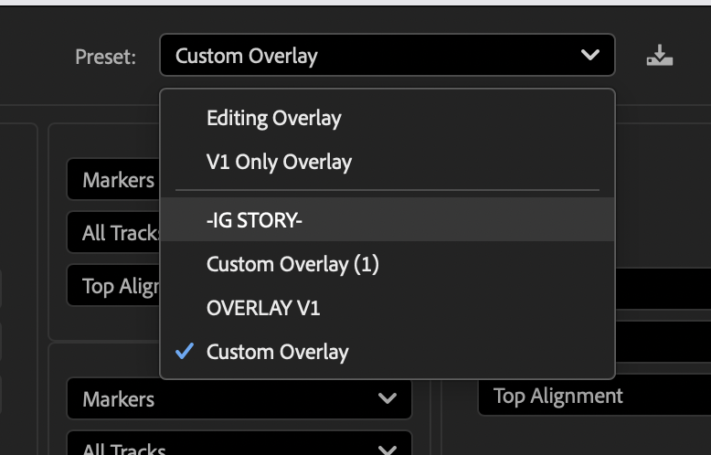
-CLICK [OK]-
.
-[MARKERS] WORKSPACE-
.
-[TARGET TRACK] ONLY YOUR [CAPTIONS TRACK]-
-USE [UP/DOWN ARROW KEYS] TO NAVIGATE THROUGH YOUR CAPTIONS-
-PRESS [ d ] TO SELECT “CAPTION GRAPHIC”-
.
*NAVIGATE TO “PROPERTIES PANEL”* —>
-[OPTION] + [CONTROL] + [ p ]-
.
*CLICK THE [TEXT GRAPHIC] IN THE LIST TO SELECT IT* —>
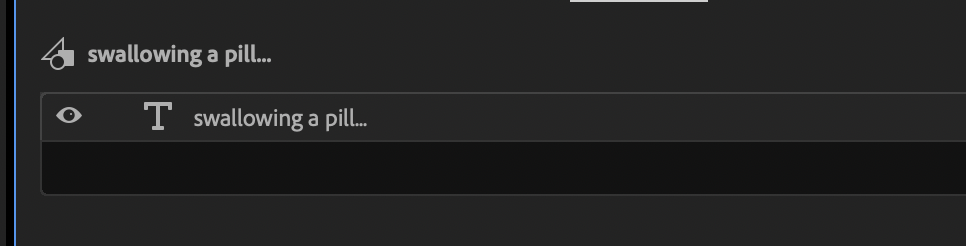
.
-HOLD DOWN [RIGHT ARROW KEY] UNTIL THE CAPTION FADES IN-
-IN [TEXT MENU], CENTER ALIGN THE TEXT-
-IN [ALIGN/TRANFORM MENU], “ALIGN CENTER HORIZONTALLY”-
-CLICK INTO [Y POSITION] BOX-
-PRESS [UP ARROW KEY] TO MOVE [CAPTION GRAPHIC] DOWN-
-PRESS [DOWN ARROW KEY] TO MOVE [CAPTION GRAPHIC] UP-
-PRESS [RETURN] ONCE THE CAPTION IS BELOW THE [TITLE SAFE AREA] TOP HORIZONTAL MARGIN-
-IN [TEXT MENU], CLICK INTO THE [FONT SIZE] BOX-
-PRESS [DOWN ARROW KEY] UNTIL THE CAPTION IS BETWEEN THE [TITLE SAFE AREA] VERTICAL MARGINS-
-PRESS [DOWN ARROW] TO NAVIGATE TO NEXT [CAPTION]-
-REPEAT THE PROCESS FOR ALL CAPTIONS-
-OPEN THE [SEQUENCE] IN [SOURCE MONITOR]-
-ADD [IN/OUT POINTS] TO ITS [BEGINNING / END]-
-NAVIGATE TO [TIMELINE]-
-TURN ON [NESTED SEQUENCE] SETTING-
-SOURCE PATCH [V1] / [A1]-
-TRACK TARGET [V1] / [A1]-
-MOVE [PLAYHEAD] TO END OF [INTRO CLIP]-
-LOCK ALL TRAX BESIDES [V1] + [A1]-
-NAVIGATE TO [SOURCE MONITOR]-
-OVERWRITE INTO [SEQUENCE]-
-ZOOM TO FRAME @ [BODY ENTRANCE/EXIT] TO ENSURE NO GAPS-
-SPLIT ALL [CLIPS] @ [BODY EXIT] + DELETE ALL “OVERLAPS”-
-CLOSE [GAP] BETWEEN [BODY] + [OUTRO]-
-SET [IN/OUT POINTS] AT [BEGINNING] + [END] OF [SEQUENCE]-
*TO SELECT ALL CLIPS IN TARGETED TRAX* —>
-[SHIFT] + [OPTION] + [CONTROL] + [F10]-
.
.
.
.
.
.
.
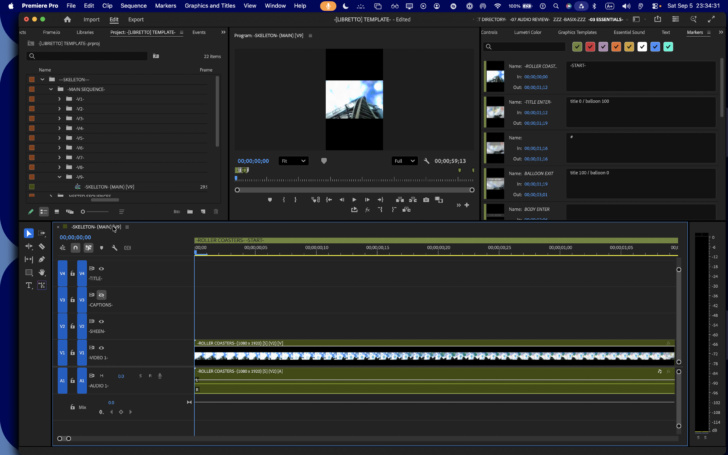
-OPEN [SEQUENCE] IN [TIMELINE]–
-MOVE [PLAYHEAD] TO [BEGINNING] OF [TIMELINE]-
“ZOOM TO FRAME”
.
.
-ADJUST “TIMELINE HEIGHT” SO THAT ALL [TIMELINE TRAX] ARE VISIBLE-
.
*TOGGLE ALL “SOURCE AUDIO”* —>
-[COMMAND] + [OPTION] + [ 9 ]-
.
*TOGGLE ALL “SOURCE VIDEO”* —>
-[COMMAND] + [OPTION] + [ 0 ]-
.
-YOU CANNOT TOGGLE [SOURCE AUDIO/VIDEO] LIKE YOU CAN WITH “TARGETED [AUDIO/VIDEO] TRAX”-
.
*TOGGLE ALL [VIDEO TARGETS]* —>
-[COMMAND] + [0]-
.
*TOGGLE ALL [AUDIO TARGETS]* —>
-[COMMAND] + [9]-
.
*TOGGLE INDIVIDUAL [AUDIO TARGETS]* —>
-[COMMAND] + [ F1/2/3/4/5/6/7/8]-
.
*TOGGLE INDIVIDUAL [VIDEO TARGETS]* —>
-[COMMAND] + [1/2/3/4/5/6/7/8]-
.
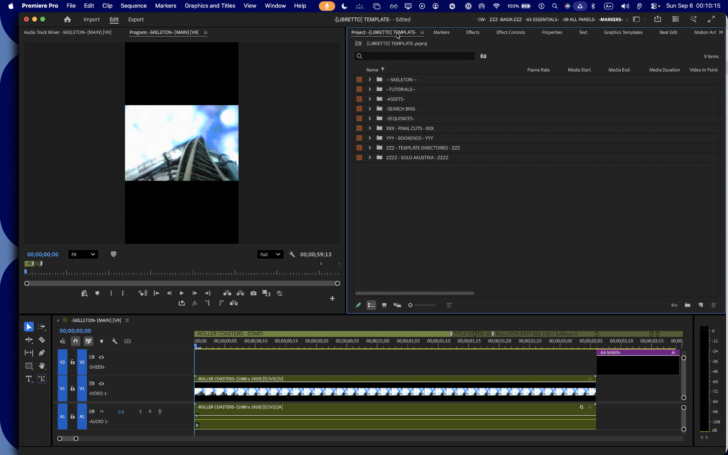
*”MARKERS” WORKSPACE* —>
.
*NAVIGATE TO “MARKERS PANEL]* —>
-[COMMAND] + [RETURN]-
.
-ZOOM TO SEQUENCE-
.
-IF ALL TRAX ARE “TARGETED”, PRESSING “D” WILL SELECT ALL [CLIPS] UNDER THE [PLAYHEAD]-
(PRESS [ESCAPE] TO [DE-SELECT] THEM)
.
-“EDIT POINTS” ARE THE [BEGINNING/END] OF [CLIPS]-
-USE [DOWN ARROW] TO MOVE [PLAYHEAD] TO NEXT [EDIT POINT]-
-USE [UP ARROW] TO MOVE [PLAYHEAD] TO PREVIOUS [EDIT POINT]-
-“ZOOM TO FRAME” AT EVERY [EDIT POINT]-
.
*REVEAL ACTIVE “TIMELINE SEQUENCE” IN [PROJECT PANEL]* —>
-[COMMAND] + [CONTROL] + [ r ]-
(THIS KS WORKS WHETHER OR NOT “CLIPS” ARE SELECTED)
.
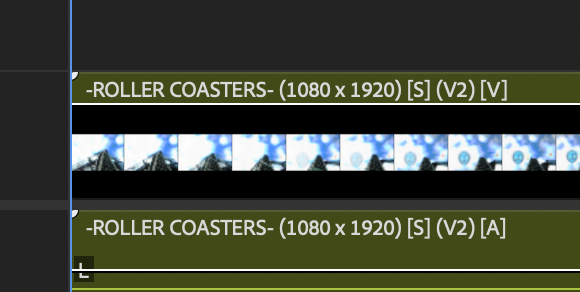
*IF A [CLIP] IN [V1/A1] IS LINKED, IT WILL HAVE A [V/A] AT THE END OF ITS [CLIP NAME] IN [TIMELINE PANEL]* —>
.
-THE [NAME/LABEL] IS BASED ON WHICH TRACK YOU ORIGINALLY INSERTED THE [CLIP] INTO-
(EVEN IF YOU MOVE THE [CLIP] TO ANOTHER [TRACK]-
.
-“LINK SUFFIXES” FOR ALL SUBSEQUENT TRACKS ARE ASSIGNED A “NUMBER” AT THE END OF THE [V/A] DESIGNATION-
(V2 / V3 / V4)
(A2 / A3 / A4)
.
-[V / A] ARE THE ONLY 2 “LINK LABEL” TYPES-
([CAPTIONS/GRAFIX] ARE MARKED “V”)
.
*TO TOGGLE [SHOW “SOURCE CLIP” [NAME/LABEL]]* IN [TIMELINE PANEL]* —>
-[COMMAND] + [OPTION] + [2]-
.
-WHEN THIS FEATURE IS SELECTED, CHANGING A [CLIP NAME] IN [PROJECT PANEL] WILL INSTANTLY CHANGE NAME OF ALL INSTANCES OF THE [CLIP] IN A [TIMELINE SEQUENCE]-
-IF CLIPS HAVE BEEN [MANUALLY LINKED], CHANGING 1 OF THE CLIP’S NAMES IN [PROJECT PANEL] WILL ONLY AFFECT THAT CLIP’S NAME IN [TIMELINE SEQUENCE]-
–
-WHEN THE “SHOW SOURCE CLIP NAME” SETTING IS TURNED OFF, YOU CAN CHANGE A SELECTED CLIP”S NAME IN THE [TIMELINE] WITHOUT CHANGING IT’S NAME IN [PROJECT PANEL]-
-IF YOU DO NOT ASSIGN A SPECIFIC NAME, THE DISPLAYED “CLIP NAME” DEFAULT TO THE [(SOURCE CLIP) NAME]-
-IF YOU CHANGE NAME OF A [CLIP] LINKED WITH OTHER [CLIPS], ALL THE [CLIPS] IN THE [LINK] WILL ALSO CHANGE NAMES-
(EVEN IF YOU MANUALLY LINKED THEM)
.
*POINTER HOVERS* —>
-VIDEO CLIPS-
-[VIDEO CLIP] OPACITY LEVELS-
(FOR “KEYFRAMING”)
(THE “FRAME OPACITY LEVEL” IS DISPLAYED ALONG THE CLIP)
(YOU ADJUST THE “OPACITY” OF “CAPTIONS / GRAFIX” IN THE SAME WAY)
-AUDIO CLIPS-
-[AUDIO CLIP] VOLUME LEVELS-
(FOR “KEYFRAMING”)
(THE “VOLUME LEVEL” IS DISPLAYED ALONG EACH [CHANNEL] OF THE [CLIP])
*IF THE [AUDIO WAVEFORM] DOESN’T DISPLAY, SELECT THE [AUDIO CLIP] + USE THIS KS TO “RENDER AUDIO” FOR ALL [AUDIO CLIPS] IN THE [SEQUENCE]* —>
-[OPTION] + [F2]-
-[MASTER MIX] VOLUME LEVEL-
(FOR “KEYFRAMING”)
(THE “(MASTER) VOLUME LEVEL” IS DISPLAYED ALONG THE [TIMELINE]-
.
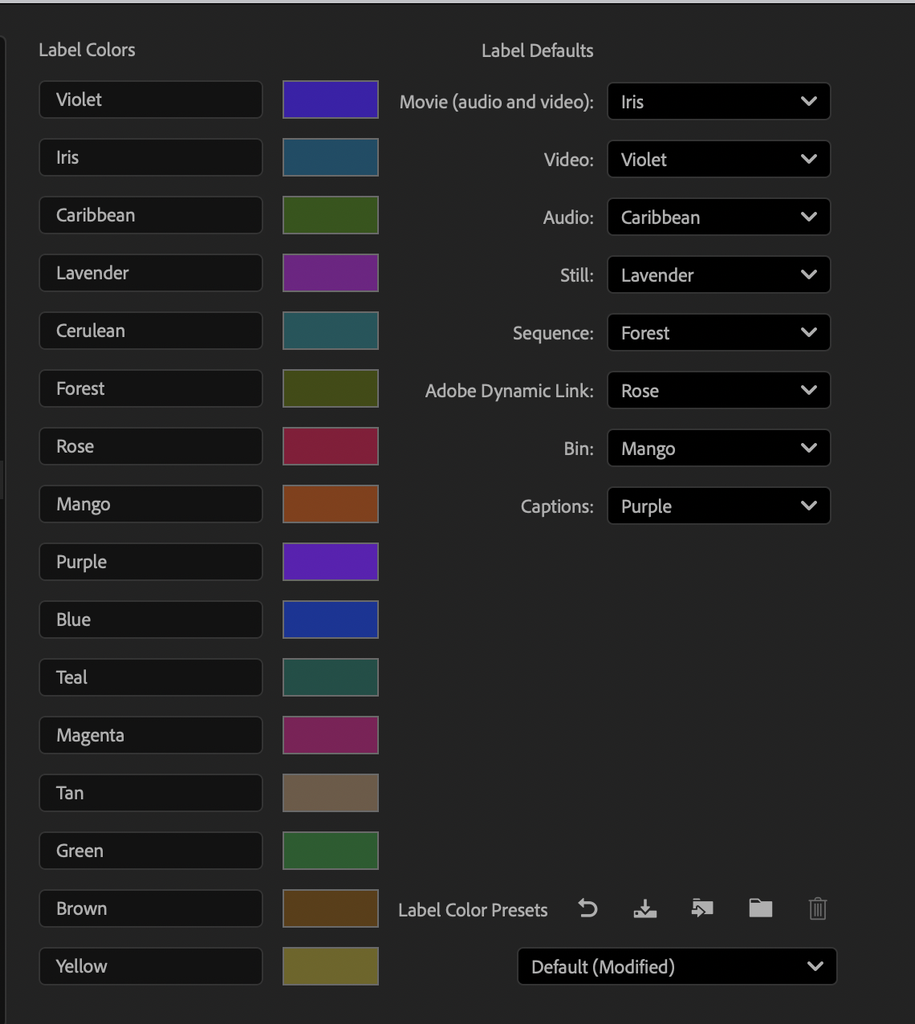
*COLOR LABELS* —>
.
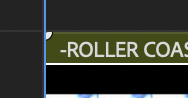
*THE “WHITE CORNERS” INDICATE THAT THE CLIP IS STRETCHED TO ITS [FULL LENGTH] FROM THAT [SIDE]-
.
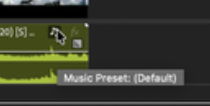
*HOVER [POINTER] OVER THE “MUSIC NOTE” IN [TOP RIGHT CORNER] OF [AUDIO CLIPS] TO VIEW ITS “MUSIC PRESET”* —>
*HOVER [POINTER] OVER THE “FX SYMBOL” IN [TOP RIGHT CORNER] OF [VIDEO/AUDIO CLIPS] TO VIEW ITS “VIDEO/AUDIO FX” (IF ANY)* —>
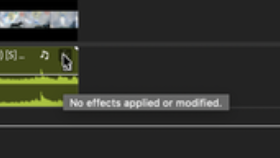
(IF NO “FX” HAVE BEEN APPLIED, THE “FX SYMBOL” IS GRAYED OUT)
.
*TO APPLY [DEFAULT VIDEO/AUDIO TRANSITIONS] TO [SELECTED CLIPS]* —>
-[SHIFT] + [ d ]-
.
-“ZOOM TO FRAME” AT EACH “EDIT POINT”-
-AT [START/END] POINTS, AUDIO CLIPS [FADE IN/OUT]-
-[VIDEO CLIPS] “CROSS-DISSOLVE”-
(ALTHOUGH THIS IS IDENTICAL TO “FADE IN/OUT” AT [START/END] POINTS)
-AT ALL OTHER “EDIT POINTS”, AUDIO “CROSS FADES” + VIDEO “CROSS DISSOLVES”-
.
*SELECT NEAREST [EDIT POINT] AS “ROLL”* —>
-[OPTION] + [CONTROL] + [ r ]-
-USE [OPTION] + [LEFT/RIGHT ARROW KEYS] TO MOVE THE “CROSS DISSOLVE” LEFT/RIGHT-
([SHIFT] MODIFIER TO USE [5 FRAME] UNITS)
*SELECT NEAREST [EDIT POINT] AS “RIPPLE IN”* —>
-[SHIFT] + [CONTROL] + [UP ARROW]-
-WHEN [PLAYHEAD] APPROACHES FROM THE [LEFT], THE [RIGHT SIDE] OF THE [EDIT POINT] IS SELECTED-
-USE [OPTION] + [LEFT/RIGHT ARROW KEYS] TO MOVE THE “CROSS DISSOLVE” LEFT/RIGHT-
([SHIFT] MODIFIER TO USE [5 FRAME] UNITS)
-SEQUENCE DURATION DOES NOT CHANGE-
(ONLY “CLIP POSITION”)
*SELECT NEAREST [EDIT POINT] AS “RIPPLE OUT”* —>
-[SHIFT] + [CONTROL] + [DOWN ARROW]-
-WHEN [PLAYHEAD] APPROACHES FROM THE [LEFT], THE [LEFT SIDE] OF THE [EDIT POINT] IS SELECTED-
-USE [OPTION] + [LEFT/RIGHT ARROW KEYS] TO MOVE THE “CROSS DISSOLVE” LEFT/RIGHT-
([SHIFT] MODIFIER TO USE [5 FRAME] UNITS)
-SEQUENCE DURATION DOES NOT CHANGE-
(ONLY “CLIP POSITION”)
*SELECT NEAREST [EDIT POINT] AS “TRIM IN”* —>
-[SHIFT] + [CONTROL] + [LEFT ARROW]-
-WHEN [PLAYHEAD] APPROACHES FROM THE [LEFT], THE [RIGHT SIDE] OF THE [EDIT POINT] IS SELECTED-
-USE [OPTION] + [LEFT/RIGHT ARROW KEYS] TO MOVE THE “CROSS DISSOLVE” LEFT/RIGHT-
([SHIFT] MODIFIER TO USE [5 FRAME] UNITS)
-SEQUENCE DURATION DOES NOT CHANGE-
(ONLY “CLIP POSITION”)
*SELECT NEAREST [EDIT POINT] AS “TRIM OUT”* —>
-[SHIFT] + [CONTROL] + [RIGHT ARROW]-
-WHEN [PLAYHEAD] APPROACHES FROM THE [LEFT], THE [LEFT SIDE] OF THE [EDIT POINT] IS SELECTED-
-USE [OPTION] + [LEFT/RIGHT ARROW KEYS] TO MOVE THE “CROSS DISSOLVE” LEFT/RIGHT-
([SHIFT] MODIFIER TO USE [5 FRAME] UNITS)
-SEQUENCE DURATION DOES NOT CHANGE-
(ONLY “CLIP POSITION”)
.
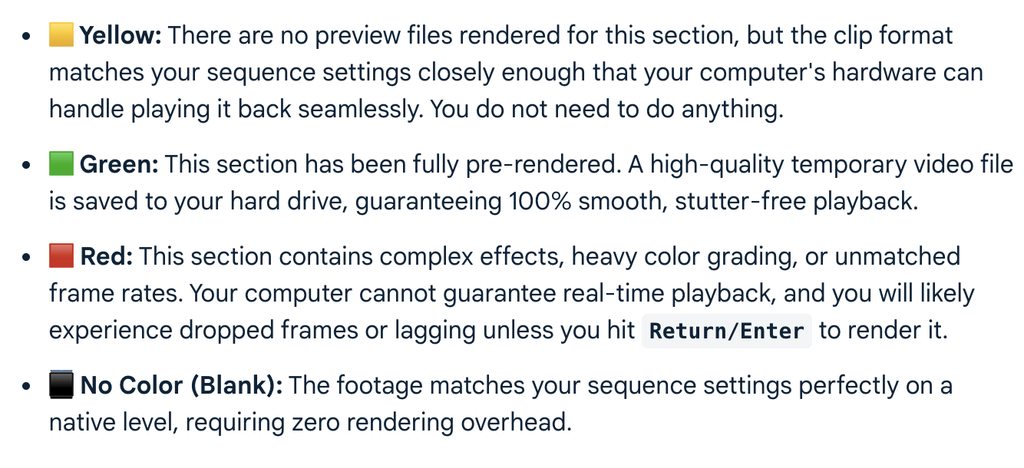
*TOP [RENDER LINE]* —>
.
-YOU CAN’T REVEAL “TIMESTAMP MARKERS” LOCATED IN THE RANGE OF A “RANGE MARKER”-
(USE THE “MARKERS PANEL” INSTEAD)
.
*YOU CAN MANUALLY ADD “FADES” TO THE [BEGINNING/END] OF [AUDIO CLIPS]* —>
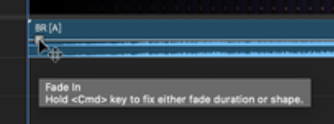
-THIS DOESN’T WORK FOR [VIDEO CLIPS]-
.
*TO “MATCH FRAME” OF SELECTED [TIMELINE] CLIP* —>
-[ f ]-
*TO “(REVERSE) MATCH FRAME” OF ACTIVE [SOURCE MONITOR] CLIP* —>
-[SHIFT] + [ r ]-
.
*TO REVEAL SELECTED [TIMELINE CLIP] IN [PROJECT PANEL]* —>
-[COMMAND] + [OPTION] + [CONTROL] + [ r ]-
.
*TO REVEAL SELECTED [CLIP] IN [FINDER]* —>
-[COMMAND] + [CONTROL] + [ f ]-
.
.
-[LOCAL] SONG PROJECTS-
.
*TO RETRO-ACTIVELY ADD “CLIP HANDLES” TO “PERMANENT TRIMS”* —>
-IMPORT THE [RAW PARENT FILE] INTO [PROECT PANEL]-
(ALONG WITH THE “PERMANENT TRIM” CLIP)
(OPEN THE [SEQUENCE] CONTAINING “PERMANENT TRIM CLIP” IN [TIMELINE])
-IF THERE IS A BURNED-IN “FADE IN”, NAVIGATE PLAYHEAD TO A TIMELINE FRAME WHERE FRAME IS FULLY VISIBLE-
-PRESS [ f ] TO MATCH FRAME-
-WRITE DOWN “FRAME COUNT” FROM “SOURCE MONITOR” TIMECODE BOX-
4 / 03
2 / 09
NEVER…
44 / 09
.
.
.
Go to your timeline and select the very first clip cut from your 2-minute version.
Park your blue playhead on the absolute first frame (the In Point) of that timeline clip.
Press F on your keyboard (the default shortcut for Match Frame).
This instantly opens that clip in the Source Monitor and parks its playhead on the exact frame you used on the timeline.
Step 2: Line Up the 3-Minute Root Clip
Now we need to find that exact same visual frame inside the 3-minute file.
Double-click your 3-minute root clip in the Project Panel to open it in a separate Source Monitor tab
(or just swap files in the source viewer).
Use the video preview to scrub through the 3-minute file until you find the exact visual image match of the frame you located in Step 1.
Tip: Look at the timecode of your 2-minute clip from Step 1.
If you cut it 30 seconds into the original clip, your 3-minute clip’s true timecode will likely be exactly 30 seconds further along.
Step 3: Map the 15-Frame Preceding Handle
Once you are parked on that visual match frame inside the 3-minute root clip:
Click into the Source Monitor blue timecode counter.
Type -15 and hit Enter.
Your playhead will step backward exactly 15 frames into the master footage you previously cut off.
Press I to set a fresh, healthy In Point right there.
Step 4:
Swap and Conform the Timeline
Now you are ready to replace the restricted file with the flexible master file.
Go back down to your timeline and select that original clip piece.
Right-click the timeline clip and choose Replace With Clip > From Source Monitor, Match Frame.
The 2-minute restricted file will instantly swap out for your 3-minute root file, perfectly retaining your effects and timing.
Because you set your source In Point 15 frames earlier in Step 3, your timeline cuts will automatically possess a 15-frame hidden handle on the left edge.
You can now use your newly mastered Slip Tool (Y) or nudge macro to roll the footage back and drop a centered cross-dissolve seamlessly!
Let me know when you load both files up:
Did pressing F safely extract the true visual frame from your timeline?
Do you need help calculating the exact timecode offset between the two files if the visual match is tricky to spot by eye?
Quick questions if you have time:
Was the Match Frame logic easy to understand?
Very clear
A bit confusing
Need more details
What Premiere workflow topic should we tackle next?
Trailing Out Handles
Keyboard Macro Setup
Audio Track Nesting
Yes, you can absolutely do this without losing any of your timeline edits!
This is a classic conforming problem, and Premiere Pro has a built-in forensic tool specifically for this called Timecode Matching (or Source Match Frame).
Because you didn’t change the frame rate or speed when you exported that 2-minute chunk, the underlying visual frames are identical to the 3-minute master clip.
We can use the matching frame to re-anchor the raw master clip and seamlessly inject the 15-frame handles you need.
Here is the exact step-by-step sequence to swap the clips and recover your handles mouse-free:
Step 1: Find the Match Frame on the Current Timeline
Import your original 3-minute root master clip into your current project panel so it is sitting there waiting.
.
.
.
The Content Credentials, Tape Name, Log Note, and Shot columns are metadata fields in Premiere Pro used to store and display specific details about your media files.
*
Content Credentials acts as a secure digital nutrition label using C2PA standards that tracks the provenance and history of a file, showing whether it was captured on a supported camera, edited in apps like Photoshop, or generated with AI (such as Adobe Firefly).
You can learn more about how this works via the Adobe Content Credentials Overview. [1, 2, 3]
Tape Name is a legacy or organizational label that identifies the original physical tape, virtual card, or camera reel the clip was captured from, helping group media that came from the exact same source card. [4]
Log Note is a text field where you or an assistant editor can type custom notes, descriptions, or observations about a clip during the initial logging and ingestion process. [4]
Shot is a tracking field used to record the specific shot number or take number from a production script, storyboard, or shot list. [4]
If you’d like, I can show you how to add or customize custom metadata columns in your Project panel to organize your footage better.
[1] https://helpx.adobe.com
[2] https://community.adobe.com
[3] https://helpx.adobe.com
[4] https://helpx.adobe.com
.
In Adobe Premiere Pro, timestamps appear in blue throughout the user interface to indicate that they are interactive, editable scrubbable hot-text values. [1, 2]
When you see blue timecode values in the Video In and Video Out metadata columns of the Project Panel, it means you can interact with them directly in two ways:
Click and type: You can single-click the blue numbers to manually type in a specific new timecode to change the In or Out boundary of that clip.
Scrub to adjust: You can click and hold on the blue text, then drag your mouse left or right to dynamically alter the timestamp value. [1]
Any timecode value colored in dull gray or white is static metadata and cannot be directly manipulated from that specific window.
If you want to quickly clear out these markers entirely, you can right-click the clip and modify its properties, or select the clip and press Ctrl + Shift + X (Windows) or Cmd + Shift + X (Mac) to clear the In and Out points. [1]
If you are trying to clean up your workspace, would you like to know how to hide unwanted metadata columns or how to reset your Project Panel layout back to default?
.
1
-MACBOOK PRO-
2
-iPHONE 14-
3
-CAMERA APP-
4
-VERIZON-
5
-WIFI-
6
-GOOGLE DRIVE-
7
-PREMIERE PRO-
8
-STOP MOTION STUDIO PRO-
9
-CLIPS-
10
-SOUNDCLOUDS-
11
-INSTAGRAM-
12
-YOUTUBE-
.
.
.
.
*👨🔬🕵️♀️🙇♀️*SKETCHES*🙇♂️👩🔬🕵️♂️*
.
.
👈👈👈☜*-CLIP ASSEMBLY LINE-* ☞ 👉👉👉
.
.
💕💝💖💓🖤💙🖤💙🖤💙🖤❤️💚💛🧡❣️💞💔💘❣️🧡💛💚❤️🖤💜🖤💙🖤💙🖤💗💖💝💘
.
.
*🌈✨ *TABLE OF CONTENTS* ✨🌷*
.
.
🔥🔥🔥🔥🔥🔥*we won the war* 🔥🔥🔥🔥🔥🔥
Playing live tables late at night feels so smooth here. The dealers are super engaging and the chat feature keeps the vibe alive. Fast withdrawals make me feel trusted. Check out this spot if you want a lively casino floor right at home. aukaboom77