
-as of [29 JULY 2026]-
.
-VIDEO DROPDOWN MENU-
*HIT [RETURN] TO [SHOW/HIDE] THE [VIDEO SECTION]* —>

-HIT [SPACE BAR] (NOT “RETURN”) TO TOGGLE [VIDEO]-
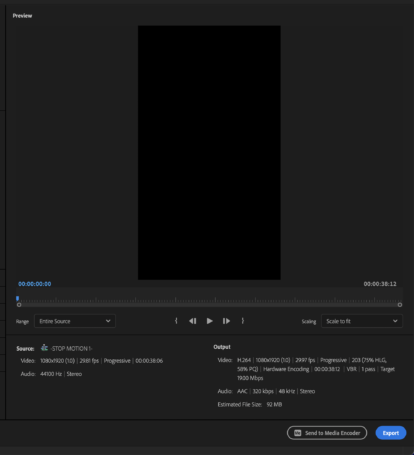
*disabled* —>
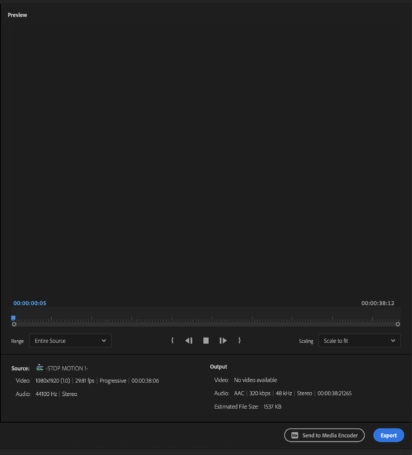
*enabled* —>

-HIT [RETURN] TO “MATCH SOURCE”-
(MEANING THE “EXPORT SETTINGS” WILL MATCH THE “SEQUENCE SETTINGS” IN “TIMELINE”)
*THE SETTINGS WILL BE GRAYED OUT WHEN YOU ARE “MATCHED WITH SOURCE”* —>
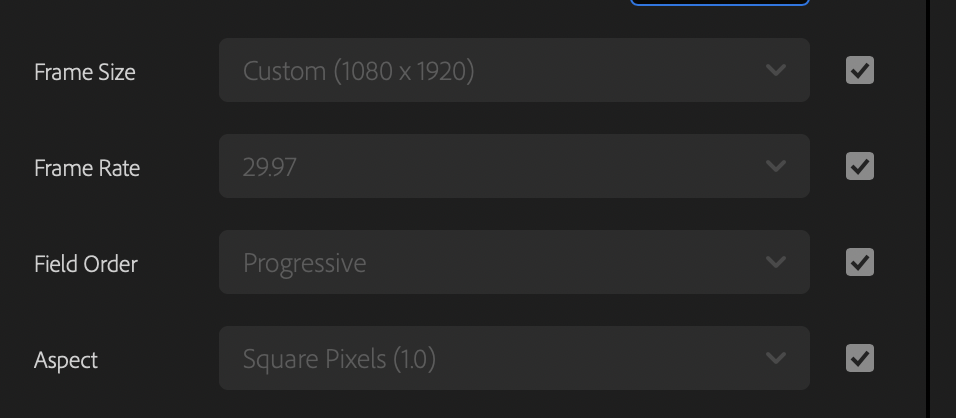

-HIT [RETURN] TO [CHECK/UNCHECK] BOX-
-WHEN BOX IS “CHECKED”, THE [EXPORT SETTINGS] WILL MATCH THE [SOURCE SETTINGS]-
-WHEN BOX IS “UNCHECKED”, YOU CAN ADJUST [EXPORT SETTINGS] INDEPENENT OF [SOURCE SETTINGS]-
.
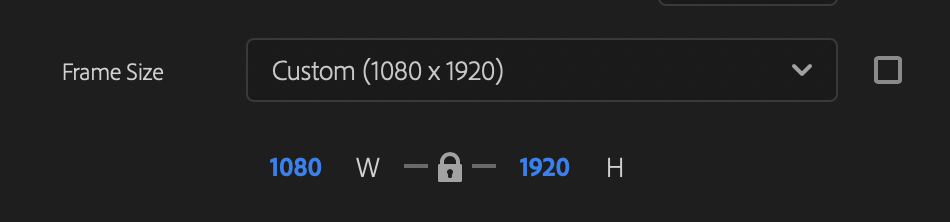
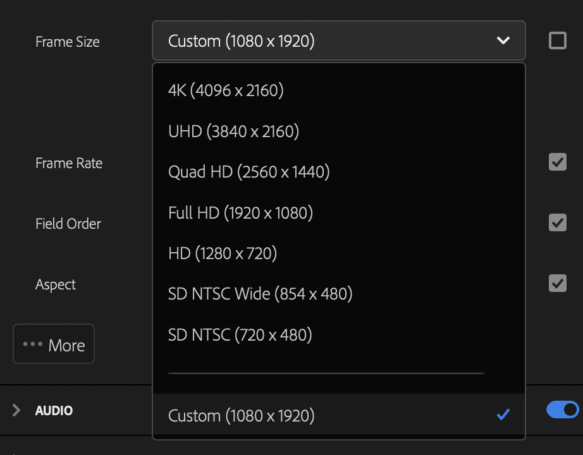
*FRAME SIZE* —>
.
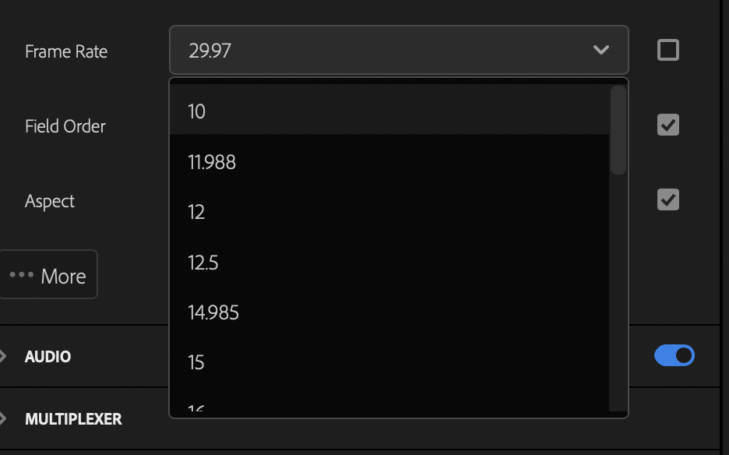
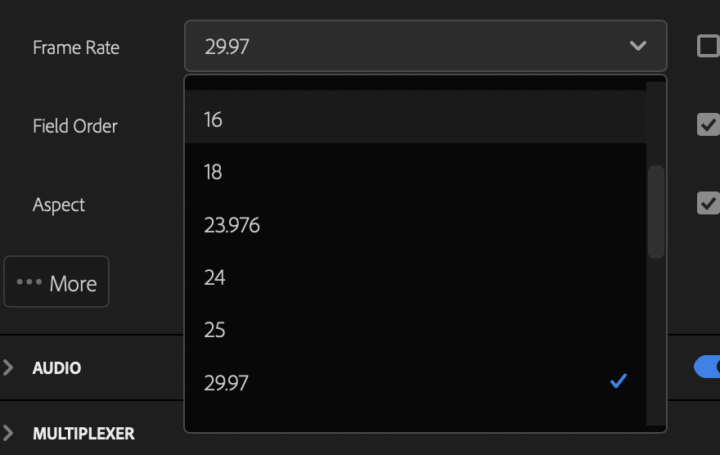
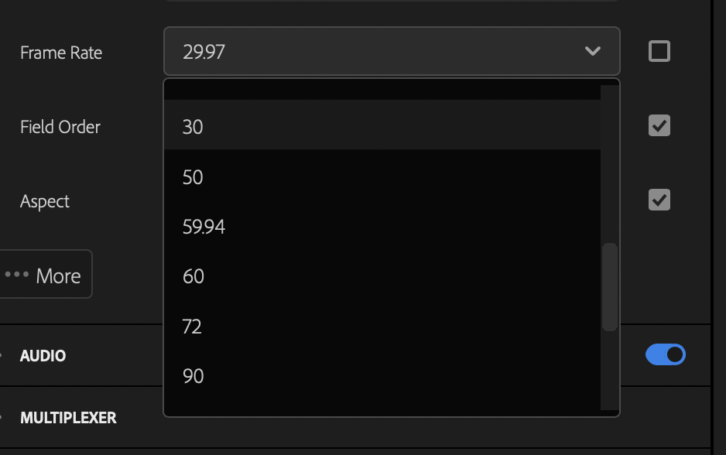
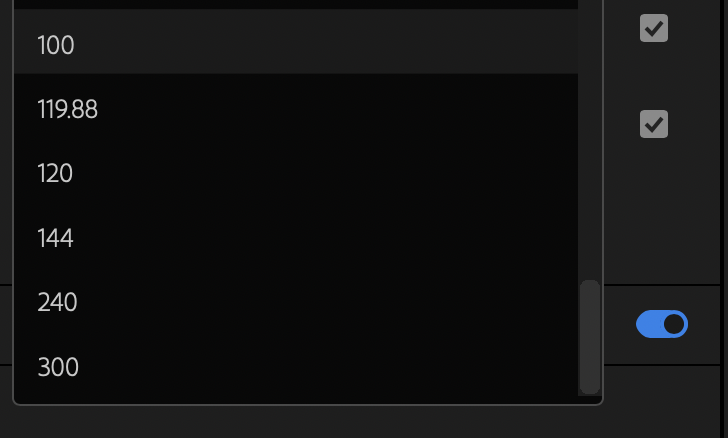
*FRAME RATE* —>
.
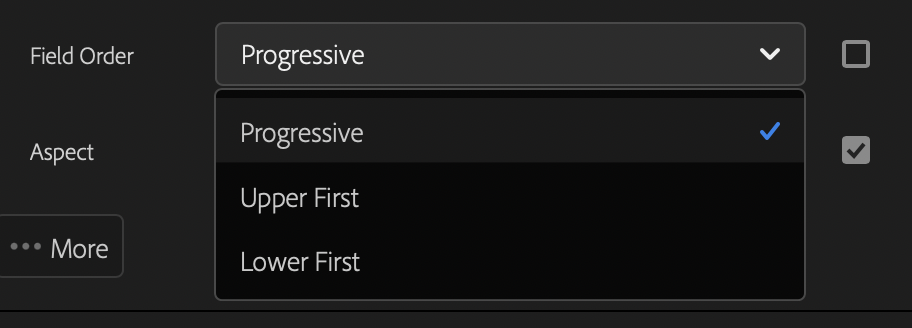
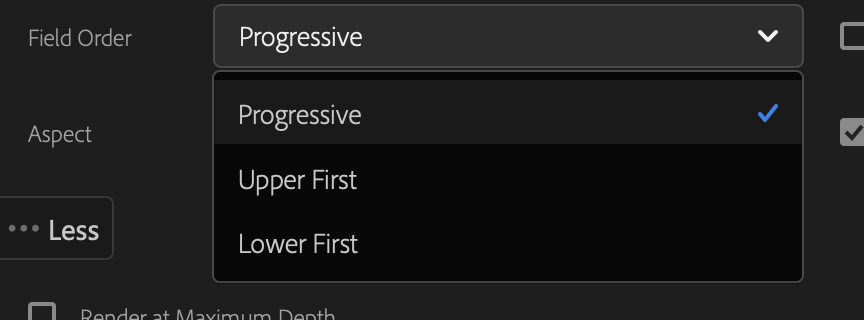
*FIELD ORDER* —>
.
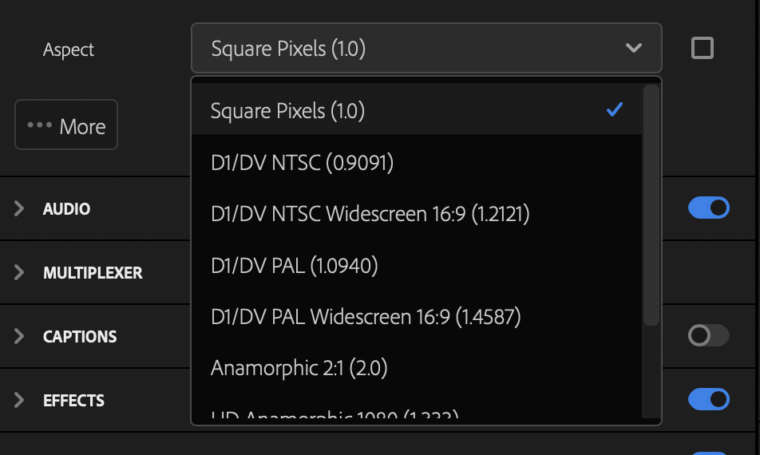
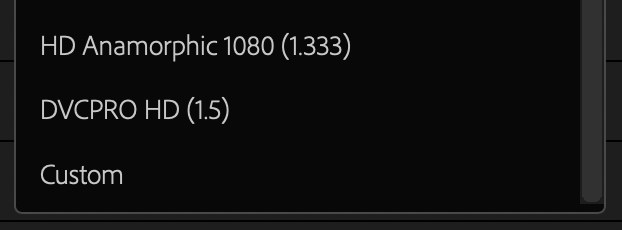
*ASPECT* —>
.
*MORE* —>
*HIT [RETURN] TO VIEW MORE “VIDEO EXPORT OPTIONS”* —>
.
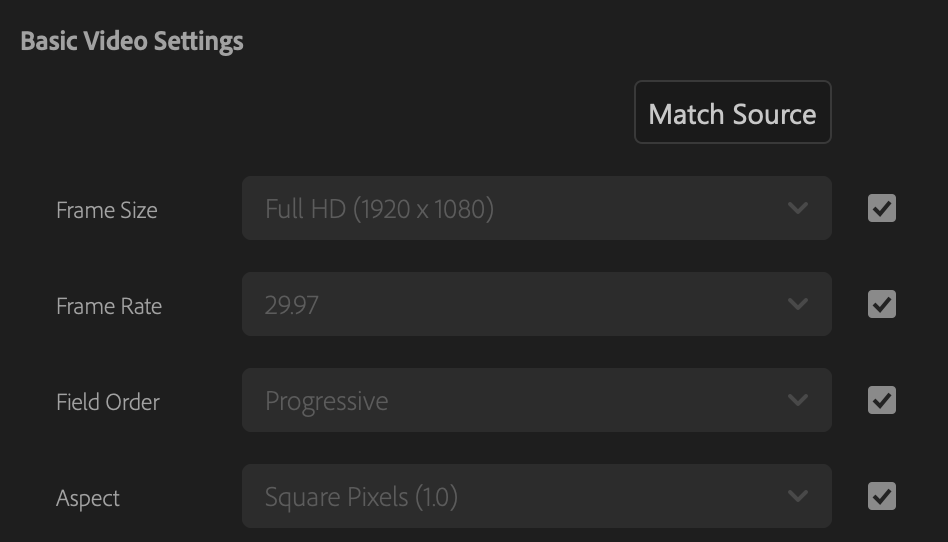
.
*click on the ‘right checkbox’ for any of this 4 variables to ‘uncheck the box’*
(meaning it will no longer ‘match source’)
*allows you to select from ‘drop-down menus’ for each variable*
(you can return to ‘source settings’ by clicking the ‘match source’ button)
.
1
*frame size* –>
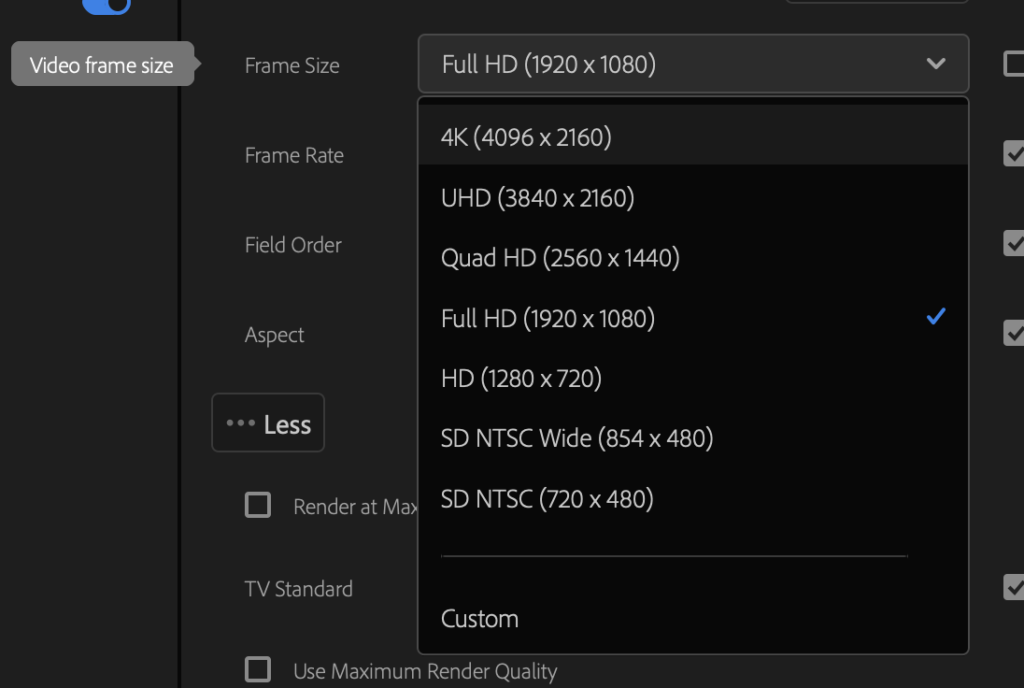
.
*select ‘custom’ to directly input the ‘resolution’* –>
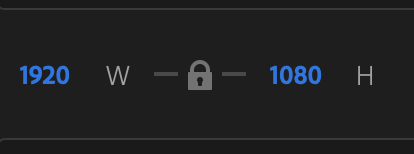
.
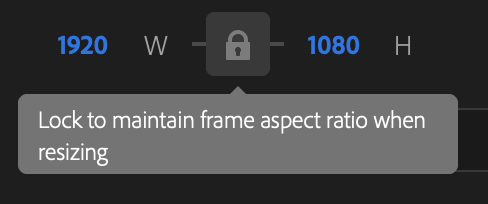
.
2
*frame rate* –>
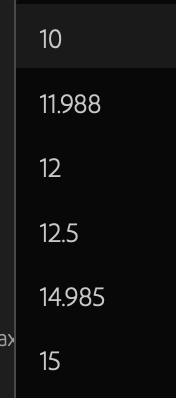
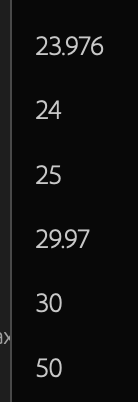
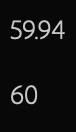
(these are your choices)
(you cannot input a custom ‘frame rate’)
.
3
*FIELD ORDER*
.
4
*ASPECT*
(for ‘pixels’ / not ‘frame’)
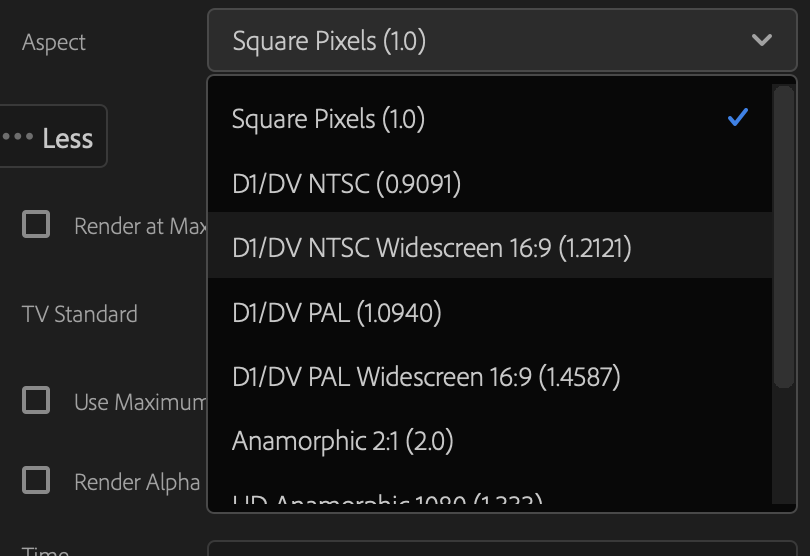
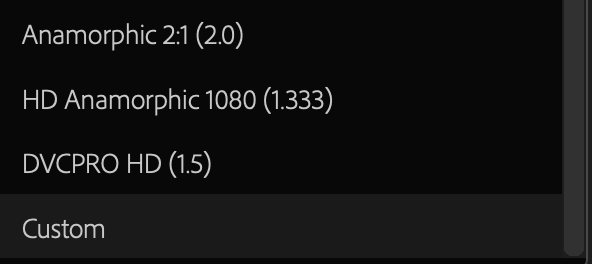
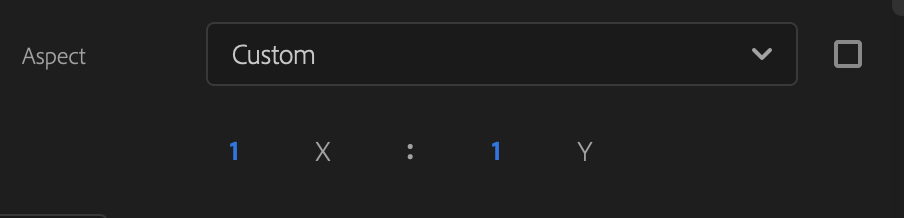
*select ‘custom’ to input your own ‘pixel aspect ratio’*
(in ‘width / height’ format)
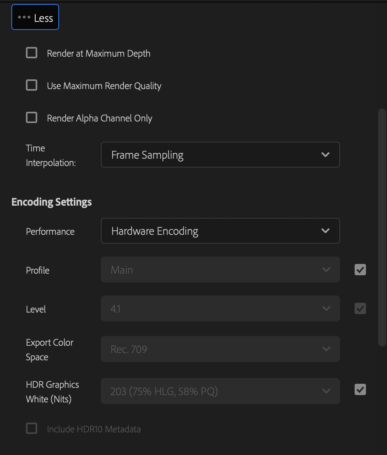
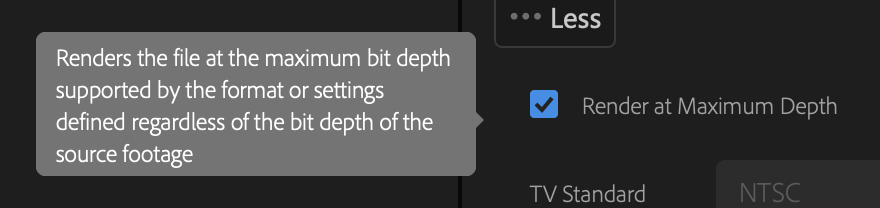
*’RENDER’ @ ‘MAXIMUM DEPTH’*
.
If you want good quality video, always enable Maximum Bit Depth and Maximum Render Quality,
and choose 16-bit instead of 8-bit for formats with a choice for Depth.
.
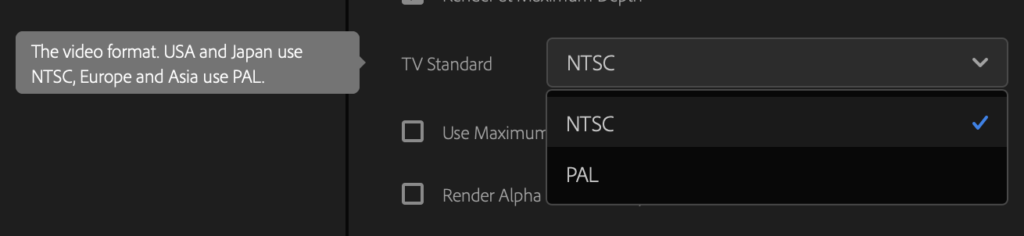
*TV STANDARD*
.
*USE ‘MAXIMUM QUALITY RENDERING’*

.
*RECORD ‘ALPHA CHANNEL’ ONLY*

.
*export with transparent background*
quicktime format
animation video codec
depth – 8 or 8 + alpha
.
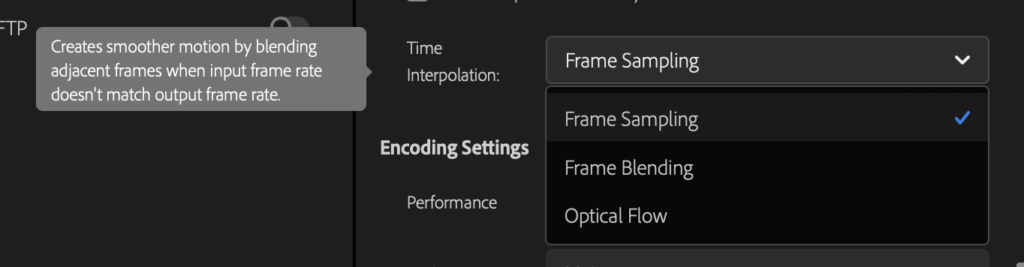
*time interpolation* –>

.
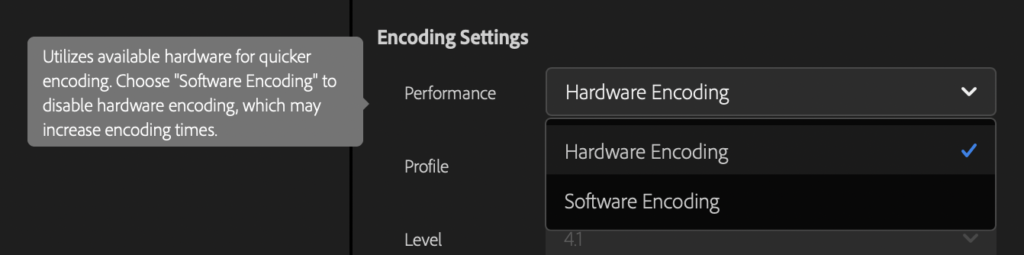
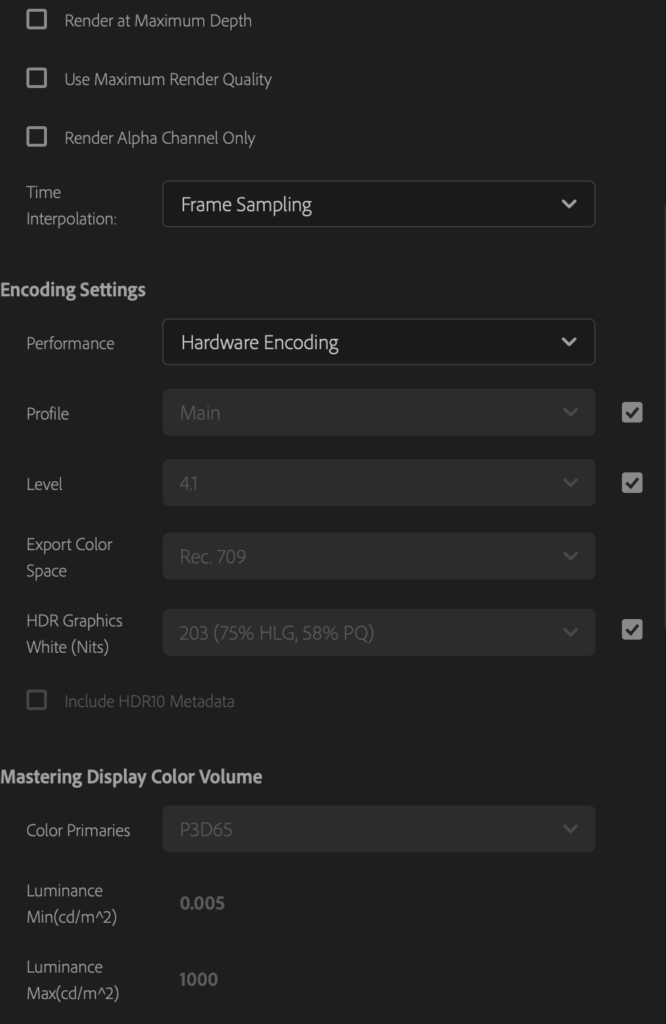
*ENCODING SETTINGS*
*PERFORMANCE* –>

.
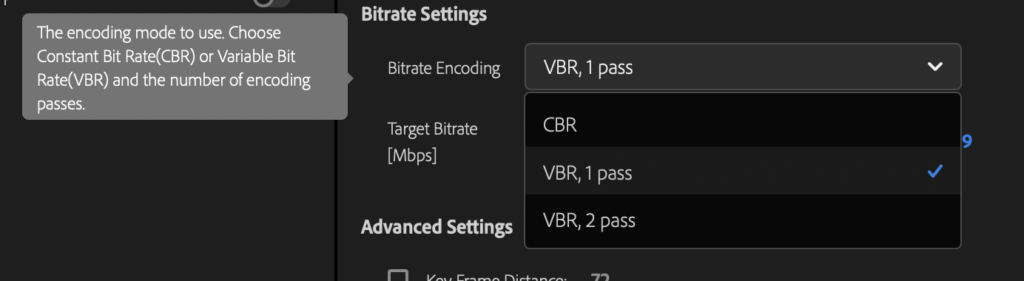
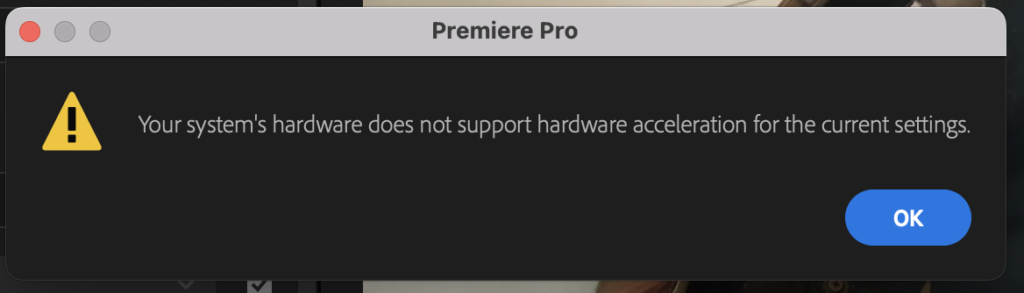
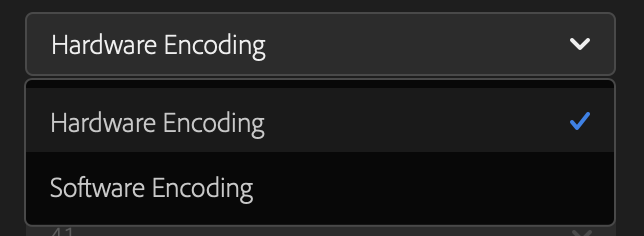
*if you choose ‘VBR 2-PASS’ for your ‘bitrate encoding’, you may not be able to use ‘hardware encoding’* –>
.
(switch to ‘VBR 1-PASS’ if you get this error message)
.
.
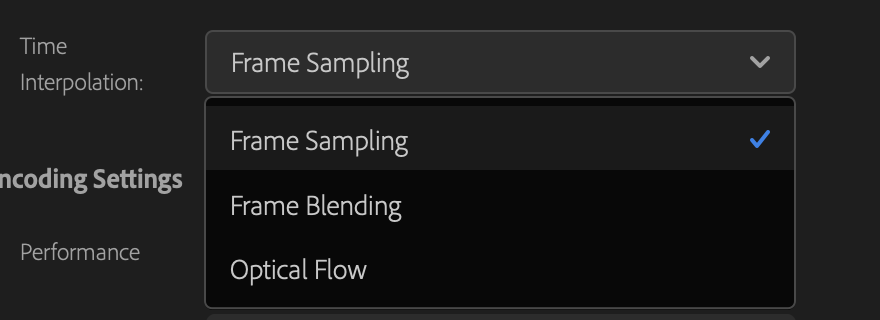
*TIME INTERPOLATION* –>
.
*ENCODING SETTINGS*
*performance* –>
.
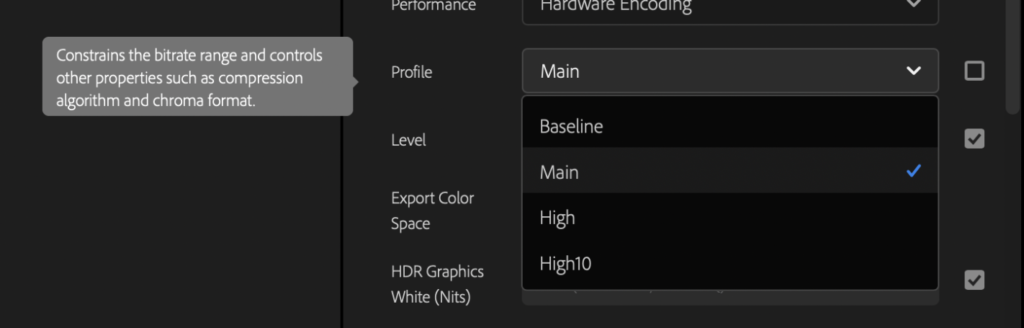
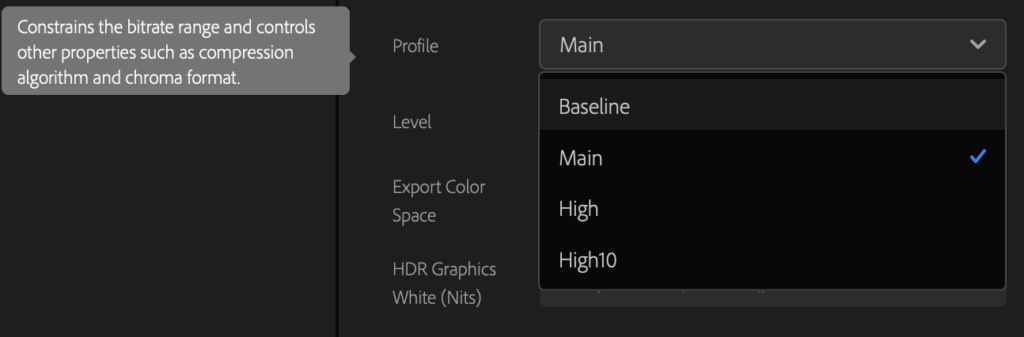
*PROFILE*
.
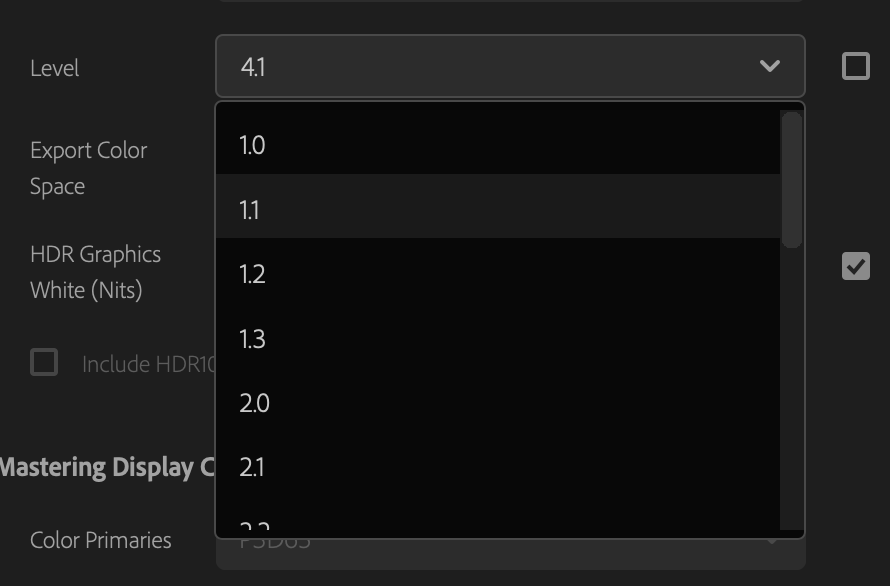
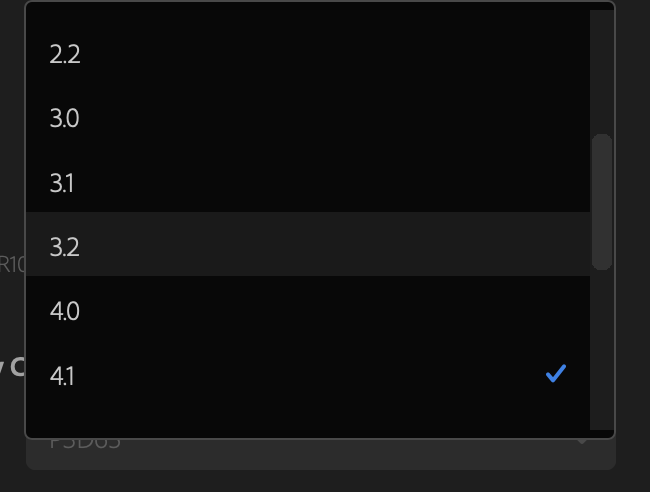
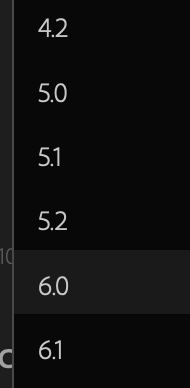
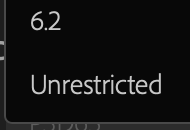
*ENCODING LEVEL*
(default is 4.1)

*EXPORT COLOR SPACE* –>

(this is the only option)
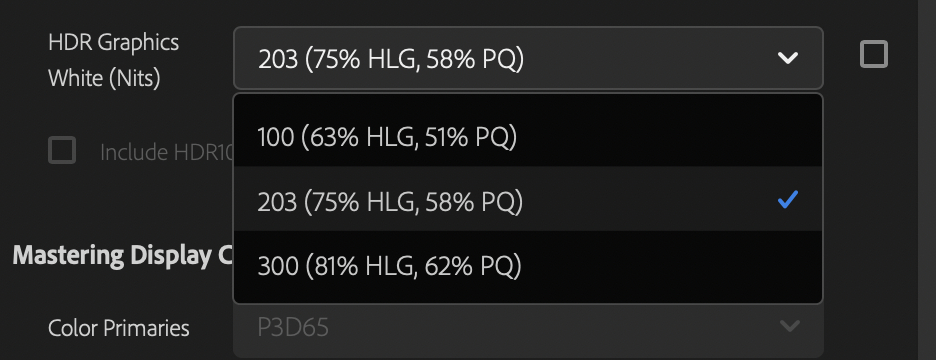
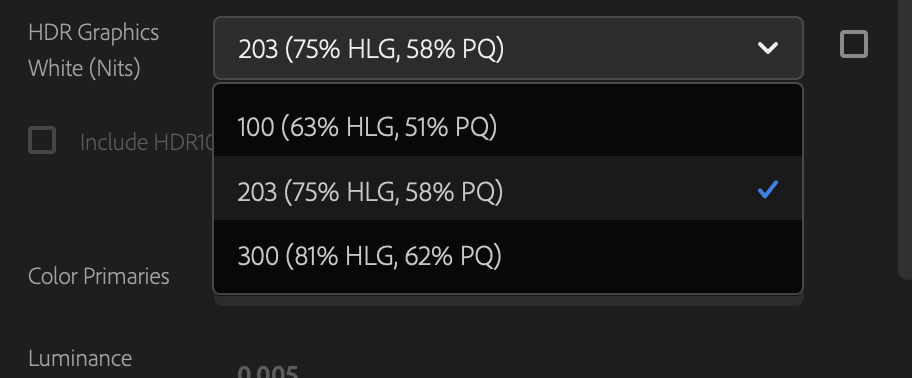
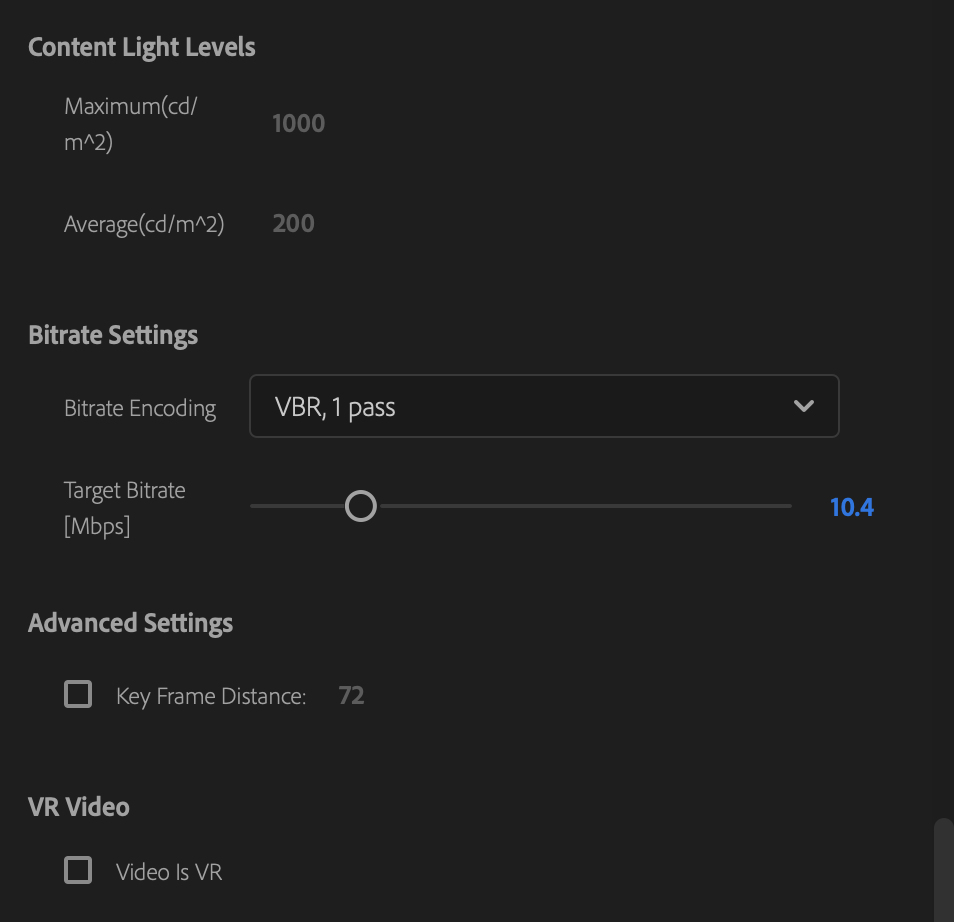
*HDR GRAPHICS WHITE (NITS)*
.
[Edited: 20 Feb 2022]
This setting is ONLY of concern if you are working full HDR projects …
HDR media, HDR timeline and monitor setups, HDR outputs.
It has no effect whatever on any SDR/Rec.709 timeline/sequence/export.
For any SDR/Rec.709 workflows, ignore it. It doesn’t do anything no matter what it’s set to.
Basically … “graphics white” is the brightest tone with any details visible.
Think a white paper filmed in sunlight.
Bright, the upper edge of any details, but not a specular. …
.


.
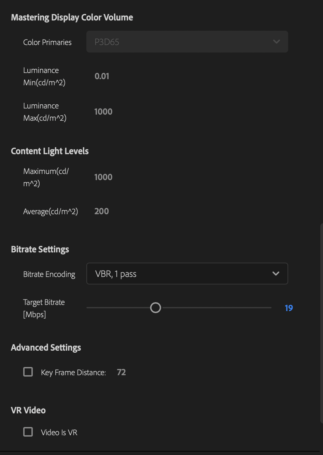
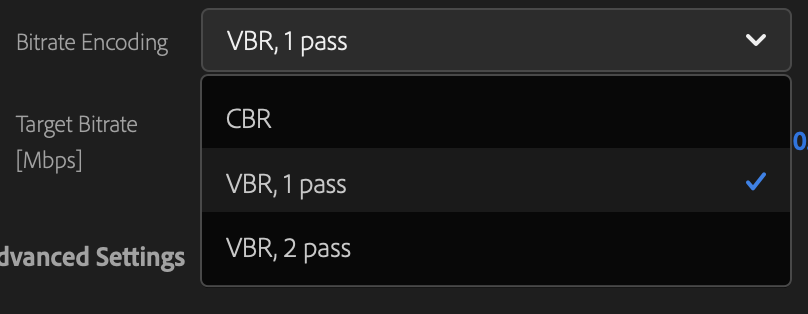
*BITRATE ENCODING* –>
.
The first pass in a Variable Bitrate 2 pass encode is an analysis pass which looks at the video content of the program and looks for high motion, low motion and complexity.
It then uses this analysis data on the second pass when actually encoding to assign more ‘bits’ to the scenes that have (say) high complexity motion and less ‘bits’ to (say) static scenes with no or little motion.
1 pass VBR just encodes ‘on the fly’ and can’t encode frames ‘knowing’ what’s further long in the program.
Effectively 2 pass VBR will give you better encodes at a slightly lower datarate than 1 pass VBR.
Both usually provide better (or as good) encodes at significantly lower oevral file sizes than CBR (Constant Bitrate).
My advice.
As long your encodes are set to reasonable datarates and you don’t specifically need the absolute smallest possible encodes (file size) … 2 pass VBR is generally not worth the extra time it takes*.
Hope this helps.
I have one client that needs most encoded programs to be lower than 50MB in size.
To hit this target we use
1280×720 instead of HD,
VBR 2 pass,
1.4MBit average data rate
and audio encoded mono at 96k …
but this is an outlier requirement and often they still look like crap but 2 pass makes them slightly better
🙂
To clarify:
2 pass VBR can give you the same quality as 1 pass VBR but at a lower datarate.
OR better quality than 1 pass VBR at the same datarate
‘file size’ = ‘bitrate’ (Mbps) x ‘duration’ (seconds)
*target bitrate*

*for [‘CBR’ / ‘VBR 1 pass’]. the default ‘target bitrate’ is 10.4 Mbps*
*you can use the ‘slider’ to adjust ‘target bitrate’*
(or click into the ‘text box’ to the right of the slider and input your desired ‘target bitrate’)
*target bitrate range* —>
0.192 – 50
*if you select ‘VBR 2 pass’, you can also set the ‘maximum bitrate’* –>
(0.192 – 50)

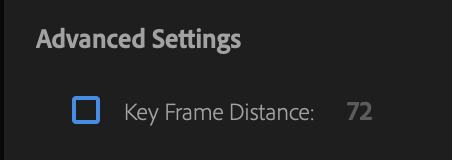
*KEYFRAME DISTANCE*
.
This is an answer I found on the adobe forums after googling it:
The keyframe distance is the maximum number of frames before the encoder inserts an i-frame, which is the highest-quality frame of an MPEG stream
(ie, it has all the information for a single frame of video inside of it rather than relying on the frames around it to reconstruct).
In between the i-frames are b-frames and p-frames, which are “difference” frames that reconstruct that frame of video by looking at the nearest i-frame and applying all the “difference” frames from that point forward (or backwards).
The collection of an i-frame and all its connected p-frame and b-frames is called a GOP, or “Group of Pictures”.
So in essence the “keyframe distance” value determines the length of each GOP.
Note that Premiere automatically inserts a new i-frame for scene changes, irrespective of the keyframe distance value.
This is to assure video quality at the start of a new scene since there wont be enough in common from previous b-frame and p-frames.
Generally speaking, the more i-frames you have, the higher the image quality of video, but also the larger the size of the video.
So the value you choose for keyframe distance is a balance between the file size you want the video to fit in vs quality.
If you’re not concerned with file size or the file size generated is within reason then you can just leave it to its default value.
Otherwise you can tweak it as part of the process to get the file size down to where you want it to be
(in combination with the other encoder parameters such as bitrate)
.
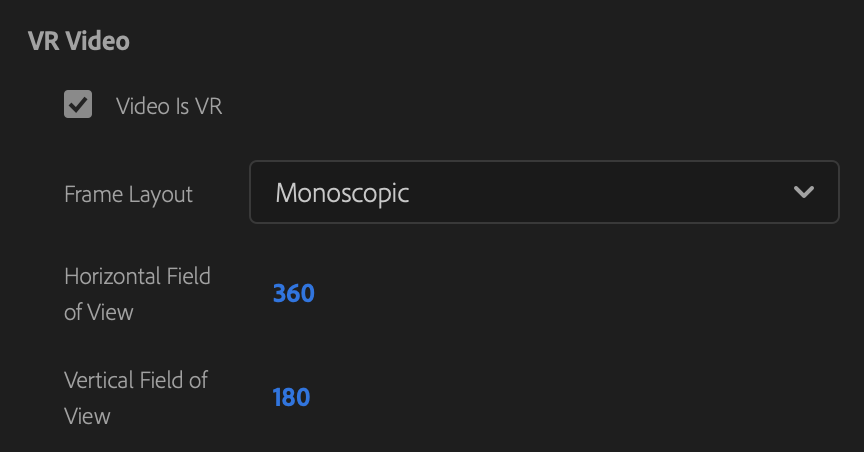
*VR VIDEO*
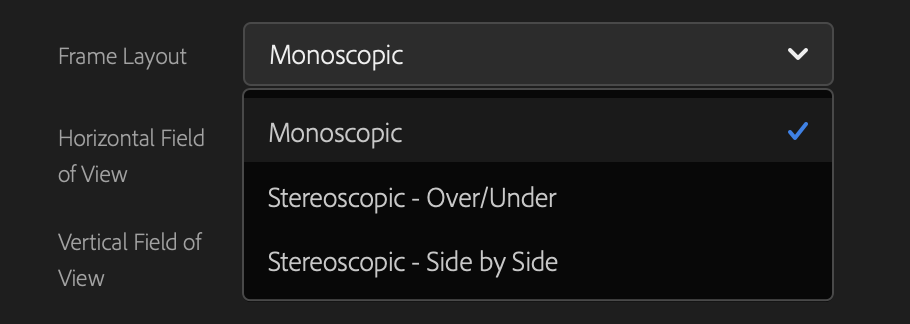
.
.
.
*👨🔬🕵️♀️🙇♀️*SKETCHES*🙇♂️👩🔬🕵️♂️*
.
.
👈👈👈☜*-[PREMIERE PRO] EXPORTS-* ☞ 👉👉👉
.
.
💕💝💖💓🖤💙🖤💙🖤💙🖤❤️💚💛🧡❣️💞💔💘❣️🧡💛💚❤️🖤💜🖤💙🖤💙🖤💗💖💝💘
.
.
*🌈✨ *TABLE OF CONTENTS* ✨🌷*
.
.
🔥🔥🔥🔥🔥🔥*we won the war* 🔥🔥🔥🔥🔥🔥