-as of [30 JULY 2026]-
.
.
.
.
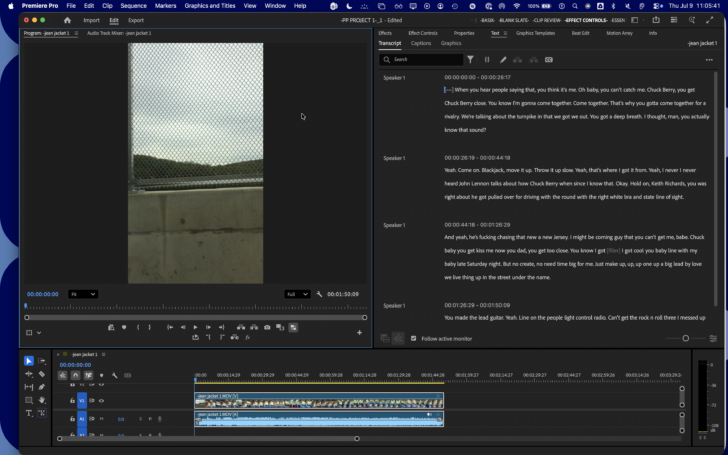
*EDIT MODE* —>
(to switch to “edit mode” from “export mode”, press [escape])
.
*open the [timeline panel]* —>
*KS* –>
#
.
.
.
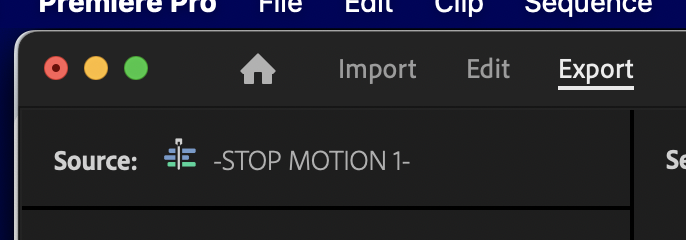
*THE [SEQUENCE NAME] IS DISPLAYED IN [TOP LEFT CORNER]* —>
.
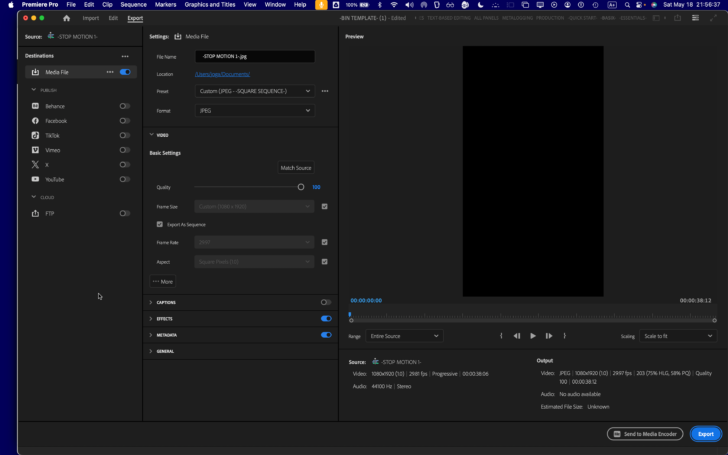
*3 VERTICAL COLUMNS* —>
.
.
*top left corner* –>
(default setting is ‘output’ / ‘scale to fit’)
*SOURCE*
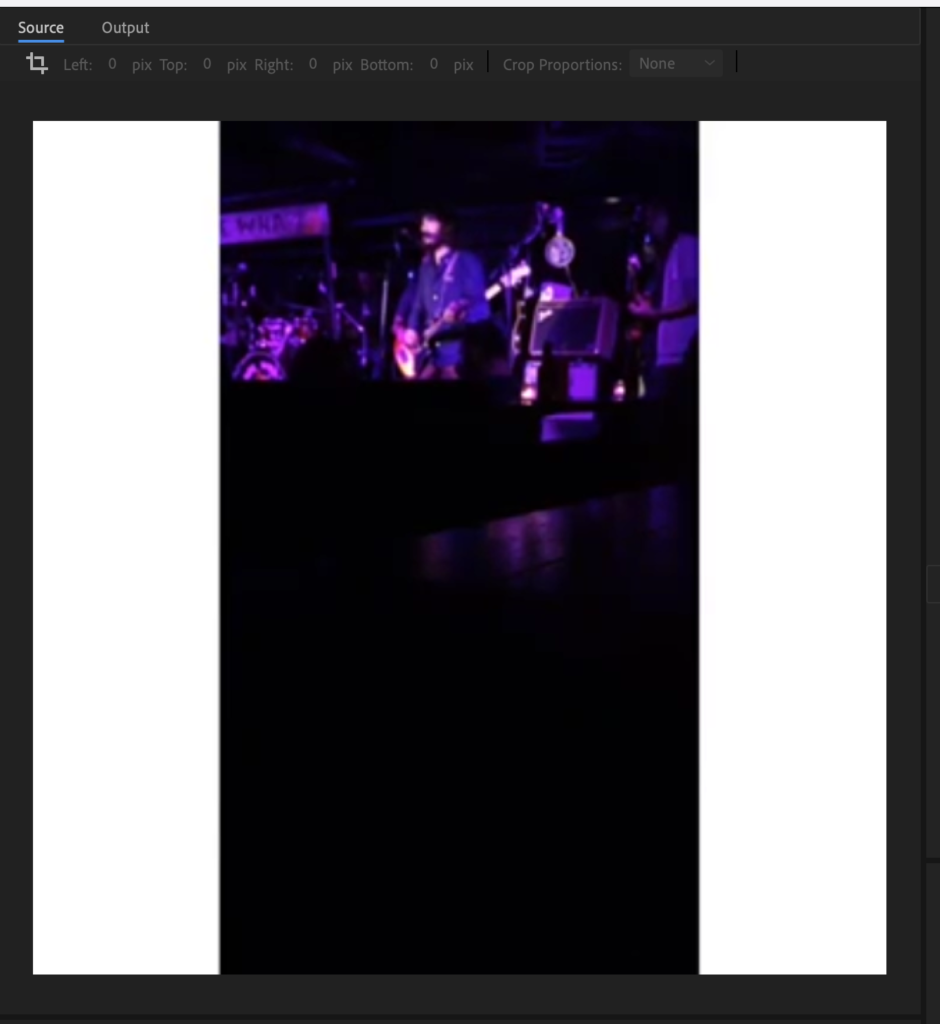
.
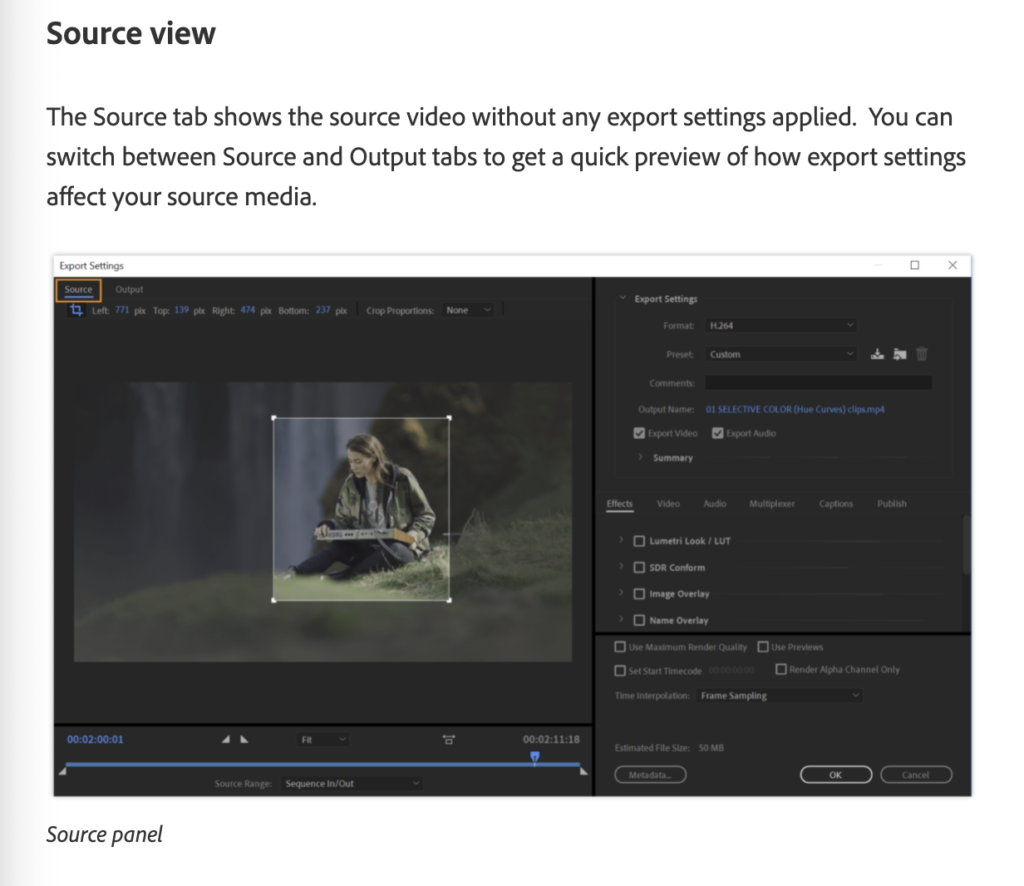
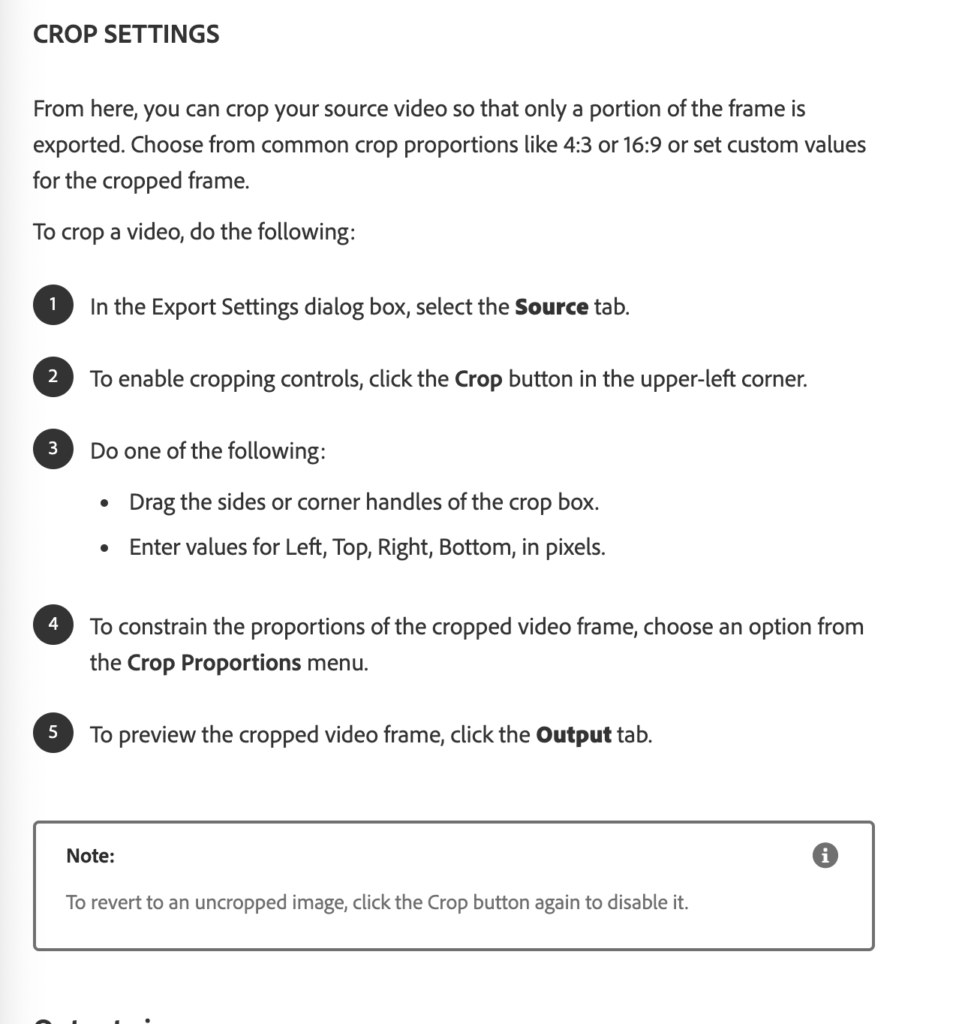
*click the ‘crop button’ to crop your exported video* –>
(click it again to revert to the ‘pre-cropped version”)
.
.
*CLIP PROPORTIONS DROPDOWN MENU* –>
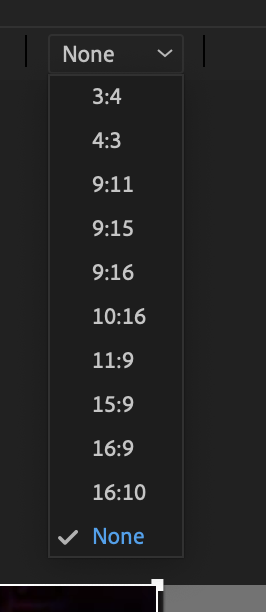
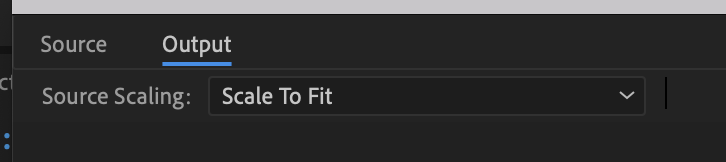
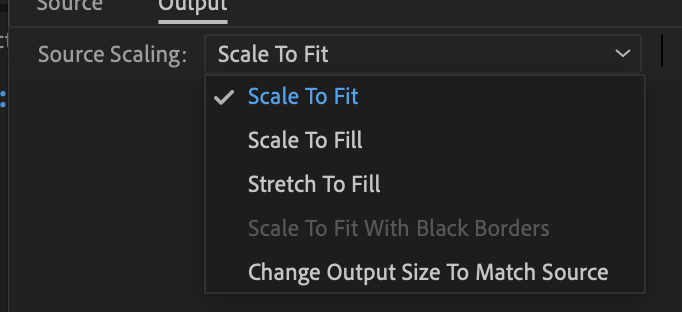
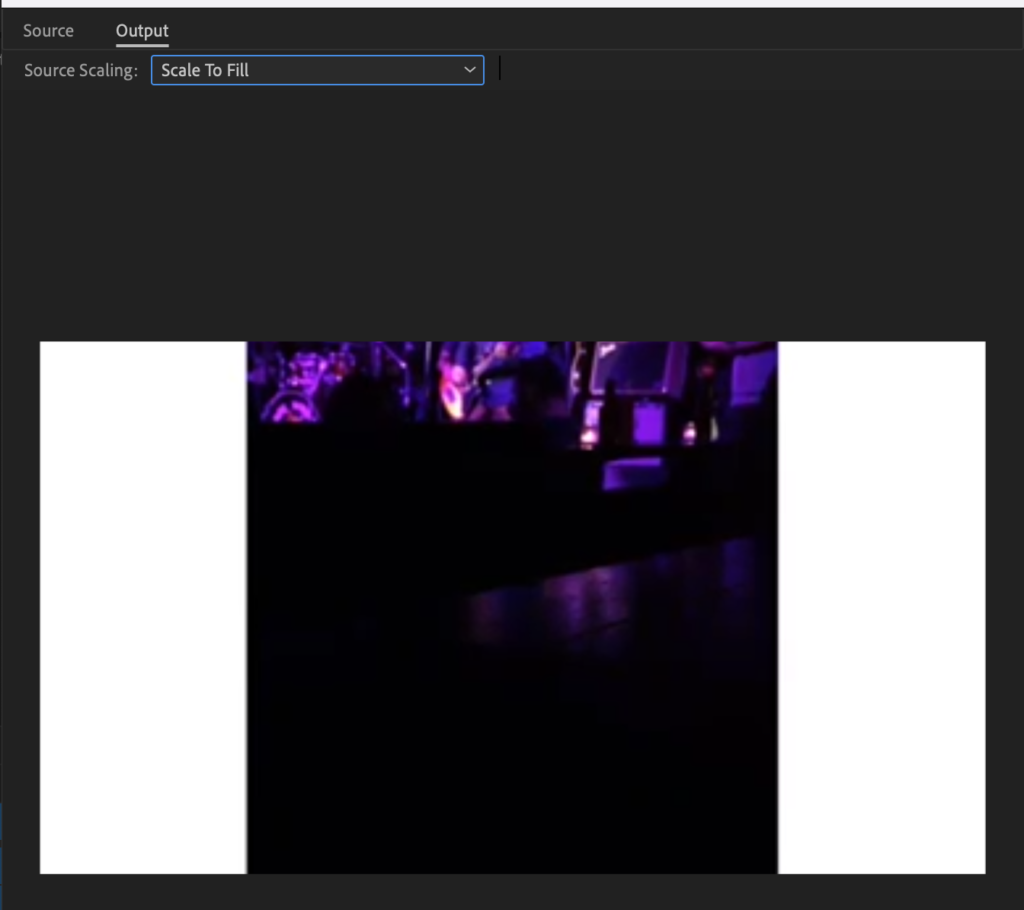
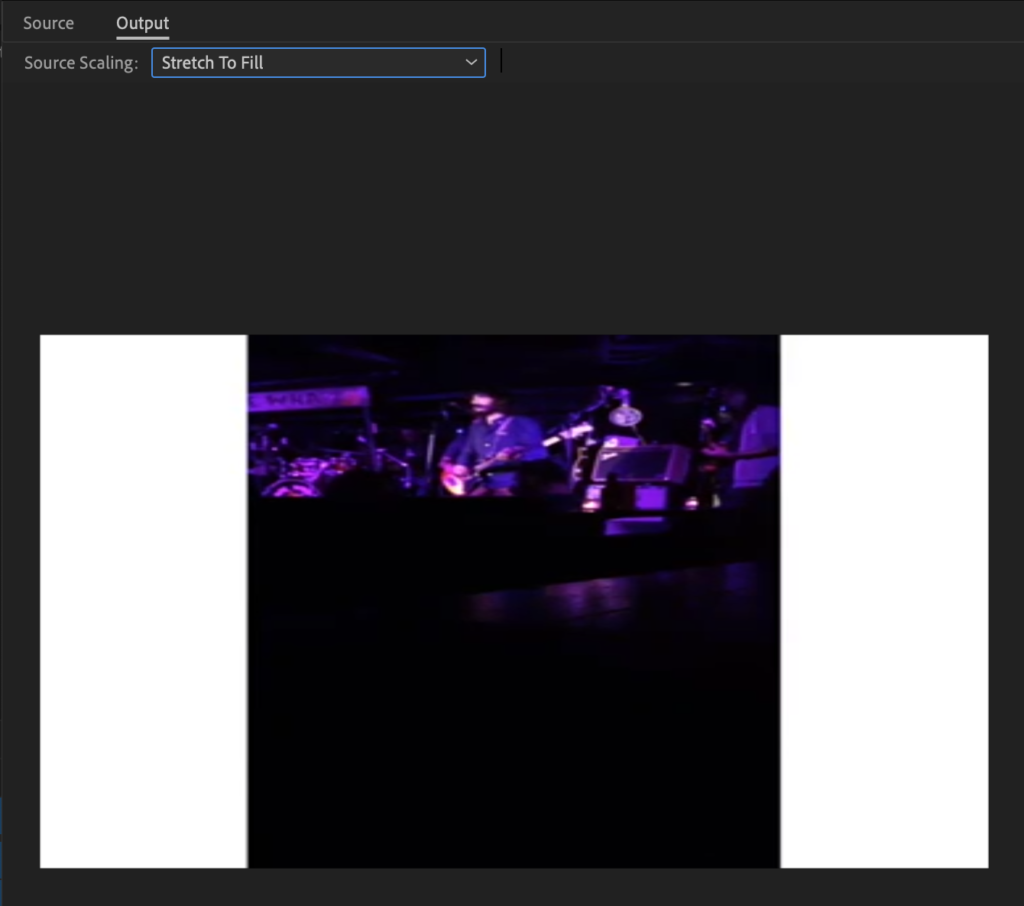
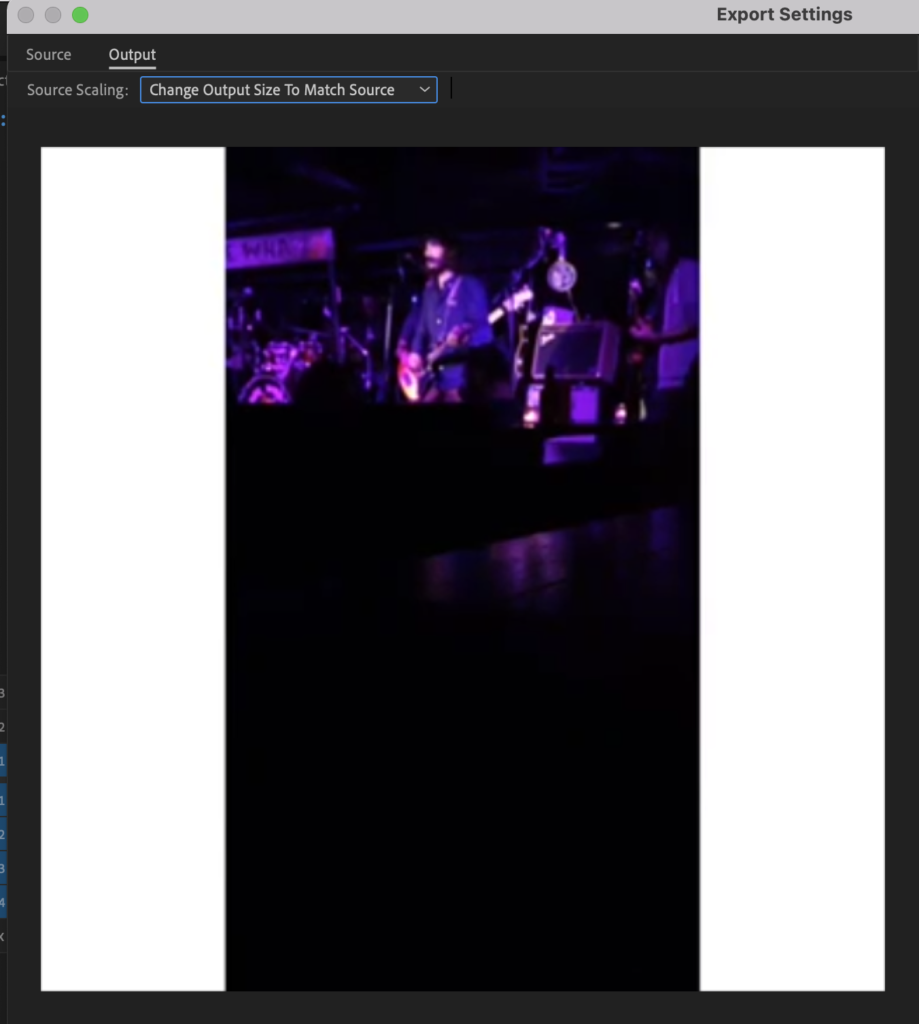
(this is example of a ‘360 x 360’ clip inserted into a ‘600 x 600’ sequence)
(the instagram “square standard”)
.
“SCALE TO FIT”
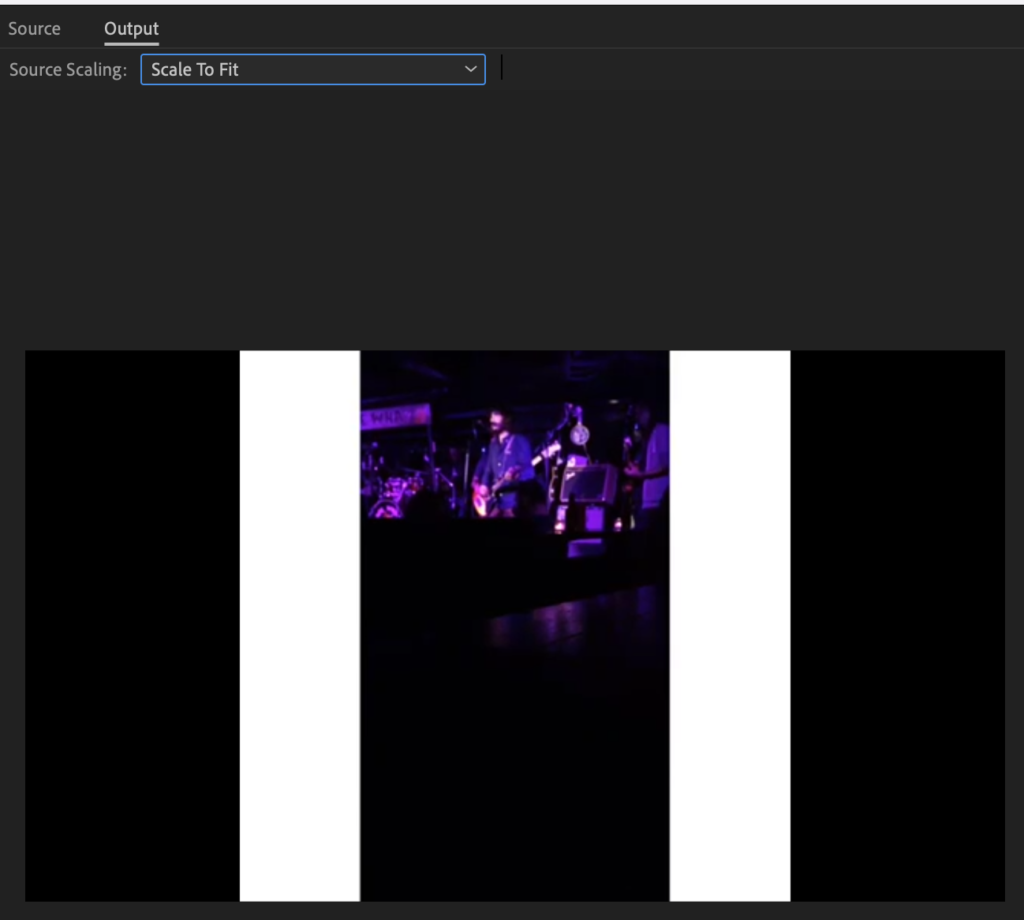
.
-SCALE TO FILL-
.
-STRETCH TO FILL-
.
-CHANGE [OUTPUT SIZE] TO MATCH [SOURCE]-
.
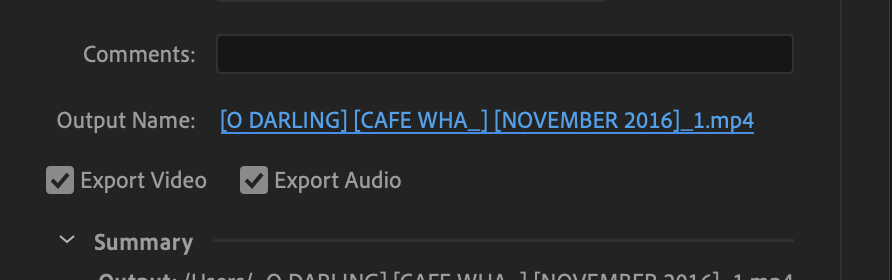
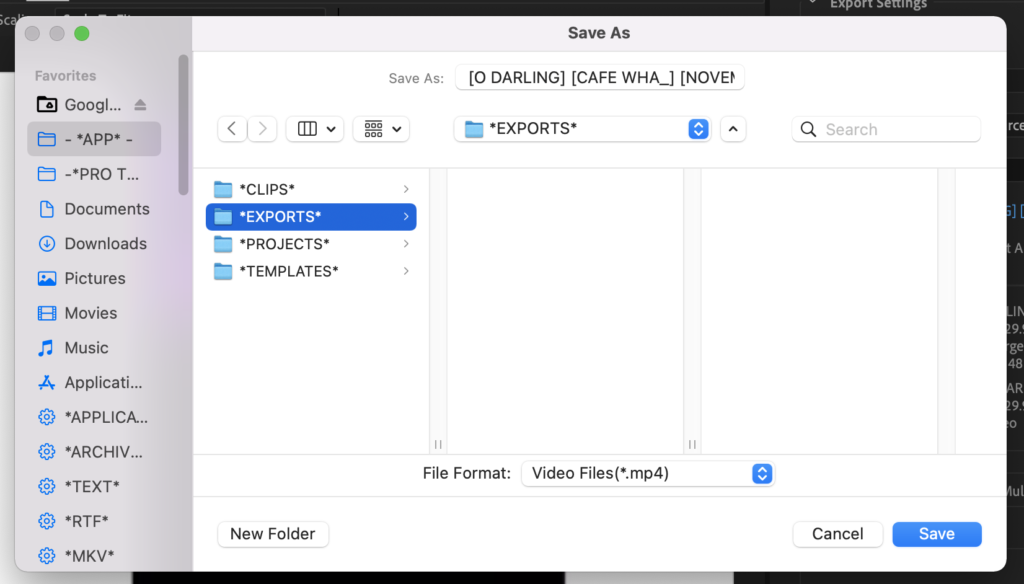
*click this *’output name’ text link* to specify where to save the exported file on your computer* –>
.
*i created an ‘APP exports folder’ on my ‘desktop’*
.
(on top:)
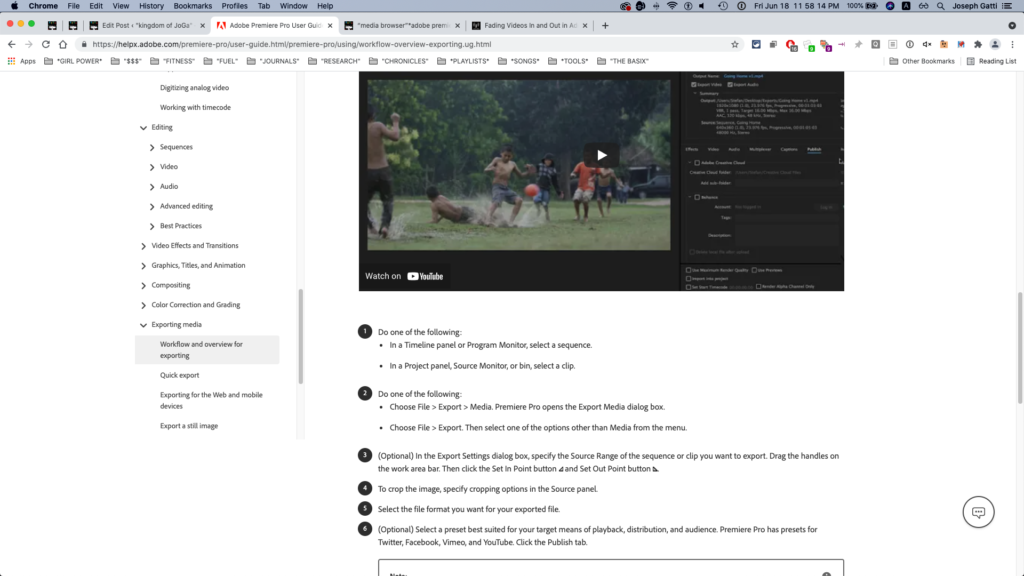
file –> export –> media
“format” –> top dropdown menu
(recommends exporting as H.264)
“presets” drop down menu
(under “format”)
(hit “y” after opening dropdown menu)
(to get to “youtube” settings)
(underneath is “output”)
(name the file)
(select the folder where you want to export the file)
6 panels in center of export window:
effects
video
audio
multiplexer
captions
publish
select “effects” tab at left
(“image overlay”)
(then choose image that you want to use)
(it will apply image so that it appears on top of your video)
(change settings of image with options underneath “image overlay”)
(rightmost panel is “publish”)
(you can choose where to upload the video)
(“creative cloud”)
(“facebook”)
(“FTP”)
(“vimeo”)
(“youtube”)
(to export as quicktime:)
(under “format” select “quicktime”)
(then go to “video” center tab)
(then select “video codec” dropdown menu)
(“apple prores 422”)
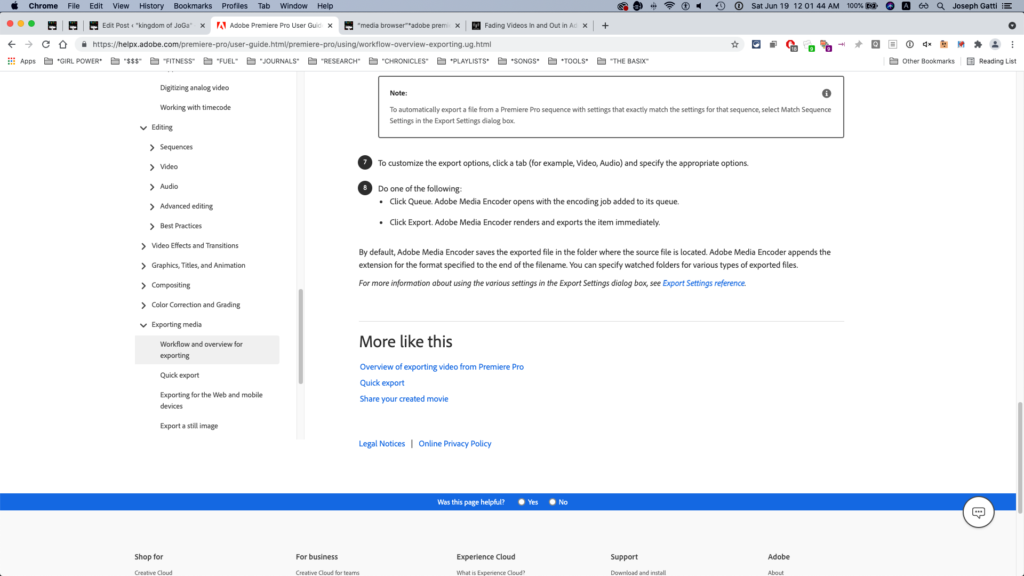
(at the bottom of the export screen there is a tab called “queue”)
(click on this and adobe preloads sequence into source monitor)
(takes time to load up)
(hit green play button on top right of source monitor screen)
(the video begins to export)
(it has a preview in the lower left hand corner)
(you can continue to work in adobe as video exports)
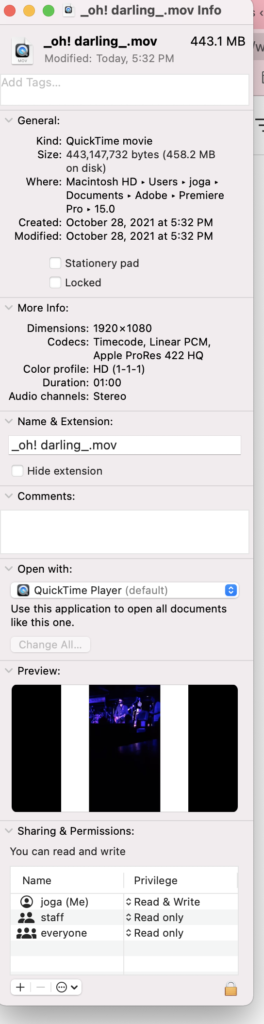
*DEFAULT EXPORT FILE-PATH*
*macintosh HD*
*USERS*
*JOGA*
*DOCUMENTS*
*ADOBE*
*PREMIERE PRO*
*15.0*
(hit ([command] + [i]) to ‘get info’…)
.
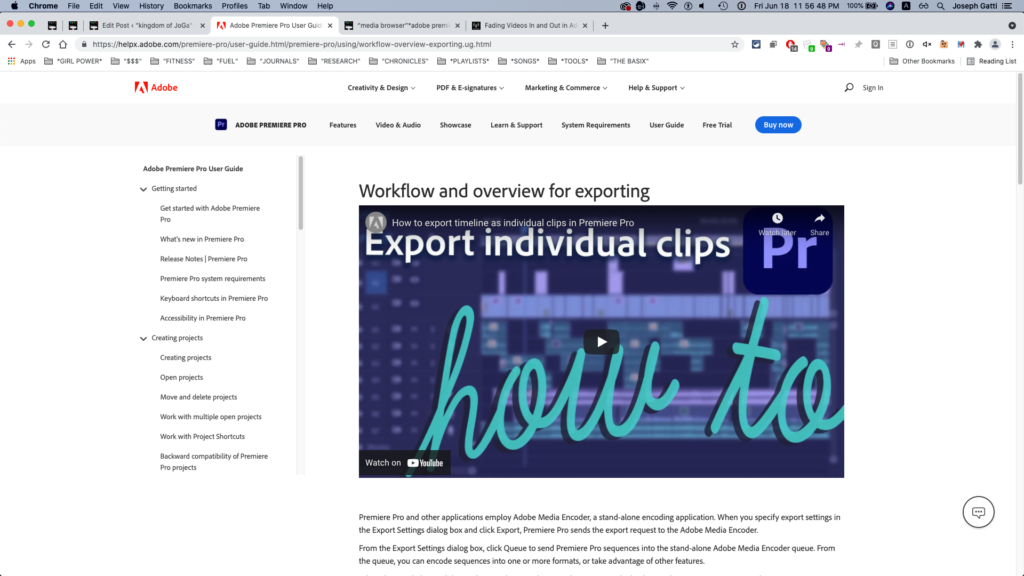
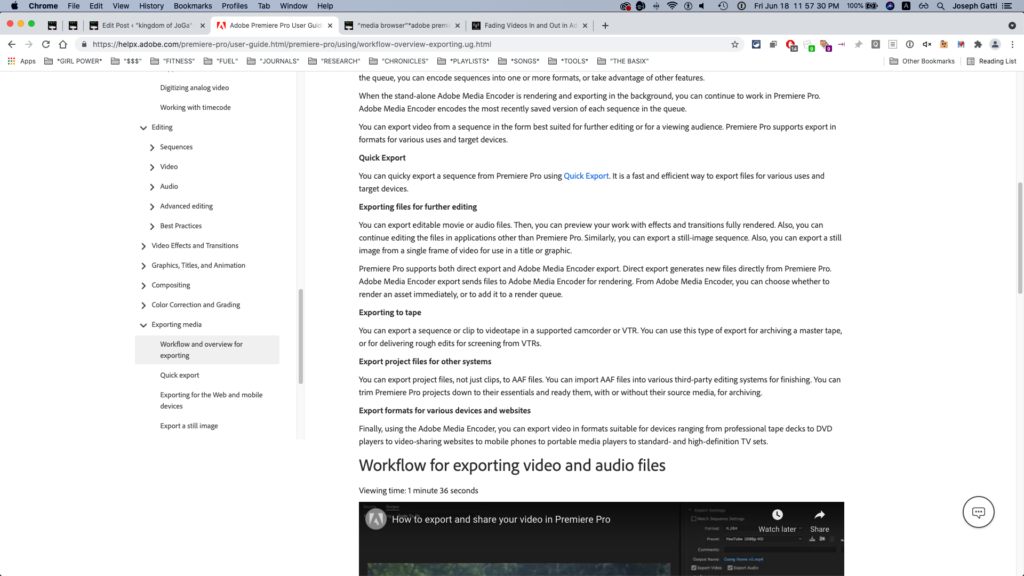
“SHARE YOUR CREATED MOVIE”
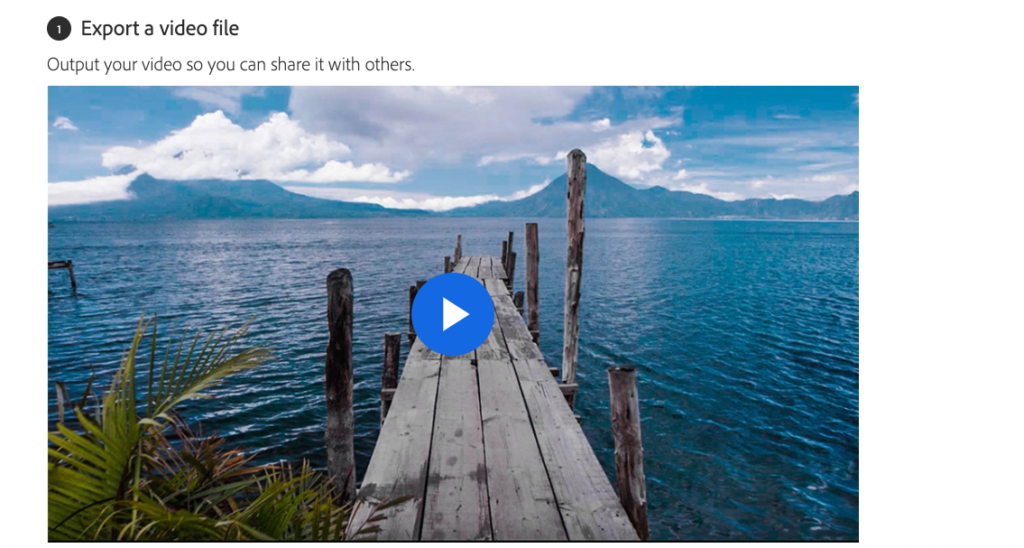
What you learned: Export a sequence
To export a sequence as an H.264 file (the most popular option), make sure the Timeline panel is active and choose File > Export > Media or press Control+M (Windows) or Command+M (macOS).
In the Export Settings dialog box, choose…
Format: H.264
Preset: Match Source – High Bitrate.
To choose a filename and location, click the blue filename to open the Save As dialog box.
Use this to choose an export location and a name for your new file, and then click Save.
When you’re happy with your settings, click Export.
The new video file will be created, ready to share with the world
.
.
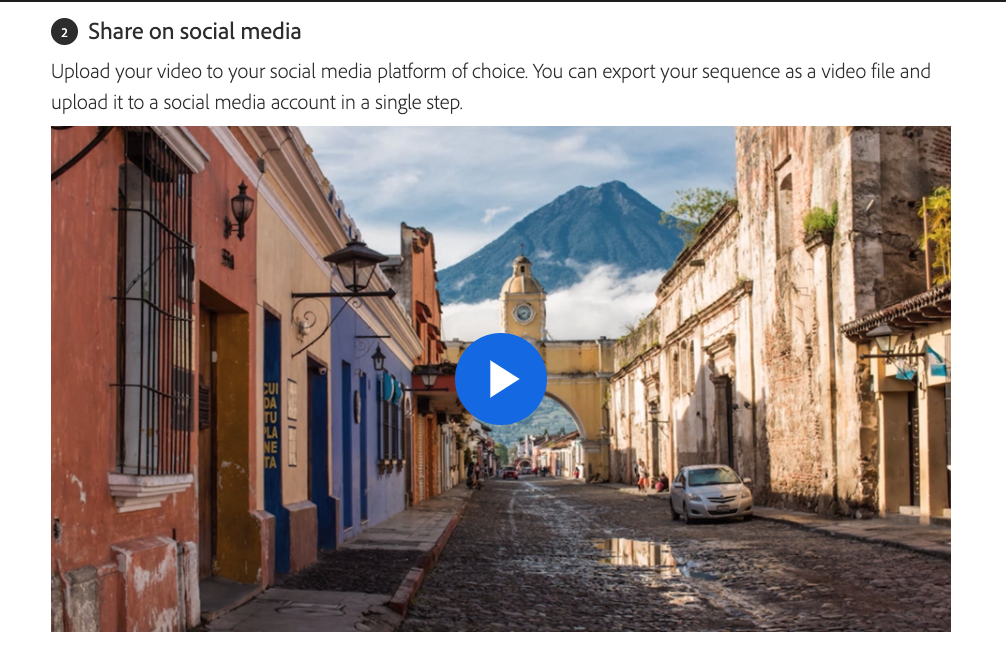
What you learned:
Upload your sequence to social media
Make sure the Timeline panel is active and choose File > Export > Media.
Once you have chosen your export settings, click the Publish tab.
Check the boxes and log in to the social media platforms you would like to upload to.
Enter any additional information you want, such as Tags and a Description if those options are available.
Click Export
After the file has been exported, it will automatically be uploaded to your social media platform(s) as well
.
.
.
*👨🔬🕵️♀️🙇♀️*SKETCHES*🙇♂️👩🔬🕵️♂️*
.
.
👈👈👈☜*-[PREMIERE PRO] INSTRUCTIONS-* ☞ 👉👉👉
.
.
💕💝💖💓🖤💙🖤💙🖤💙🖤❤️💚💛🧡❣️💞💔💘❣️🧡💛💚❤️🖤💜🖤💙🖤💙🖤💗💖💝💘
.
.
*🌈✨ *TABLE OF CONTENTS* ✨🌷*
.
.
🔥🔥🔥🔥🔥🔥*we won the war* 🔥🔥🔥🔥🔥🔥