
-as of [21 SEPTEMBER 2026]-
.
-XXX PLACEHOLDER XXX-
.
*33 CHAPTERS* —>
X-FILEPATHS-X
X-FILE SYSTEM-X
X-[PROJECT] TYPES-X
X-[PRE-SETS]-X
X-OVERVIEW-X
X-ADOBE SYSTEMS-X
X-SYSTEM OPTIMIZATION-X
X-CONTROLLERS-X
X-PANEL DATABASE-X
X-PREP WORK-X
X-NEW PROJECT-X
X-SETTINGS-X
X-IMPORTS-X
X-WORKSPACES-X
X-PROJECT PANEL-X
X-SEQUENCES-X
X-SOURCE MONITOR-X
X-TIMELINE-X
X-TOOLS-X
X-PROGRAM MONITOR-X
X-FRAMING-X
X-TEXT-X
X-FX-X
X-AUDIO-X
X-TRANSITIONS-X
X-FADES-X
X-VR VIDEO-X
X-UNIVERSALS-X
X-HISTORY-X
X-EXTENSIONS-X
X-EXPORTS-X
X-CLOSE-X
X-DAILY NOTES-X
.
-XXX PLACEHOLDER XXX-
.
X-FILEPATHS-X
*FILEPATHS* —>
*DAILY SOLO AKUSTIKA* —>
‘/Users/joga/Desktop/-LOCAL SYNC-/-JOSEPHJGATTI- (LOCAL SYNC)/-APPS-/-PREMIERE PRO-/-PROJECTS-/-TEST 1-/-CLIPS-/-SOLO AKUSTIKA-/-RAW MATERIALS-/-DAILY CLIPS-/-TIMELINE-‘
*REVIEWED CLIPS* —>
‘/Users/joga/Desktop/-LOCAL SYNC-/-JOSEPHJGATTI- (LOCAL SYNC)/-APPS-/-PREMIERE PRO-/-PROJECTS-/-TEST 1-/-CLIPS-/-SOLO AKUSTIKA-/-RAW MATERIALS-/-DAILY CLIPS-/-REVIEWED CLIPS-‘
*SOUNDCLOUDS* —>
*trax* —>
‘/Users/joga/Desktop/-LOCAL SYNC-/-JOSEPHJGATTI- (LOCAL SYNC)/-APPS-/-PREMIERE PRO-/-PROJECTS-/-TEST 1-/-[SOUND CLOUDS]-/1 -TRAX-‘
*clips* —>
‘/Users/joga/Desktop/-LOCAL SYNC-/-JOSEPHJGATTI- (LOCAL SYNC)/-APPS-/-PREMIERE PRO-/-PROJECTS-/-TEST 1-/-[SOUND CLOUDS]-/2 -CLIPS-‘
*linx* —>
‘/Users/joga/Desktop/-LOCAL SYNC-/-JOSEPHJGATTI- (LOCAL SYNC)/-APPS-/-PREMIERE PRO-/-PROJECTS-/-TEST 1-/-[SOUND CLOUDS]-/3 -LINX-‘
X-FILEPATHS-X
X-FILE SYSTEM-X
X-FILE SYSTEM-X
X-[PROJECT] TYPES-X
X-[PROJECT] TYPES-X
X-[PRE-SETS]-X
.
.
(VIA “ADOBE MEDIA ENCODER”)
-OUR [[PROJECT PANEL] PRE-SETS]-
-OUR [[TRACK HEIGHT] PRE-SETS]-
-OUR [[ESSENTIAL SOUND] PRE-SETS]-
-OUR [LUMETRI COLOR [PRE-SETS]]-
-OUR [MOTION GRAFIX] TEMPLATES-
.
X-[PRE-SETS]-X
X-OVERVIEW-X
-USER GUIDE-
(multi-screen)
-PREMIERE PRO-
(THE [chatGPT] PROJECT)
-PREMIERE PRO-
(THE [AI MODE] NOTEBOOK)
X-OVERVIEW-X
X-ADOBE SYSTEMS-X
X-ADOBE SYSTEMS-X
X-SYSTEM OPTIMIZATION-X
-ALLOW [PREMIERE PRO] TO “CONTROL” YOUR [MACBOOK PRO]-
-CREATE [PROJECT] VIA [TEMPLATE]-
-OPEN [PREMIERE PRO] TEMPLATE-
*FILE PATH* —>
/Users/joga/Desktop/[GOOGLE DRIVE SYNC FOLDERS]/-SAMUELPETERSON1232020-/-APPS-/-PREMIERE PRO-/-TEMPLATES-/-TEMPLATE 2-/-BIN TEMPLATE- (1).prproj
*FILE-PATH* —>
‘/Users/joga/Desktop/-LOCAL SYNC-/-JOSEPHJGATTI- (LOCAL SYNC)/-APPS-/-PREMIERE PRO-/-TEMPLATES-/-BLANK SLATE- (2024).prproj’
-OPEN A [FINDER WINDOW] + USE THIS [FILE-PATH] TO OPEN [PREMIERE PRO]-
X-SYSTEM OPTIMIZATION-X
X-CONTROLLERS-X
X-CONTROLLERS-X
X-PANEL DATABASE-X
-OPEN [BIN TEMPLATE 1]-
“BASIX” —>
(OUR CUSTOM WORKSPACE)
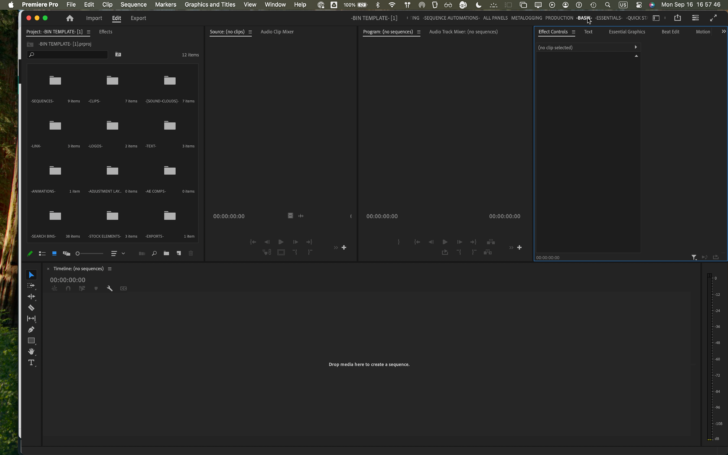
X-PANEL DATABASE-X
X-PREP WORK-X
-PREP WORK-
-FIND OUT WHAT VERSION OF [PREMIERE PRO] YOU ARE RUNNING-
.
-ADD [PAYMENT METHOD] TO [ADOBE ACCOUNT]-
-PURCHASE A [CREATIVE CLOUD SUBSCRIPTION]-
-DOWNLOAD [CREATIVE CLOUD DESKTOP APP]-
.
-[CREATIVE CLOUD DESKTOP APP] INSTRUCTIONS-
-16:9 iPHONE OVERHEAD-
-LENS IN ‘TOP LEFT CORNER’-
X-PREP WORK-X
X-NEW PROJECT-X
-NEW PROJECT-
-CREATE NEW [PREMIERE PRO PROJECT]-
-OPEN [(PREMIERE PRO) PROJECT]-
-OPEN [PREMIERE RUSH PROJECT]-
.
.
X-NEW PROJECT-X
X-SETTINGS-X
-SETTINGS–
-SELECT DEFAULT AUDIO [(INPUT / OUTPUT) DEVICES]-
.
*[PANEL GROUP] SETTINGS* —>
.
.
.
.
.
-BINS-
-CREATE NEW [BIN] FROM [SELECTION]-
.
.
X-SETTINGS-X
X-IMPORTS-X
*TO IMPORT [iPHONE PHOTOS/VIDEOS] INTO [PREMIERE PRO]* —>
-OPEN A “PROJECT BIN” IN “PROJECT PANEL” + DOUBLE-CLICK ANY “EMPTY SPACE”-
-IMPORT/EXPORT [SOLO AKUSTIKA]-
.
.
-IMPORT [VIDEO FILES] INTO [TIMELINE]-
-IMPORT [AUDIO FILES] INTO [TIMELINE]-
.
(‘ingesting’ creates a copy of the clip)
(‘import’ does not)
.
-CLICK AN ITEM IN [PROJECT PANEL] TO SELECT IT–
-DELETE A [SELECTED ITEM] BY CLICKING [DELETE]-
([premiere] calls it “clear”)
X-IMPORTS-X
X-WORKSPACES-X
-SAVE CHANGES TO CURRENT [WORKSPACE]-
.
-CYCLE THROUGH [PANEL GROUPS]–
-CYCLE THROUGH [PANELS] IN A [PANEL GROUP]-
.
.
-ENTER/EXIT [FULL-SCREEN MODE] FOR SINGLE [PANEL GROUP]-
-ENTER/EXIT [FULL-SCREEN MODE] FOR ALL [PANEL GROUPS]-
-ENTER/EXIT [FILL-SCREEN MODE] FOR ALL [PANEL GROUPS]-
-ENTER/EXIT [FULL-SCREEN MODE] FOR [FLOATING WINDOWS]-
-TOGGLE [FULL-SCREEN] PLAYBACK-
.
.
.
-NAVIGATE TO [PANEL GROUPS] THAT AREN’T INCLUDED IN THE [9 DEFAULT PANEL GROUPS]-
X-WORKSPACES-X
X-PROJECT PANEL-X
.
.
-[PROJECT PANEL] VIEW [PRE-SETS]-
.
*TO VIEW WHICH [SEQUENCES] (IF ANY) AN [ASSET] IN [PROJECT PANEL] IS USED IN* —>
-PROJECT PANEL-
-ICON VIEW-
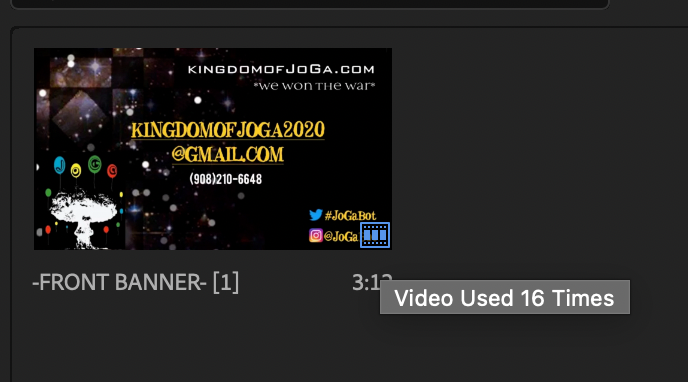
*CLICK THE “BADGE” IN [BOTTOM RIGHT CORNER] TO VIEW ITS “SEQUENCE INCLUSION LIST”* —>
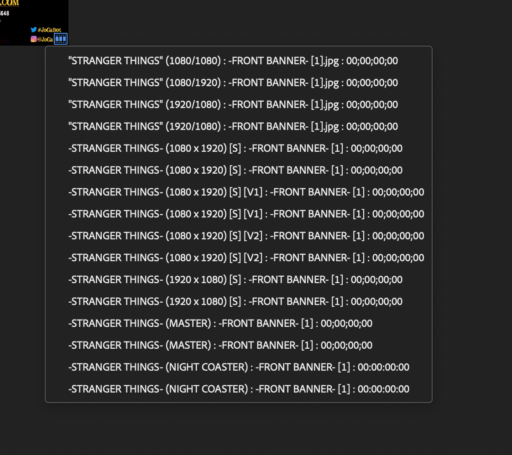
-SELECT A [SEQUENCE] TO OPEN IT IN [TIMELINE]-
.
X-PROJECT PANEL-X
X-SEQUENCES-X
-VIEW/EDIT [SEQUENCE SETTINGS] FOR AN INDIVIDUAL [SEQUENCE]-
-CREATE NEW [SEQUENCE] FROM [CLIP]-
-MOVE [SEQUENCE] TO NEW [PROJECT]-
-OPEN [SEQUENCE] IN [TIMELINE]-
X-SEQUENCES-X
X-SOURCE MONITOR-X
-OPEN/CLOSE [CLIP] IN [SOURCE MONITOR]-
-OPEN/CLOSE MULTIPLE [CLIPS] IN [SOURCE MONITOR]-
.
-NAVIGATE TO [SOURCE MONITOR]-
.
-DISPLAY A DIFFERENT [CLIP] IN [SOURCE MONITOR]-
-SHOW/HIDE [TRANSPORT CONTROLS]-
-CUSTOMIZE [TRANSPORT CONTROLS]-
.
-MARK [START/END POINTS] FOR A [CLIP]-
-MARK VIDEO/AUDIO [START/END POINTS] FOR A [CLIP]-
.
*DRAGGING THE [IN/OUT] POINT WILL DISPLAY THE CHANGING [IN/OUT TIME DURATION] IN “REAL TIME” IN THE [LOWER RIGHT] TIME BOX-
-TO MOVE THE ENTIRE [IN/OUT] RANGE, [OPTION/DRAG/DROP] THE GRAY [IN/OUT] BAR-
-YOU CANNOT “NUDGE” THE [IN/OUT] RANGE]-
.
-MOVE [PLAYHEAD] TO BEGINNING/END OF [CLIP] IN [SOURCE MONITOR]–
-MOVE [PLAYHEAD] TO [IN/OUT POINT]-
-MOVE [PLAYHEAD] TO VIDEO/AUDIO [START/END POINTS] FOR A [CLIP]-
-MOVE [PLAYHEAD] TO SPECIFIC [TIMELINE FRAME]-
.
-ENABLE “HIGH QUALITY PLAYBACK”-
.
-composite video-
-audio waveform-
-alpha-
.
-SHOW/HIDE [DROPPED FRAME INDICATOR]-
-SHOW/HIDE [TIME RULER NUMBERS]-
-SHOW/HIDE [TRANSPARENCY GRID]-
-KEEP [PLAYHEAD] VISIBLE DURING [PLAYBACK]-
-[ZOOM SCROLL BARS]-
(FOR ‘TIME SCALE’)
-SET [ZOOM LEVEL]-
(DISPLAY SIZE)
-MOVE [PLAYHEAD] TO [PREVIOUS/NEXT] FRAME-
-MOVE [PLAYHEAD] 5 FRAMES [BACKWARD/FORWARD]-
-[FAST/SLOW FORWARD/BACKWARD]-
-OPEN SELECTED [TIMELINE CLIP] IN [SOURCE MONITOR]-
.
-INSERT [CLIP/SEQUENCE] INTO [TIMELINE]-
-OVERWRITE [CLIP/SEQUENCE] INTO [TIMELINE]-
.
“PROJECT PANEL“
-CLICK “CLIP/SEQUENCE” TO SELECT IT-
-[SHIFT] + [ o ]-
“SOURCE MONITOR”
-MOVE [PLAYHEAD TO BEGINNING OF [TIMELINE]-
“TIMELINE”
-MOVE [PLAYHEAD TO BEGINNING OF [TIMELINE]-
.
*INSERT* —>
-[ , ]-
(PRESERVATION)
.
-TO VIEW WHETHER CURRENTLY LOADED ASSET IN [SOURCE MONITOR] IS A [CLIP] OR [SEQUENCE], REVEAL IT IN THE [PROJECT PANEL]-
.
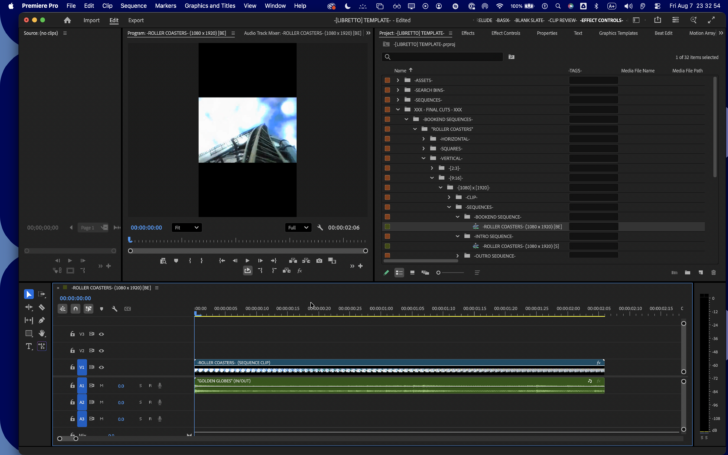
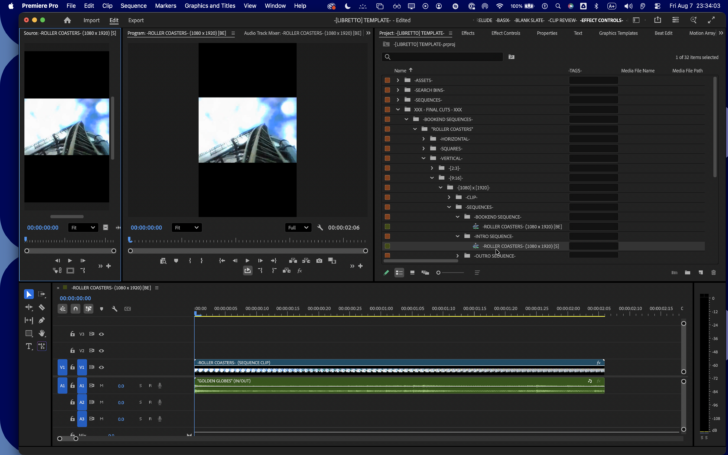
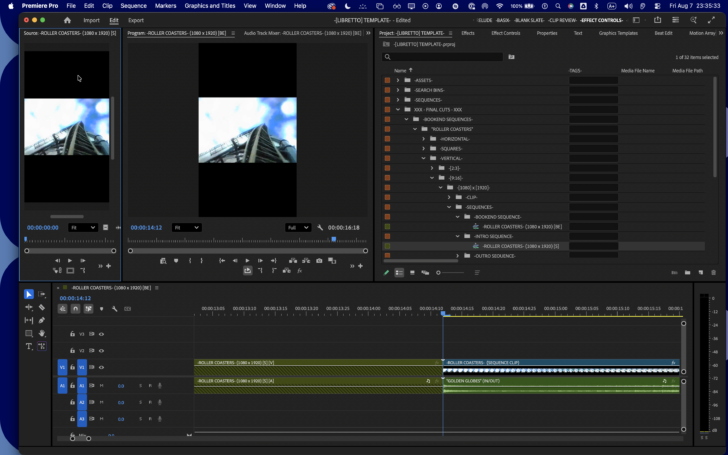
*TO OPEN A [SEQUENCE] IN [SOURCE MONITOR] AS “STANDALONE SEQUENCE” IN [TIMELINE]* —>
-[OPTION] + [ t ]-
.
-IF YOU CLOSE THE [SEQUENCE] IN TIMELINE, IT IS ALSO REMOVED FROM THE [SOURCE MONITOR]-
.
.
.
.
.
-CLOSE ALL [CLIPS] IN [SOURCE MONITOR]-
X-SOURCE MONITOR-X
X-TIMELINE-X
.
XXX
.
.
.
-MOVE [CLIPS] TO DIFFERENT [TRAX]-
.
.
.
.
.
.
X-TIMELINE-X
X-TOOLS-X
X-TOOLS-X
X-PROGRAM MONITOR-X
.
X-PROGRAM MONITOR-X
X-FRAMING-X
.
.
.
.
.
X-FRAMING-X
X-TEXT-X
X-TEXT-X
X-FX-X
.
X-FX-X
X-AUDIO-X
-YOU CAN SET “LARGE VOLUME ADJUSTMENT” FROM [0 dB – 100 dB]-
(IN INCREMENTS OF [1 dB])
-SET “LARGE VOLUME ADJUSTMENT” TO [100 dB]-
(the “maximum”)
-BASIX WORKSPACE-
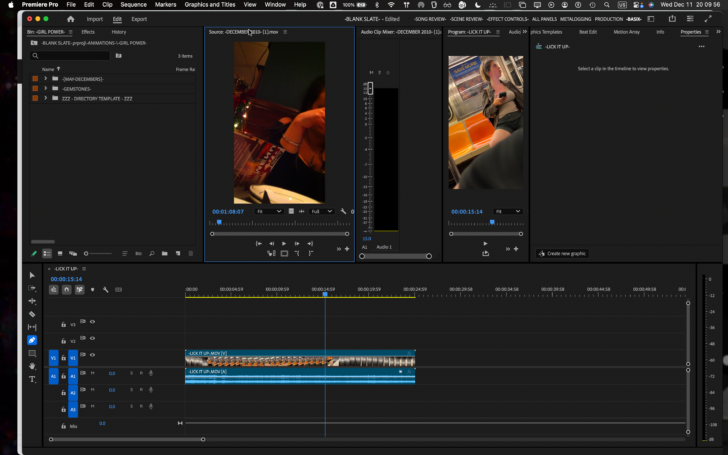
-OPEN AN “AUDIO-CONTAINING CLIP” FROM [PROJECT PANEL] TO [SOURCE MONITOR]-
*MOVE THE “AUDIO CLIP MIXER” TO ITS OWN “PANEL” TO THE RIGHT OF THE “SOURCE MONITOR”* —>
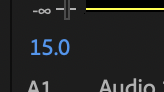
*IN “AUDIO CLIP MIXER”, THE CURRENT “SLIDER POSITION” IS DISPLAYED IN [DECIBELS]* —>
-YOU CAN ADJUST THE “CLIP AUDIO” FROM EITHER THE “SOURCE MONITOR” OR “AUDIO CLIP MIXER”-
*TO MOVE “SLIDER” BY THE “LARGE VOLUME ADJUSTMENT”* —>
*decrease volume by [100 dB]* —>
[SHIFT] + [ [ ]
-IF THE SLIDER IS AT THE TOP [[15 dB] MARK], THIS KS WILL DECREASE VOLUME TO [-85 dB]-
.USE THIS KS AGAIN TO MOVE SLIDER TO [BOTTOM]* —>
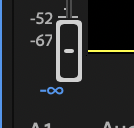
-A “NEGATIVE INFINITY” SYMBOL IS DISPLAYED UNDER THE “SLIDER”-
(ONCE YOU REACH THE BOTTOM OF THE “SLIDER”, YOU CANNOT USE KS TO DECREASE VOLUME ANY FURTHER)
*INCREASE [CLIP VOLUME] BY [1 DECIBEL]* —>
[ ] ]
-[-99 dB] IS NOW DISPLAYED UNDER THE “SLIDER”-
(INDICATING THAT THE “MINIMUM VOLUME IS [-100 dB])
.-YOU CAN ALSO INCREASE VOLUME BY [1 DECI-BEL] BY USING THE [LARGE VOLUME ADJUSTMENT]-
[SHIFT] + [ ] ]
-THE FIRST TIME YOU DO THIS, YOU MOVE TO [-99 dB]-
-THE SECOND TIME YOU DO THIS, YOU MOVE TO [1 dB]-
-THE THIRD TIME YOU DO THIS, YOU MOVE TO THE [15 dB] MAX-
-WHEN YOUR SLIDER REACHES THE TOP, IT DISPLAYS [15 dB]-
(NOT “positive infinity” LIKE THE [BOTTOM POSITION[ DISPLAYS)
-AND THE “DECREASE BY [LARGE VOLUME ADJUSTMENT]” WORKS THE FIRST TIME-
(UNLIKE THE BOTTOM POSITION WHERE THE FIRST USE OF THE KS INCREASES VOLUME BY [1 dB])
-IT MOVES DOWN TO [-85 dB]-
-USE KS AGAIN TO MOVE SLIDER DOWN TO “NEGATIVE INFINITY”-
*DECREASE [CLIP VOLUME] BY [1 DECIBEL]* —>
[ [ ]
.
-PLAY BACK ANY CLIP THAT CONTAINS “AUDIO”-
-source monitor-
-timeline-
-program monitor-
.
.
-SYNC [VIDEO] TO [MUSIC BEAT]-
.
.
-NAVIGATE TO [AUDIO TRACK MIXER]-
.
-NAVIGATE TO [AUDIO CLIP MIXER]-
.
.
X-AUDIO-X
X-TRANSITIONS-X
X-TRANSITIONS-X
X-FADES-X
-[(PREMIERE PRO) CLIP] VIDEO/AUDIO FADE IN/OUT]-
X-FADES-X
X-VR VIDEO-X
X-VR VIDEO-X
X-UNIVERSALS-X
-UNIVERSALS-
X-UNIVERSALS-X
X-HISTORY-X
-HISTORY-
X-HISTORY-X
X-EXTENSIONS-X
X-EXTENSIONS-X
X-EXPORTS-X
X-EXPORTS-X
X-CLOSE-X
-CLOSE-
-CLOSE [PREMIERE PRO PANEL]-
(nested inside ‘panel groups’)
-CLOSE OTHER [PANELS] IN [GROUP]-
-CLOSE [(PREMIERE PRO) PROJECT]-
-CLOSE ALL OTHER [(PREMIERE PRO) PROJECTS]-
-CLOSE ALL [(PREMIERE PRO) PROJECTS]-
X-CLOSE-X
X-DAILY NOTES-X
XXX
XXX
XXX
XXX
*FILEPATH* —>
‘/Users/joga/Documents/Adobe/Common/Assets/Project Templates’
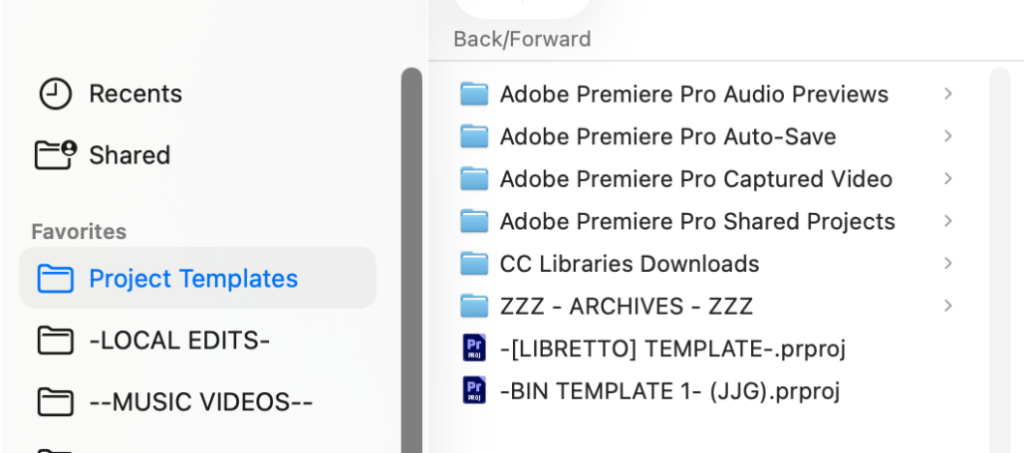
-PREMIERE PRO-
XXX
XXX
“DAILY NOTES”
.
.
.
.
XXX
XXX
X-DAILY NOTES-X
-XXX PLACEHOLDER XXX-
.
.
.
*👨🔬🕵️♀️🙇♀️*SKETCHES*🙇♂️👩🔬🕵️♂️*
.
.
👈👈👈 ☜ *[WORKFLOW] INSTRUCTIONS*
.
*[PREMIERE PRO] WORKFLOW* ☞ 👉👉👉
.
.
💕💝💖💓🖤💙🖤💙🖤💙🖤❤️💚💛🧡❣️💞💔💘❣️🧡💛💚❤️🖤💜🖤💙🖤💙🖤💗💖💝💘
.
.
*🌈✨ *TABLE OF CONTENTS* ✨🌷*
.
.
🔥🔥🔥🔥🔥🔥*we won the war* 🔥🔥🔥🔥🔥🔥